Creating a GCash account is only the first step. Once you register your mobile number and set your MPIN, your account normally begins as a Basic GCash profile.
A Basic account lets you cash in, buy load, pay bills, and scan merchant QR codes. However, many of the features people commonly associate with GCash—such as sending money, transferring funds to a bank, paying online, and ordering a GCash Card—remain unavailable.
To unlock those services, you need to upgrade your account from Basic to Fully Verified.
The upgrade process is completed entirely through the GCash app. You generally need one accepted government-issued ID, a working phone camera, a stable internet connection, and a few minutes to complete the ID and selfie scans.
In this guide, we will walk you through the full verification process, explain which documents you can use, and help you fix common problems that may prevent your account from being upgraded.
Content
What Does It Mean to Upgrade Your GCash Account?
Upgrading your GCash account means completing GCash’s identity-verification process so that your profile changes from Basic to Fully Verified.
During verification, GCash asks you to:
- Confirm your personal information
- Scan an accepted identification document
- Complete a live selfie scan
- Submit your details for review
Once approved, you gain access to features reserved for Fully Verified users. You also receive higher wallet and transaction limits.
This process is sometimes called:
- GCash verification
- Full verification
- Account upgrade
- KYC verification
- Identity verification
These terms generally refer to the same process of confirming your identity and unlocking the full GCash feature set.
Why Should You Upgrade Your GCash Account?
A Basic account can be useful temporarily, but its restrictions can quickly become inconvenient.
GCash lists the following services as available to Basic users:
- Cash In
- Pay Bills
- Buy Load
- Scan to Pay
A Fully Verified account receives those Basic services plus access to:
- Send Money
- Bank Transfer
- Pay Online
- GCash Card
- Borrow
- GSave
- GInvest
- GInsure
- GLife
- Commute services
Borrowing and other financial products may still have their own eligibility requirements. Becoming Fully Verified gives you access to the relevant feature, but it does not guarantee approval for a loan, credit line, insurance policy, investment account, or partner-bank product.
Basic vs. Fully Verified GCash Account
Here is a quick comparison:
| Feature | Basic account | Fully Verified account |
|---|---|---|
| Cash In | Yes | Yes |
| Pay Bills | Yes | Yes |
| Buy Load | Yes | Yes |
| Scan to Pay | Yes | Yes |
| Send Money | No | Yes |
| Bank Transfer | No | Yes |
| Pay Online | No | Yes |
| GCash Card | No | Yes |
| Borrow section | No | Yes, subject to eligibility |
| GSave | No | Yes |
| GInvest | No | Yes |
| GInsure | No | Yes |
| GLife | No | Yes |
| Commute services | No | Yes |
The difference is especially important when money has already been added to your wallet. A Basic account may allow you to receive or cash in funds, but you could have difficulty moving those funds to another person or bank until verification is completed.
GCash Basic vs. Fully Verified Limits
Upgrading also increases your standard wallet and transaction limits.
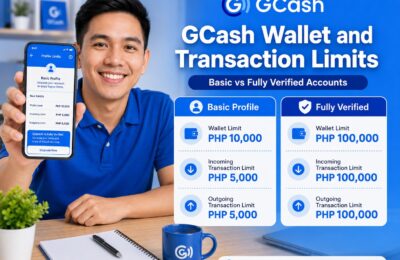
| Limit | Basic profile | Fully Verified account |
|---|---|---|
| Maximum wallet balance | ₱10,000 | ₱100,000 |
| Incoming transaction limit | ₱5,000 | ₱100,000 |
| Outgoing transaction limit | ₱5,000 | ₱100,000 |
You can check the limits assigned to your account by opening GCash and going to:
Profile → Profile Limits
Remember that the incoming limit measures the total money received during the applicable period. It is not simply the amount currently remaining in your wallet.
For example, suppose you receive ₱3,000 and spend the full amount. If you later receive another ₱2,000, you have already reached a total incoming amount of ₱5,000—even though your present wallet balance is only ₱2,000.
Individual services may also have separate limits, transaction counts, and security restrictions.
What You Need Before Upgrading Your Account
Preparing everything before you begin can help prevent failed scans and repeated applications.
An Active GCash Account
You must already have a GCash account connected to your mobile number.
If you have not registered yet, download the official GCash app, enter your number, confirm the authentication code, provide your information, and create an MPIN.
One Accepted Government-Issued ID
GCash says a regular verification application requires only one valid government ID.
Your ID should be:
- Valid and unexpired
- Clear and readable
- Not seriously damaged
- The actual physical ID, except for supported National ID formats
GCash does not normally accept scanned, photocopied, or reproduced versions of an ID. Supported card, paper, and digital versions of the National ID are exceptions.
A Working Phone Camera
You need the rear camera to scan your ID and the front camera to complete the selfie scan.
Make sure the GCash app has permission to access your camera.
A Stable Internet Connection
Verification requires your ID image, selfie, and account information to be processed through the app.
Use reliable Wi-Fi or mobile data and avoid starting the process when your signal is unstable.
Good Lighting
You need enough light for the app to read your ID and detect your face.
Natural daylight is often better than a strong camera flash, which can create glare on laminated identification cards.
Correct Personal Information
The name, birthday, citizenship, and other information you enter should match your ID.
Even small differences may create problems, including:
- Missing middle names
- Incorrect birthday
- Misspelled surname
- Nickname instead of legal name
- Maiden name on one record and married name on another
- Missing suffix such as Jr. or III
Review your ID before starting and follow its exact name format.
IDs Accepted for Filipino Adults
For Filipino users aged 18 and above with a Philippine SIM, GCash currently accepts:
- National ID in card, paper, or digital form
- Philippine passport
- Pag-IBIG Loyalty Plus Card
- Driver’s license or BLTO driver’s license
- Philippine Postal ID
- PRC ID
- UMID
- SSS ID
The ID must be valid, unexpired, clear, and undamaged.
Not every document commonly used as identification in the Philippines appears on GCash’s published adult-verification list. For example, do not assume that a student ID, company ID, PhilHealth card, TIN ID, barangay ID, police clearance, or NBI clearance will be accepted for a regular adult account.
Use a document specifically listed in the app or official GCash verification guidance.
Which ID Should You Use?
The best ID is generally the accepted document that is:
- Unexpired
- Least damaged
- Easiest to photograph clearly
- Most consistent with your present legal name
- Most recently issued
For example, a passport may be accepted, but it may not be your best choice if its information page is scratched or creates heavy glare.
Similarly, a driver’s license may be easy to scan, but not if it has expired or displays a name that differs from your current legal information.
Choose the document most likely to produce a clean match.
How to Upgrade From Basic to Fully Verified GCash
The process is completed through the official GCash app.
Step 1: Update the GCash App
Before starting, open the Google Play Store or Apple App Store and check whether a GCash update is available.
Using the latest version can help avoid compatibility problems with ID scanning, face verification, and security features.
Do not download the app or an update from a random website, social media message, or unofficial app store.
Step 2: Open GCash and Log In
Open the app and sign in using your registered mobile number and MPIN.
Make sure you are accessing the account you actually want to verify. This is especially important if you own more than one mobile number or GCash account.
Step 3: Tap “Profile”
From the GCash homepage, tap Profile.
Your current account status should appear near your name or profile information.
When the account is still Basic, you should see an option inviting you to verify or upgrade.
Step 4: Select “Verify Now”
Tap Verify Now.
You may also see Continue Verification if you previously started the process but did not finish it.
GCash’s current official instructions begin with:
Profile → Verify Now
Step 5: Tap “Get Started”
Read the verification reminders shown in the app, then tap Get Started.
The app may explain the type of ID you need, how to position it, and what to expect from the selfie scan.
Step 6: Read the Reminders and Tap “Next”
Do not skip the instructions too quickly.
They may include important reminders about:
- ID validity
- Lighting
- Camera positioning
- Face visibility
- Required personal information
After reading, tap Next.
Step 7: Enter the Six-Digit Code
GCash will send a six-digit authentication code to your registered mobile number.
Enter the code inside the app and tap Next.
Never share this code with another person. A legitimate GCash representative should not ask you to send or read your authentication code through a call, text message, or social media conversation.
Step 8: Enter Your Birthday and Citizenship
Provide your correct birthday and confirm your citizenship when requested.
The information should match the ID you plan to submit.
Do not use an incorrect birthday simply to qualify for an adult account. Users aged 7 to 17 should follow the separate GCash Jr. process.
Step 9: Choose Your ID
Tap Select ID and choose the exact type of identification document you are using.
Do not select one ID category and upload a different document.
For example, do not select National ID and scan a driver’s license.
Step 10: Scan Your ID
Place the ID on a flat surface in a well-lit area.
Make sure:
- The complete ID fits inside the frame.
- All four corners are visible.
- The text is readable.
- The image is not blurry.
- There is no glare covering important details.
- Your fingers are not covering the ID.
- The card is right side up.
- The camera is focused.
GCash advises users to submit an original and valid ID, ensure the information matches the app, use a bright area without flash, keep the ID fully visible, and photograph it right side up.
Step 11: Complete the Selfie Scan
After scanning the ID, GCash will ask you to complete a live selfie scan.
Position your face inside the guide displayed on the screen. Follow any instructions asking you to blink, move slightly, or hold still.
For the best result:
- Face a light source.
- Use a plain background.
- Remove your mask.
- Remove glasses when they create glare.
- Keep your full face visible.
- Move hair away from your eyes.
- Make sure no one else appears behind you.
- Hold the phone steadily.
- Follow every on-screen movement.
The selfie scan is not simply a profile picture. It is used to confirm that the person completing the process matches the identification document.
Step 12: Review Your Information
GCash may read information automatically from your ID.
Before submitting, carefully review:
- Your complete name
- Birthday
- Citizenship
- Address, when requested
- ID type
- ID number
- Other personal details
Do not assume that automatically captured information is always correct.
Correct any editable errors before continuing.
Step 13: Tap “Submit”
Once everything is accurate, tap Submit.
GCash’s official process consists of opening Profile → Verify Now, entering the six-digit code, confirming personal details, scanning an accepted ID, taking a selfie scan, reviewing the information, and submitting the application.
What Happens After You Submit?
After submission, GCash reviews your:
- Identification document
- Selfie scan
- Personal details
- Account information
- Compliance with applicable account policies
GCash says verification applications are processed and SMS updates are sent within three days.
Your account may continue displaying a Basic status while the review is pending.
Do not submit repeated applications immediately when the screen says GCash is still verifying your account.
How Long Does the Upgrade Take?
The official processing timeline is generally within three days after successful submission.
Some applications may be approved sooner, but instant verification is not guaranteed.
Verification may take longer when:
- The ID image requires additional review.
- Your information does not match clearly.
- GCash requests more documents.
- Your selfie could not be matched easily.
- Your application involves a special account type.
- A technical issue affects account verification.
Check your GCash app, SMS messages, and app inbox for updates.
How to Check Your Verification Status
To check your status:
- Open GCash.
- Tap Profile.
- Tap Verify Now or the status displayed near your profile.
- Read the exact message on the screen.
The message will usually tell you what to do next.
“We’re Verifying Your Account”
This means your application is still under review.
Wait for the normal three-day processing period.
When no update arrives three days after submission, GCash provides an official verification follow-up process. Its Help Center says support should reach out within 24 hours after the follow-up is submitted.
“Upgrade Your GCash—Verify Now”
This may mean:
- You have not started verification.
- You started but did not finish.
- Your previous application was rejected.
Tap Verify Now and complete all required steps.
Do not continue waiting for approval when the app is asking you to submit or restart the process.
“Please Complete Your Verification”
This means GCash needs additional documents or information.
Open the verification page and follow the instructions.
For certain failed or incomplete applications, GCash permits users to resubmit within 10 days. Missing the deadline may require restarting the entire verification process.
“Unable to Verify” or “Can’t Submit”
This is generally a technical or scanning problem rather than a normal pending status.
Possible causes include:
- Camera permission is disabled.
- Your device is unsupported.
- You reached the maximum number of selfie attempts.
- Your internet connection failed.
- The app could not detect your face.
- The ID image could not be processed.
Check your camera permission, update the app, improve the lighting, and use a compatible device. GCash’s Help Center has a separate troubleshooting process for users who cannot submit or complete verification.
Common Reasons an Upgrade Fails
Even when your ID type is accepted, the application may still be rejected.
Your ID Is Expired
GCash requires a valid and unexpired document.
Check the expiration date before starting. Use another accepted ID if your current document is no longer valid.
Your ID Is Damaged
A cracked, scratched, faded, or heavily worn ID may be difficult to read.
Use another accepted document when important information is unclear.
The ID Photo Is Blurry
Clean your camera lens and place the ID on a stable surface.
Wait for the camera to focus before capturing the image.
Part of the ID Is Cropped
Keep the entire card or information page inside the guide.
All edges and important details should be visible.
There Is Too Much Glare
Turn off the flash and adjust the angle of the ID.
Use bright but indirect lighting.
You Used a Photocopy or Screenshot
Most accepted IDs must be presented as the original physical document. Scanned, photocopied, and reproduced IDs are generally not allowed, except for accepted National ID formats.
Your Information Does Not Match
Your name and birthday should match your ID exactly.
Be careful with:
- Missing middle names
- Suffixes
- Maiden and married surnames
- Spelling
- Birthday
- Citizenship
GCash specifically advises users to make sure the ID information exactly matches what was entered in the app.
The Selfie Scan Failed
Poor lighting, a covered face, another person in the background, or camera movement may interfere with face verification.
Move to a brighter area, remove your mask and reflective glasses, and follow the movements displayed on the screen.
Your Phone Cannot Complete the Scan
An outdated, incompatible, rooted, jailbroken, or damaged device may have difficulty completing the process.
Try another compatible phone or tablet when necessary, but continue using your own registered number, identification, information, and face.
You Did Not Complete the Final Submission
Scanning the ID is not the final step.
You must also complete the selfie, review your information, and tap Submit.
Return to Profile → Verify Now to see whether the application is still incomplete.
What if You Do Not Have an Accepted ID?
GCash suggests applying for a National ID if you do not have another accepted verification document.
If you have already registered for a National ID but have not received the physical card, GCash says you may use the Digital National ID available through the eGov PH app.
Do not:
- Borrow someone else’s ID
- Use your parent’s or spouse’s document
- Edit an ID image
- Purchase a fake ID
- Ask another person to complete the selfie
- Pay someone to bypass verification
The ID, account information, mobile number, and face should belong to the actual account owner.
Can You Upgrade at a GCash Outlet or Pawnshop?
No. GCash currently says account verification cannot be completed onsite or in person.
The process must be completed in the GCash app through:
Profile → Verify Now
GCash specifically notes that outlets such as Villarica Pawnshop may support cash-in transactions but do not verify accounts in their stores.
Be suspicious of anyone offering in-person, instant, or guaranteed GCash verification for a fee.
Can Someone Else Verify the Account for You?
No.
Another person should not use their:
- Identification
- Name
- Birthday
- Selfie
- Mobile number
to verify your personal GCash account.
Likewise, do not allow an unofficial “agent” to hold your phone and complete the process on your behalf.
Verification connects your identity to the wallet. Using another person’s information can create account-access, ownership, and compliance problems.
How to Improve Your Chances of Approval
Follow this checklist before starting:
Update the GCash App
Install the latest official version.
Use Your Clearest ID
Choose an accepted, unexpired, and undamaged document.
Match Your Details Exactly
Enter your legal information as it appears on the ID.
Clean Both Cameras
A smudged lens can make the ID or selfie appear blurry.
Use Bright, Indirect Lighting
Avoid deep shadows and harsh glare.
Place the ID on a Plain Surface
A contrasting background makes its edges easier to detect.
Keep the Entire ID Visible
Do not crop or cover any portion.
Complete the Selfie Alone
Make sure no other face is visible.
Keep Your Face Uncovered
Remove masks and reflective glasses.
Use Stable Internet
Avoid completing the process while moving between weak mobile signals.
Review Before Submitting
Double-check every letter and number.
GCash’s official troubleshooting advice emphasizes an original valid ID, exact matching information, bright lighting without flash, a clear and uncropped image, and correct ID orientation.
What Happens Once You Are Fully Verified?
After approval, your account should unlock GCash’s Fully Verified services, including:
- Send Money
- Bank Transfer
- Pay Online
- GCash Card
- GSave
- GInvest
- GInsure
- GLife
- Commute
- Access to the Borrow section, subject to product eligibility
Your regular wallet and transaction limits should also increase from the Basic level to the Fully Verified level.
Check your updated status and limits by going to:
Profile → Profile Limits
Is Fully Verified the Same as GCash Plus?
No.
Becoming Fully Verified is the standard identity-verification upgrade. GCash Plus is a separate, higher account profile for eligible users who meet additional requirements.
The immediate goal when upgrading from Basic is to become Fully Verified. You can explore higher profile limits later after your verification is approved.
Do You Need to Verify Within a Certain Period?
Yes.
GCash currently states that users must verify their accounts within 12 months of creation. Accounts that remain unverified may face restrictions and eventual closure under the applicable policy.
This is another reason not to leave your profile Basic indefinitely.
Complete verification early rather than waiting until you urgently need to send, transfer, or withdraw money.
Can a Fully Verified Account Return to Basic?
Yes.
GCash may ask Fully Verified users to update their account information periodically. If the required update is not completed before the deadline, the account may be downgraded to Basic.
GCash says users who miss the update deadline may need to restart the verification process. Funds remain safe, but access to Fully Verified features becomes restricted.
When asked to update your information:
- Open GCash.
- Tap Profile.
- Tap your name.
- Select Update Account Information.
- Tap Get Started.
- Follow the instructions.
Do not ignore official update notices inside the app.
Security Reminders During Verification
Verification involves sensitive personal information.
Protect yourself by following these rules:
- Complete the process only inside the official GCash app.
- Never share your MPIN.
- Never share your OTP or authentication code.
- Never send your ID to an unofficial social media account.
- Never install a remote-control app for a supposed agent.
- Never pay for guaranteed approval.
- Never allow someone else to complete your selfie.
- Never click an unexpected verification link.
- Never transfer money to a “safe account” to fix verification.
A person claiming to be from GCash should not need your MPIN or OTP to review a verification problem.
Frequently Asked Questions
Is upgrading to Fully Verified free?
GCash does not list a standard charge for submitting a regular full-verification application through the official app.
Be suspicious of anyone asking for payment to approve or speed up your verification.
How many IDs do I need?
GCash says a regular verification application generally requires one valid government-issued ID.
Can I upgrade without an ID?
No. Full verification requires an accepted ID.
If you do not have one, GCash recommends applying for a National ID or using your Digital National ID when available through the eGov PH app.
How long does the upgrade take?
GCash says it processes applications and sends SMS updates within three days.
Can I continue using GCash while waiting?
Your account generally remains Basic while verification is pending. You may continue using available Basic services, but Fully Verified features remain unavailable until approval.
Can I send money while verification is pending?
Send Money is a Fully Verified feature. You generally need to wait until the upgrade is approved.
Can I transfer money to a bank while verification is pending?
Bank Transfer is reserved for Fully Verified users.
Can I use a student ID?
A student ID is listed for eligible GCash Jr. users aged 7 to 17. It is not part of GCash’s current published list for Filipino adults aged 18 and above with a Philippine SIM.
Can I use a photocopy of my ID?
Generally, no. GCash requires the actual physical ID, except for supported National ID card, paper, and digital formats.
Can I use an expired ID?
No. The ID must be valid and unexpired.
Can I use a Digital National ID?
Yes. GCash lists the National ID in card, paper, and digital forms among its accepted documents.
Why is my verification still pending?
The application may still be under review. Check Profile → Verify Now.
When the screen says “We’re Verifying Your Account” and no update has arrived after three days, use GCash’s official follow-up process.
What should I do if my verification fails?
Check that your ID is accepted, valid, clear, fully visible, right side up, and consistent with your personal information.
GCash allows resubmission within 10 days for certain failed-verification situations.
Can I verify at a pawnshop?
No. GCash says onsite or in-person verification is not currently available.
Does becoming Fully Verified guarantee access to GLoan?
No. Verification unlocks the Borrow section, but individual lending products remain subject to separate eligibility and approval requirements.
Will my limits increase immediately after approval?
Your account should move to the Fully Verified profile limits after successful verification. Check Profile → Profile Limits to confirm the limits assigned to you.
Can my Fully Verified account be downgraded?
Yes. GCash may downgrade the account if you fail to complete a required account-information update before the deadline.

Final Thoughts
Upgrading from a Basic to a Fully Verified GCash account is one of the most important steps for anyone planning to use the app regularly.
A Basic account is useful for cashing in, paying bills, buying load, and scanning merchant QR codes. However, it cannot access major services such as Send Money, Bank Transfer, Pay Online, the GCash Card, GSave, GInvest, and GInsure.
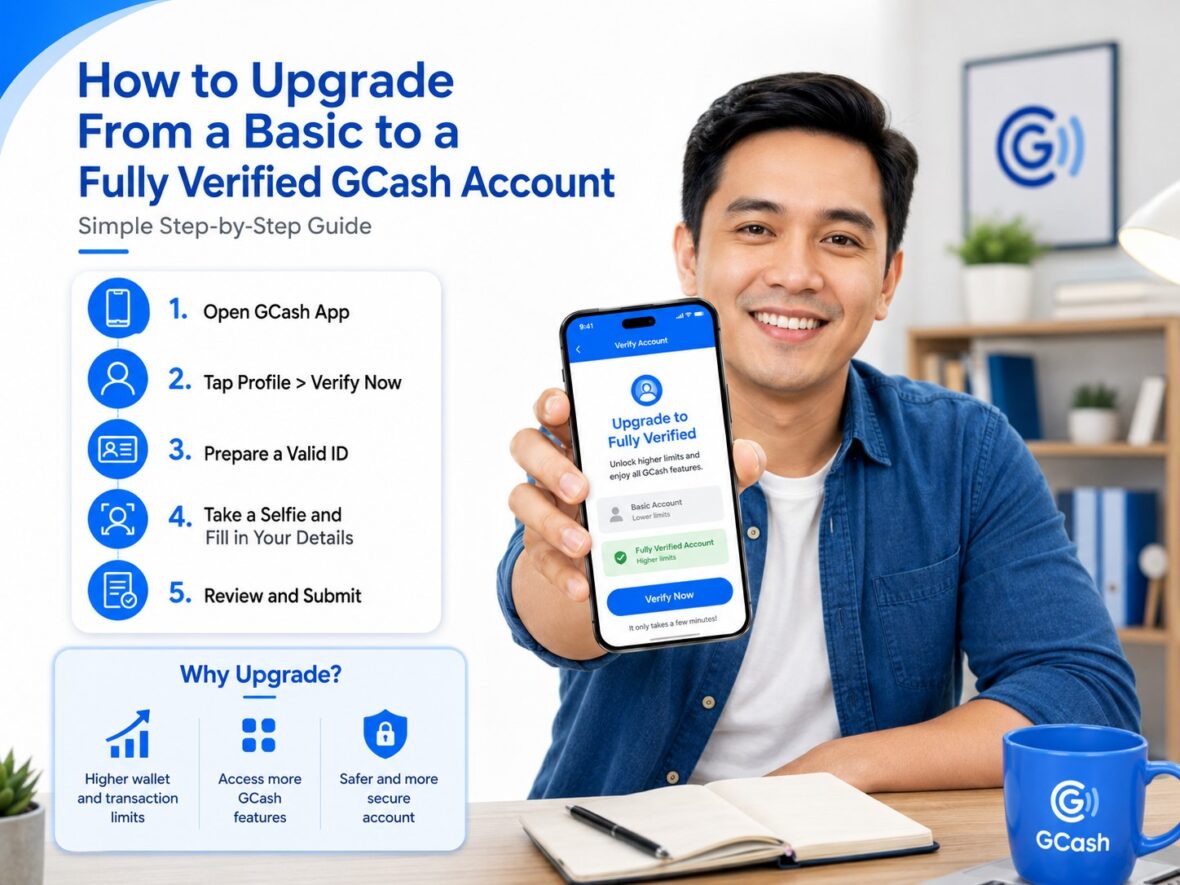
The upgrade process is straightforward: open Profile, tap Verify Now, enter the authentication code, scan one accepted ID, complete the selfie scan, review your details, and submit the application.
Most problems can be avoided by using a valid and undamaged ID, entering information that matches exactly, taking a clear photo without glare, and completing the selfie in good lighting.
Do not wait until you urgently need to transfer or withdraw money. Verification may take up to three days, and additional review may be needed when there is a problem with your document or information.
Complete the process early, protect your MPIN and authentication codes, and use only the official GCash app. Once your account is Fully Verified, you will have much greater flexibility in managing your everyday payments and transfers.