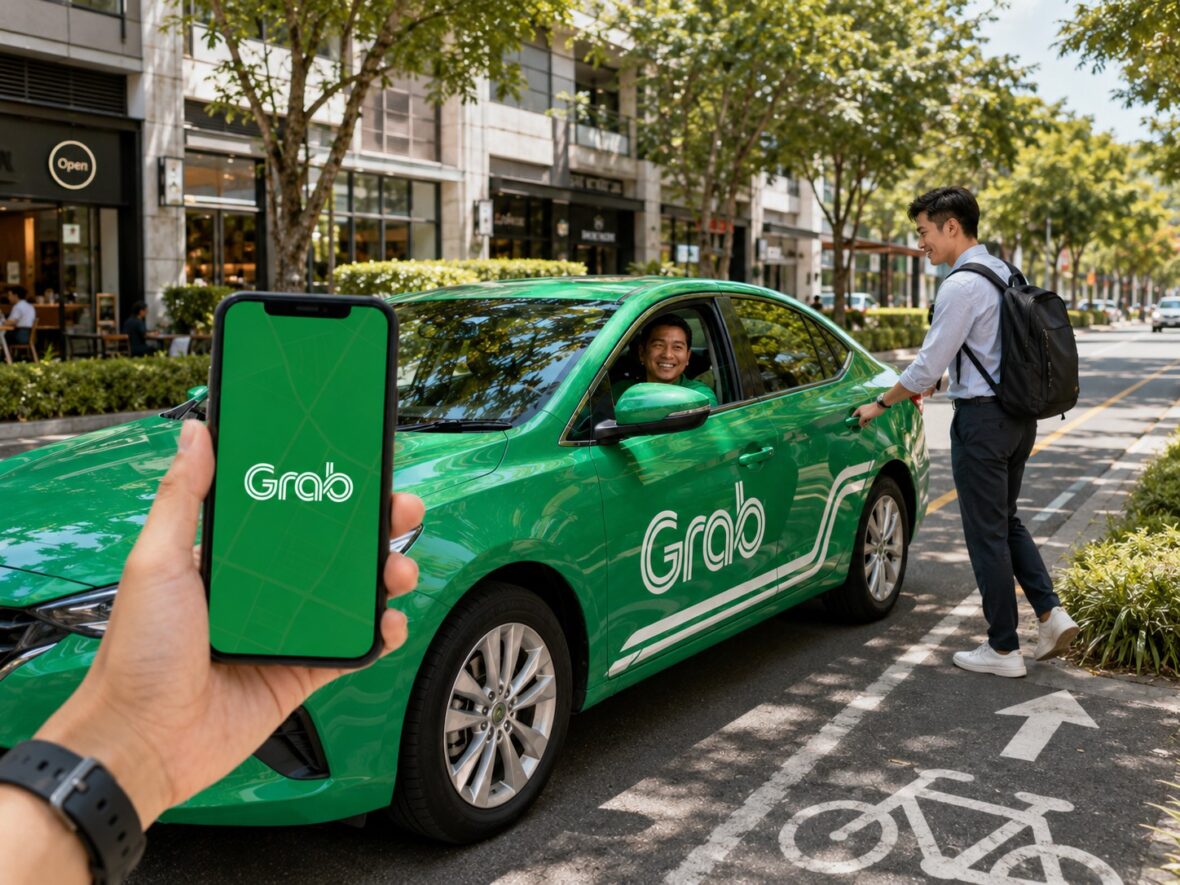
Booking a Grab ride has become part of everyday life for many Filipinos.
Whether you are going to work, heading to the airport, meeting friends at a mall, or simply trying to get home after a long day, Grab offers a convenient alternative to waiting for a taxi or figuring out several public transportation connections.
The process looks simple: open the app, enter your destination, and tap the booking button. However, first-time users may still have plenty of questions.
Which ride type should you choose? Is the displayed fare final? Can you pay in cash? What happens if the driver cannot find you? Can you add another stop or change your destination after the ride begins?
This guide explains how to book a Grab ride in the Philippines, from setting up your account to arriving safely at your destination.
Content
What Is GrabCar?
GrabCar is Grab’s private ride-hailing service. It connects passengers with accredited driver-partners through the Grab mobile application.
Instead of standing beside the road and waiting for a vehicle, you can request a ride from your phone. The app shows your pickup point, destination, available vehicle categories, estimated arrival time, and fare before you confirm the booking.
Grab’s Philippine transportation page says passengers can see the price before booking, although tolls and certain surcharges may not be included in the initial amount. It also allows users to track their rides and review their trip history afterward.
The service is available in several Philippine cities and provinces, although ride categories, driver supply, and operating coverage vary by location. Grab’s current location directory includes areas such as Manila, Cebu, Davao City, Bacolod, Baguio, Batangas City, Cagayan de Oro, Iloilo, Lipa City, Pampanga, Naga, Olongapo, Tacloban, and several other cities.
Even when Grab is present in a city, availability is not guaranteed at every address or time of day. A location near a city center may have plenty of drivers, while an outlying barangay may have fewer vehicles nearby.
What You Need Before Booking a Grab Ride
Before requesting your first ride, you will need:
- A compatible smartphone
- An internet connection
- An active mobile number
- The Grab application
- A registered Grab account
- Access to your phone’s location services
- A valid payment method or enough cash
Grab provides its app through major mobile-app platforms, including Google Play, Apple’s App Store, and Huawei AppGallery.
Once the app is installed, you will need to register and verify your account using the instructions shown on the screen. The app may ask for personal details and permission to access your location so it can identify nearby pickup points and available drivers.
Use your real and active mobile number. Your driver may need to contact you through Grab’s in-app chat or call function when locating the pickup point.
How to Book a Grab Ride Step by Step
The exact appearance of the app can change after updates, but the basic booking process remains similar.
Step 1: Open the Grab App
Launch the Grab app and sign in to your account.
Make sure your mobile data or Wi-Fi connection is stable. Weak internet can prevent the map from loading correctly or delay your booking request.
Step 2: Select the Transport or Car Service
From the home screen, tap the option for transportation. Depending on the version of the app, this may be labeled Car, Transport, or something similar.
The app will then open the booking screen and display your approximate current location.
Step 3: Confirm Your Pickup Point
Grab may automatically detect your location using your phone’s GPS, but do not assume that the suggested pin is correct.
Look carefully at the map and address. The app might place you:
- On the opposite side of the road
- At the back entrance of a building
- At a nearby street
- At the wrong mall entrance
- Inside a subdivision instead of at its gate
- At another building with a similar name
Move the pin or search for the correct pickup point when necessary.
This small step can save you and the driver several minutes of confusion.
Step 4: Enter Your Destination
Type the name or address of your destination in the drop-off field.
Be as specific as possible. For example, rather than entering only the name of a large shopping mall, select the exact branch or recognized drop-off location when available.
Before continuing, check:
- The full address
- The city or municipality
- The branch name
- The map location
- The side of the road
- The estimated travel route
Many locations in the Philippines share similar names. Choosing the wrong hotel, condominium, hospital, or mall branch could result in a much longer and more expensive trip.
Step 5: Add an Extra Stop When Necessary
When traveling to more than one place, you may be able to add an additional stop before booking.
Tap the plus sign beside the destination field and enter the additional location. Grab advises passengers who need more than one stop to add the extra destination before requesting the ride.
This feature can be useful when:
- Picking up a friend
- Dropping someone off first
- Collecting an item
- Making a brief stop before the final destination
The fare shown in the app should reflect the planned route and stops. Avoid asking the driver to make an unregistered detour after the ride has started, especially when it significantly changes the journey.
Step 6: Choose Your Ride Type
The app will display the vehicle categories available for your location.
The choices can vary based on the city, time, number of active drivers, and current Grab offerings.
Common options may include:
GrabCar
GrabCar is the regular private-vehicle option suitable for everyday trips.
It is usually the first choice for solo travelers, couples, commuters, and small groups who do not need a larger vehicle.
GrabCar Six-Seater
A six-seater is designed for larger groups or passengers who need more room. Grab describes it as a more spacious private-car option.
However, passenger capacity and luggage capacity are not the same thing.
Six passengers carrying large suitcases may not fit comfortably in one six-seater vehicle. When traveling to the airport with several bags, consider booking a larger vehicle or reducing the number of passengers per car.
GrabFamily
GrabFamily is a child-friendly option equipped with an appropriate child safety seat. Grab’s Philippine transportation page describes it as intended for children between one and seven years old. Availability may be limited to selected locations and times.
Rent by Grab
Rent by Grab may be offered to passengers who need a vehicle for several hours rather than for one direct trip.
Grab currently advertises rental periods such as four, eight, or 12 hours, with capacity depending on the selected vehicle.
This may be practical for sightseeing, business appointments, property visits, family occasions, or a day involving several destinations.
GrabTaxi
GrabTaxi connects users with participating taxi drivers. Unlike the regular private-car option, taxi bookings may involve a metered fare, booking fee, peak-time charges, tolls, and other applicable costs. The exact arrangement should appear in the app before confirmation.
Not every category will appear in every location. The options shown inside your app are the ones currently available for that pickup point.
Step 7: Review the Fare
Before confirming the ride, check the displayed price.
Grab generally provides upfront pricing, but toll fees and applicable surcharges may be charged separately.
The fare may be influenced by:
- Travel distance
- Estimated travel time
- Traffic conditions
- Pickup location
- Destination
- Vehicle category
- Number of available drivers
- Passenger demand
- Toll-road use
- Special fees or surcharges
You may notice that the same route has different prices at different times.
A trip can become more expensive during:
- Morning and evening rush hours
- Heavy rain
- Holidays
- Concerts and sporting events
- Payday weekends
- Airport travel peaks
- Periods with fewer active drivers
Review all available ride types before choosing. A cheaper option may involve a longer matching time, while a larger or more premium vehicle may arrive faster but cost more.
How to Apply a Grab Promo Code
Before confirming your booking, look for the Offers, Promos, or voucher section.
Select an available offer or type the promo code manually. Check that the discount is reflected in the displayed fare before tapping the final booking button.
A promo may not work when:
- It has expired
- The redemption limit has been reached
- Your ride does not meet the minimum fare
- The route is not eligible
- You selected the wrong ride category
- The offer is restricted to selected users
- You chose an ineligible payment method
- The voucher has already been used
Never assume that a promo has been applied just because you entered the code. Confirm that the fare has actually changed.
Choose Your Payment Method
Grab’s Philippine transportation page lists the following ride-payment options:
- Cash
- GrabPay
- Credit card
- Debit card
The payment method should be selected before the booking is confirmed.
Some accounts may also display additional supported payment options. What appears can depend on the user, account status, app version, and service.
Paying in Cash
When cash is selected, prepare enough money before the ride.
Drivers may not always have change for a large bill, especially early in the day. Letting the driver know politely that you only have a large denomination can prevent problems at the end of the trip.
Check whether toll fees need to be paid separately.
Paying by Credit or Debit Card
You can save an eligible credit or debit card in the app and select it as your ride-payment method.
Make sure:
- The card has enough available credit or funds
- The card has not expired
- Online transactions are enabled
- The correct card is selected
- Your bank does not block the transaction
When a card payment fails, Grab may ask you to use another payment method.
Paying With GrabPay
GrabPay lets users pay for eligible rides through the app. Ensure that your wallet has enough available balance for the fare and any amount that may be needed for tolls or other ride-related charges.
Always confirm which payment option is active. A common mistake is assuming that cash is selected when the app is actually charging a saved card.
Confirm the Booking
Once you have reviewed the following information, tap the button to request your ride:
- Pickup point
- Destination
- Extra stop, when applicable
- Vehicle type
- Passenger capacity
- Fare
- Promo
- Payment method
Grab will search for an available driver.
Do not leave the pickup point while matching is in progress unless you are prepared to update or cancel the booking.
What Happens After a Driver Accepts?
Once matched, the app normally shows:
- The driver’s name
- Driver photograph
- Vehicle make and model
- Plate number
- Driver rating
- Estimated arrival time
- Live vehicle location
Read these details before the car arrives.
You can contact the driver through Grab’s in-app communication tools. Grab says passengers can use its chat function to coordinate the pickup, while number masking helps protect the personal telephone numbers of passengers and drivers.
Send a short, useful message when the pickup point may be confusing.
For example:
I’m waiting at the main entrance beside the pharmacy. I’m wearing a blue shirt.
Avoid sending several messages while the driver is moving. Drivers need to concentrate on the road.
Verify the Car Before Getting In
Never enter a vehicle simply because the driver says they are from Grab.
Compare the arriving car with the information in your app:
- Plate number
- Vehicle model
- Vehicle color
- Driver’s name
- Driver’s photo
Ask the driver to confirm the passenger’s name rather than immediately announcing your full name.
Do not board when the vehicle or driver does not match the booking. Report serious discrepancies through Grab’s safety or support channels.
What to Do During the Ride
Once inside:
- Wear your seat belt.
- Check that the trip has started in the app.
- Follow the route on your phone when appropriate.
- Keep important belongings with you.
- Avoid displaying large amounts of cash.
- Communicate politely with the driver.
- Use the app’s safety tools when needed.
Grab provides features such as live trip sharing, number masking, trip monitoring, emergency assistance, and a 24-hour Safety Centre. Grab also says registered drivers may be subject to real-time identity verification.
These features can improve safety, but passengers should still remain aware of their surroundings.
Can You Change Your Destination During the Ride?
Grab allows the destination to be changed during an eligible GrabCar trip.
To do this:
- Tap the current drop-off point in the app.
- Inform the driver that you need to change your destination.
- Enter the new location.
- Review the updated fare.
- Confirm the change.
Grab says the destination can generally be changed only once per eligible trip. The fare will be recalculated and may include a change-of-destination surcharge. This feature applies to GrabCar and may not be available for bookings that already include multiple stops.
Do not simply give the driver a new address without updating it in the app. The registered destination affects the route, fare, trip record, and safety monitoring.
Can You Book a Grab Ride in Advance?
Grab currently offers Advance Booking for eligible airport trips in the Philippines.
Its official Advance Booking page says airport rides may be reserved up to 90 days ahead. Users can access the feature through the transport homepage or by selecting the calendar option during an eligible booking.
Grab says passengers receive updates once a driver is assigned. The driver may arrive early and wait for up to 15 minutes after the scheduled pickup time. Passengers can also communicate with the driver through the app before pickup.
At present, Grab’s official page says Advance Booking is intended for rides going to the airport and uses eligible GrabAirport vehicles.
Because availability and booking rules can change, check the app for:
- Supported pickup areas
- Eligible airports
- Vehicle options
- Advance-booking fee
- Cancellation conditions
- Permitted booking period
Advance Booking can be useful for early-morning flights, but you should still allow enough time for traffic, airport entry, check-in, security, and immigration.
How to Book Grab at an Airport
Booking Grab from an airport can be slightly different from requesting a ride from a regular street.
Large airports may have designated ride-hailing pickup zones. Follow the airport signs and check the instructions shown in your Grab app.
When booking:
- Select the correct airport terminal.
- Follow the directions to the assigned pickup area.
- Confirm the bay, pillar, lane, or entrance number.
- Message the driver with your exact position.
- Check the plate number before boarding.
Do not book while you are still waiting for checked luggage unless you are confident you can reach the pickup point before the driver arrives.
Airport traffic rules can prevent drivers from waiting for a long time. Booking too early may lead to a cancellation or waiting charge.
What if Grab Cannot Find a Driver?
Sometimes the app continues searching without finding anyone.
This can happen because of:
- Heavy demand
- Bad weather
- Rush-hour traffic
- Few drivers near your location
- A difficult pickup point
- A remote destination
- Limited availability for the selected vehicle category
Grab states that passengers are not charged when a booking is not accepted.
You can try:
- Waiting a few minutes and booking again
- Selecting another ride category
- Moving to a safer and easier pickup location
- Checking whether the pickup pin is accurate
- Booking before the busiest travel period
- Using a nearby major landmark
- Considering another legitimate transportation option
Avoid repeatedly canceling confirmed rides simply to search for a slightly cheaper fare.
What if the Driver Asks You to Cancel?
A driver may occasionally message the passenger and ask them to cancel the booking.
Grab’s Help Centre says passengers are not obligated to cancel when the driver is the one who can no longer complete the trip. The driver should cancel the booking on their side when appropriate.
Respond politely and keep the communication inside the app.
Do not agree to suspicious arrangements such as:
- Taking the ride outside the Grab platform
- Paying a different unregistered fare
- Canceling but still proceeding with the trip
- Transferring money before pickup
- Sharing your one-time PIN or account password
Canceling the app booking and continuing privately can remove important trip tracking and support protections.
What Happens When You Cancel a Ride?
Cancellation consequences can depend on:
- How long the driver has been traveling to you
- The reason for cancellation
- Whether the driver has arrived
- Your account’s recent cancellation activity
- The ride category
- Current Grab policies
The app should display any applicable cancellation charge before you confirm.
Cancel as soon as possible when your plans change. Do not leave the driver traveling toward you when you already know you will not take the ride.
How to Book a Grab for Another Person
You may arrange a ride for a family member, friend, guest, or customer, but make the passenger’s identity and pickup instructions clear.
After the driver accepts:
- Tell the driver that another person will be riding.
- Give the passenger the driver and vehicle details.
- Share the live trip information.
- Make sure the passenger is at the correct pickup point.
- Confirm who will pay for the trip.
The account owner should continue monitoring the booking, especially when arranging transportation for an older family member or someone unfamiliar with the app.
Avoid booking for an unaccompanied child unless the service and local rules clearly permit it.
How to Get a Grab Receipt
Grab keeps a record of completed bookings in the Activity or trip-history section.
Receipts may be sent to the email address connected to your account. Grab also says users can retrieve specific transaction receipts through the Help Centre by opening the app’s Account section and selecting the relevant booking.
Digital receipts can be useful for:
- Business reimbursements
- Travel expense records
- Tax documentation
- Disputing an incorrect charge
- Reviewing tolls and fees
- Tracking personal spending
Check your email address in the app when receipts are not arriving.
Common Mistakes When Booking Grab
Placing the Pickup Pin on the Wrong Side of the Road
In busy streets with barriers or limited U-turn slots, reaching the opposite side can take a long time. Choose the side where you are actually waiting.
Selecting the Wrong Branch
Always confirm the city and full address when several establishments have similar names.
Ignoring Luggage Space
A car’s passenger capacity does not guarantee enough space for several large bags.
Choosing the Wrong Payment Method
Review whether the booking is cash, card, or GrabPay before confirmation.
Forgetting About Tolls
The displayed upfront fare may exclude tolls and certain surcharges.
Booking Before You Are Ready
Be at or near the pickup area when requesting an immediate ride.
Entering the Wrong Airport Terminal
Double-check the airline and terminal before booking an airport transfer.
Getting Into the Wrong Car
Always compare the plate number and vehicle information with the app.
Tips for a Smoother Grab Ride
Book earlier than you think you need to, especially during rain, rush hour, holidays, and major events.
Use a simple landmark for complicated pickup locations. “Gate 2 beside the coffee shop” is more helpful than “I’m outside.”
Keep your mobile phone charged. You need it to monitor the driver, communicate, and access safety tools.
Prepare small bills when paying cash.
Message the driver respectfully and keep your directions short.
Share your ride with someone you trust when traveling alone at night.
Allow extra time for airport trips. A successful Grab booking does not protect you from heavy traffic or long airport queues.
Finally, remember that the app’s current information should take priority over older guides. Ride categories, service areas, fares, fees, and features can change.
Frequently Asked Questions
Can I book Grab without a credit card?
Yes. Grab’s Philippine transportation page says rides can be paid using cash, GrabPay, a credit card, or a debit card.
Is the fare shown in the app final?
The upfront fare generally covers the booked journey, but tolls and certain surcharges may be excluded. Review your final receipt after the trip.
Can I add another stop?
Yes, an extra stop may be added before booking by tapping the plus sign beside the destination field.
Can I change the destination after the ride starts?
For an eligible GrabCar booking, the destination can generally be changed once through the app. The fare will be updated, and a surcharge may apply.
Can I schedule a Grab ride?
Grab currently offers Advance Booking for eligible airport-bound trips. Its official page says reservations may be made up to 90 days ahead.
Can the driver see my telephone number?
Grab uses number masking and in-app communication to protect the personal contact information of passengers and drivers.
What should I do when the vehicle does not match the app?
Do not get inside. Move to a safe location and report the discrepancy through Grab’s safety or support channels.
Will I be charged when no driver accepts my booking?
Grab says you will not be charged when the booking is not accepted.
Should I cancel when the driver asks me to?
You are not obligated to cancel when the driver is the one who cannot complete the booking. The driver should cancel from their side when appropriate.
Final Thoughts
Booking a Grab ride in the Philippines is generally easy, but a smooth trip begins before you tap the confirmation button.
Check your pickup pin carefully, enter the correct destination, choose a vehicle with enough space, review the payment method, and understand what is included in the fare. Once the driver accepts, verify the plate number and vehicle details before getting inside.
Grab can be especially helpful when you are carrying luggage, traveling somewhere unfamiliar, heading home late, or trying to reach an appointment without dealing with several transportation transfers.
Still, the app is not completely automatic. Drivers may struggle to find unclear pickup points, fares can rise when demand is high, and tolls may be charged separately. A little preparation and clear communication can make the experience much easier for both the passenger and the driver.
Once you understand the process, Grab becomes more than a convenient way to request a car. It becomes a practical transportation tool that you can use confidently for daily commutes, airport transfers, errands, and trips around the Philippines.