Apple Pay is finally available in the Philippines.
Apple officially launched its digital payment service in the country on August 4, 2026, giving Filipino iPhone and Apple Watch users another convenient way to pay in stores, mobile apps, and online shops.
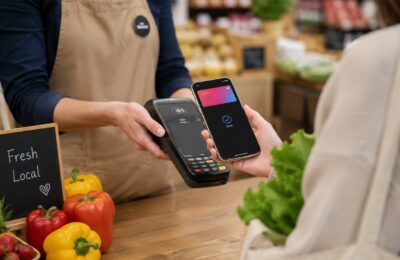
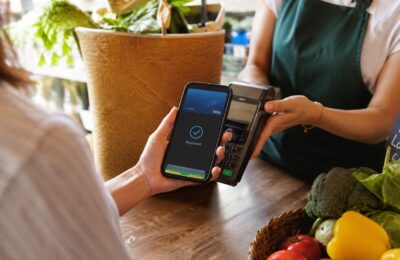
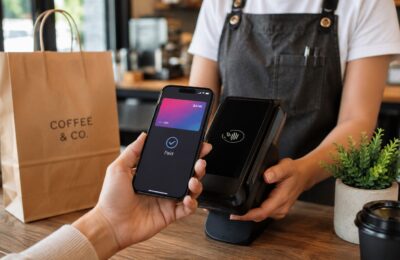
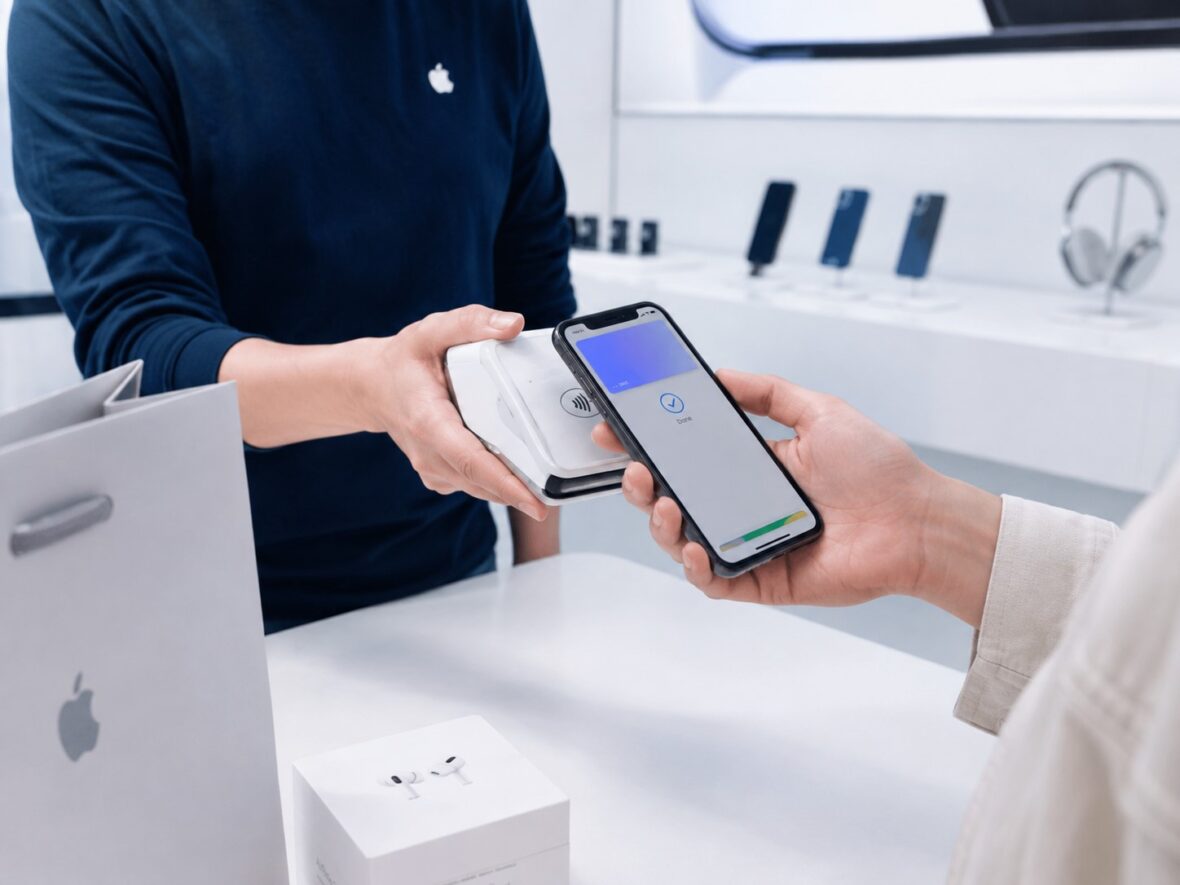
Instead of taking out your physical debit or credit card, you can now double-click a button, verify your identity, and hold your Apple device near a compatible contactless terminal. You can also choose Apple Pay during online checkout without repeatedly entering your card number, billing address, and delivery information.
That sounds simple—and in many cases, it really is.
However, Apple Pay’s initial Philippine rollout comes with a few important limitations. Only selected cards from participating banks are currently supported. Not every establishment has a compatible payment terminal, and having a Visa or Mastercard does not automatically mean you can add it to Apple Wallet.
This complete guide explains how Apple Pay works in the Philippines, which banks and cards are supported, how to set it up, where you can use it, how secure it is, and what to do when your card or payment does not work.
Content
Apple Pay Philippines at a Glance
Here are the most important details:
- Philippine launch date: August 4, 2026
- Initial participating banks: Chinabank, GoTyme Bank, Metrobank, and UnionBank
- Supported networks: Selected Visa and Mastercard cards
- Where you can use it: Participating physical stores, apps, and websites
- Devices for in-store payments: Compatible iPhone and Apple Watch models
- Devices for app and online payments: Compatible iPhone, iPad, Apple Watch, and Mac models
- Apple Pay fee: Apple does not charge customers an additional fee
- Payment authorization: Face ID, Touch ID, Apple Watch authentication, or a device passcode
- Card rewards: Normal points, miles, cashback, and other eligible card benefits generally continue to apply
Apple announced that thousands of in-store and online merchants in the Philippines would support the service beginning with the launch.
What Is Apple Pay?
Apple Pay is Apple’s digital payment service.
It allows you to save an eligible debit, credit, or prepaid card inside the Apple Wallet app. You can then use that card through your Apple device instead of presenting the physical card.
Apple Pay is already built into compatible Apple devices. You do not need to download a separate Apple Pay application.
On an iPhone, you simply open the Wallet app and add an eligible card. Once the bank verifies it, the card becomes available for supported Apple Pay transactions.
You can use Apple Pay in three main ways:
- In physical stores by tapping an iPhone or Apple Watch on a contactless terminal
- Inside participating apps by choosing Apple Pay during checkout
- On participating websites by clicking or tapping the Apple Pay button
The payment is charged to the debit or credit card you selected. Apple Pay itself does not normally hold a separate cash balance.
What Is the Difference Between Apple Pay and Apple Wallet?
Apple Wallet is the application where compatible payment cards, tickets, passes, boarding passes, loyalty cards, and other digital items can be stored.
Apple Pay is the payment service that uses eligible cards saved in Apple Wallet.
In simple terms:
- Apple Wallet is where the card is stored.
- Apple Pay is how you use that card to make a payment.
You will usually open the Wallet app when adding, removing, or managing a card. However, you do not need to manually open Wallet every time you pay. On an iPhone, double-clicking the appropriate button can immediately bring up your default payment card.
When Did Apple Pay Launch in the Philippines?
Apple Pay officially launched in the Philippines on August 4, 2026.
The service became available for purchases using compatible iPhone, Apple Watch, iPad, and Mac devices. Apple said it could be used at retailers of different sizes, including physical stores, mobile apps, and websites.
The Philippine launch had been anticipated for years, especially as contactless card payments, QR codes, online banking, and local e-wallets became more common.
For Apple users, the launch means there is now a payment option integrated directly into the devices they already use.
Which Banks Support Apple Pay in the Philippines?
At launch, Apple Pay supports selected cards from four Philippine banks:
| Bank | Cards officially listed as supported |
|---|---|
| Chinabank | Visa credit and debit cards; Mastercard credit cards |
| GoTyme Bank | Visa debit and credit cards |
| Metrobank | Visa credit cards; Mastercard credit and debit cards |
| UnionBank | Visa and Mastercard credit and debit cards |
This information is based on Apple’s official list of participating banks and card issuers.
It is important to check both the bank and the card network.
For example, Metrobank Visa credit cards are officially listed, but Metrobank Visa debit cards are not included in Apple’s current list. Chinabank Visa credit and debit cards are listed, while only Chinabank Mastercard credit cards are included.
The exact card product also matters. Apple notes that some cards issued by participating banks may still be unsupported. Your bank has the final say on whether your particular card can be added.
Does Every Visa or Mastercard Work with Apple Pay?
No.
A Visa or Mastercard logo on your card does not automatically make it eligible for Apple Pay.
Three things generally need to match:
- The bank must support Apple Pay.
- The card network must be included.
- The particular card product must be eligible.
A Visa card from a bank that has not joined Apple Pay cannot normally be added just because it uses the Visa network.
Similarly, a participating bank may support its Mastercard credit cards but not its Mastercard debit cards.
The easiest way to confirm eligibility is to try adding the card or contact the bank that issued it.
Do BDO and BPI Support Apple Pay?
As of August 5, 2026, BDO and BPI are not included in Apple’s official list of participating Philippine issuers.
The same applies to other banks not included among the four initial partners.
This may change as the rollout expands. Apple regularly adds new banks and card products after launching in a country. The company advises customers to check back when their bank does not yet appear on the supported list.
Avoid assuming that an unsupported card will work simply because your bank issues contactless Visa or Mastercard cards.
Can You Add a GCash Card to Apple Pay?
GCash is not included in Apple’s official list of participating Philippine card issuers as of August 5, 2026.
Therefore, a GCash Card should not automatically be considered eligible for Apple Pay.
Even when a card uses Visa or Mastercard, the issuing institution still needs to enable that card for Apple Wallet.
GCash may add support in the future, but customers should wait for an official announcement from GCash or Apple rather than relying on unofficial instructions.
Can You Add a Maya Card to Apple Pay?
Maya consumer cards are not currently listed among the officially supported Philippine cards.
However, Maya is involved in the Apple Pay rollout through Maya Business.
Apple announced that Maya Business would begin enabling Apple Pay acceptance for more than 5,000 online merchants in the Philippines. This refers to helping businesses accept Apple Pay during checkout. It does not necessarily mean that Maya consumer cards can be added to Apple Wallet.
There are two different sides to the service:
- Card support determines whether a customer can add a card to Apple Wallet.
- Merchant support determines whether a business can accept an Apple Pay payment.
A company can participate on one side without participating on the other.
Can You Add a Virtual Card to Apple Pay?
Selected virtual cards can be added when the issuing bank supports them.
During the Philippine launch, Apple specifically mentioned virtual card options involving GoTyme Bank and UnionBank.
Eligible GoTyme debit cards can be accessed through the GoTyme Bank app. Selected UnionBank customers can apply for a credit card through the UnionBank website and add the approved card to Apple Pay.
Eligibility and application requirements are still controlled by the bank.
Which Devices Support Apple Pay in the Philippines?
For the Philippine launch, Apple listed the following minimum requirements:
- iPhone 6 or later with iOS 12.5.2 or later
- Apple Watch Series 4 or later with watchOS 9 or later
- Apple Watch must be paired with an iPhone 8 or later
Compatible iPad and Mac models can also be used for eligible app and online purchases. Apple recommends using the latest available operating-system version.
You will also need:
- A supported card from a participating bank
- An Apple Account signed in on the device
- Face ID, Touch ID, or a device passcode
- A compatible Apple device
- Bank verification for the card
An Apple Watch must have a passcode enabled before payment cards can be used.
Can You Tap an iPad or Mac at a Store?
No. You will generally use an iPhone or Apple Watch for contactless payments at physical stores.
An iPad or Mac can be used for purchases inside supported applications or on participating websites.
For example, you might use Apple Pay on an iPad to pay for an online order. On a Mac without Touch ID, you may be able to confirm the purchase using a nearby compatible iPhone or Apple Watch signed in to the same Apple Account.
What Do You Need Before Setting Up Apple Pay?
Before adding a card, make sure you have the following:
A Compatible Apple Device
The device must support Apple Pay and have an updated version of its operating system.
An Eligible Card
The card must be issued by a participating bank and included among the supported card types.
An Apple Account
You must be signed in to your Apple Account on the device.
Face ID, Touch ID, or a Passcode
Apple Pay requires device authentication. You cannot simply tap an unsecured phone and complete a regular purchase.
Updated Bank Contact Information
Your bank may send a one-time password or verification request to your registered mobile number or email address.
If the contact information held by your bank is outdated, you may be unable to finish the setup.
How to Set Up Apple Pay on an iPhone
Here is the usual process for adding a card:
Step 1: Open the Wallet App
Find the Wallet app on your iPhone.
It is already installed on compatible devices, so you should not need to download another application.
Step 2: Tap the Add Card Button
Tap the plus sign or Add Card button.
You may see options such as:
- Debit or Credit Card
- Cards Found for You
- Previously Used Cards
Step 3: Add the Card
Depending on the card and device, you may be able to add it by:
- Tapping or holding the card near the back of the iPhone
- Scanning the card with the camera
- Entering the card details manually
When entering the information manually, you will normally need the cardholder’s name, card number, expiration date, and security code.
Step 4: Accept the Terms
Review and accept any terms provided by Apple, your bank, or the card network.
Step 5: Verify the Card
Your bank may ask you to complete additional authentication.
Possible verification methods include:
- A one-time password
- A confirmation inside the bank’s app
- A customer-service call
- Additional account information
- Another verification process chosen by the bank
Once approved, the card should appear in Apple Wallet and become available for eligible Apple Pay transactions.
How to Add a Card to Apple Watch
A card added to your iPhone may need to be added and verified separately for your Apple Watch.
Follow these steps:
- Open the Apple Watch app on the paired iPhone.
- Go to the My Watch tab.
- Tap Wallet & Apple Pay.
- Tap Add Card.
- Select a previous card or add a new one.
- Follow the instructions on the screen.
- Complete any verification requested by the bank.
The bank may create a separate device token for the Apple Watch, even when the same physical card is already active on the iPhone.
How to Add a Card on an iPad
On a compatible iPad:
- Open Settings.
- Select Wallet & Apple Pay.
- Tap Add Card.
- Enter or scan the card information.
- Complete the bank’s verification process.
The card can then be used for eligible app and online purchases.
How to Add a Card on a Mac
On a Mac with Touch ID:
- Open System Settings.
- Select Wallet & Apple Pay.
- Click Add Card.
- Follow the instructions.
- Verify the card with the issuing bank.
On a Mac without built-in Touch ID, an eligible purchase may be confirmed using a nearby iPhone or Apple Watch. The devices should be signed in to the same Apple Account, with the relevant payment setting enabled.
How to Choose Your Default Card
The first eligible card added may become your default payment card.
When you make a purchase, Apple Pay will normally display the default card first. You can still choose a different card before authorizing the transaction.
To change the default card on an iPhone:
- Open Settings.
- Select Wallet & Apple Pay.
- Look for Default Card.
- Select the card you prefer.
This is helpful when you have several cards and want to prioritize one that earns better rewards or cashback.
How to Use Apple Pay in Stores
Look for the contactless payment symbol or Apple Pay logo near the cashier or payment terminal.
The store must have a compatible contactless reader and must accept the payment network of the card you selected.
For example, your payment may not work if the establishment accepts Apple Pay generally but does not accept your card’s underlying network or card type.
How to Pay with an iPhone Using Face ID
- Double-click the side button.
- Your default card will appear.
- Authenticate using Face ID or your passcode.
- Hold the top of the iPhone near the contactless terminal.
- Wait for “Done” and a checkmark to appear.
How to Pay with an iPhone Using Touch ID
- Double-click the Home button.
- Use Touch ID when requested.
- Hold the top of the iPhone near the reader.
- Wait for the payment confirmation.
How to Pay with an Apple Watch
- Double-click the side button.
- The default card will appear.
- Scroll if you want to choose another card.
- Hold the Apple Watch display near the contactless reader.
- Wait for the gentle tap, beep, or confirmation.
You do not have to open your bank’s application before every purchase.
Where Can You Use Apple Pay in the Philippines?
Apple Pay can generally be used where a merchant has a compatible contactless payment terminal and accepts the card and payment network you are using.
Apple identified several participating merchants during the Philippine launch, including:
- Abenson
- Anko
- Ayala Malls
- Ayala Malls Cinemas
- Beyond the Box
- Coach
- Digimap
- Foot Locker
- Globe
- HOKA
- Hollister
- Jollibee
- Lush
- Power Mac Center
- Rustan’s
- SaladStop!
- Shake Shack
- Smart
- The Loop
- The Matcha Tokyo
- The Movie Snackbar
- The Underbelly
- WalterMart Supermarket
Apple’s Philippine Apple Pay page also lists brands such as BeautyBar, Bershka, Calvin Klein, Digital Walker, Gap, JD Sports, Lacoste, New Balance, Ralph Lauren, Samsonite, Tommy Hilfiger, and Zara.
This should not be treated as a complete list. Other businesses may also accept Apple Pay when their terminals support compatible contactless card payments.
When unsure, ask the cashier whether the terminal accepts contactless Visa or Mastercard payments.
Which Apps and Websites Accept Apple Pay?
Apple identified the following apps and websites as launch partners:
- Foodpanda
- Jollibee
- Rustan’s
- Shopee
Its Philippine Apple Pay page also lists participating online brands such as BeautyBar, Gap, JD Sports, Lacoste, Lush, Old Navy, and Payless.
Availability may vary by application version, browser, store account, product, and checkout system.
Update the app you are using and look for the Apple Pay button during checkout.
How to Use Apple Pay Online or in an App
The process is usually straightforward:
- Add your items to the cart.
- Proceed to checkout.
- Select Apple Pay as the payment method.
- Review the selected card.
- Check your billing, shipping, and contact information.
- Confirm the payment with Face ID, Touch ID, Apple Watch, or your passcode.
On compatible browsers and devices, you may also see a code that can be scanned with an iPhone or iPad. The purchase can then be confirmed on the Apple device.
Apple Pay can make checkout faster because you do not need to type the card number every time.
Can You Use Apple Pay Anywhere with a Contactless Terminal?
Possibly, but it is not guaranteed.
The terminal must be enabled for contactless payments, and the merchant must accept your card’s payment network.
A terminal may display the contactless symbol but have the feature disabled, unavailable, or restricted by the merchant’s payment processor.
The cashier may also be unfamiliar with Apple Pay because the service is new in the Philippines. In many cases, you can simply ask to pay using a contactless card. The terminal handles Apple Pay through the same contactless payment infrastructure.
Is Apple Pay the Same as GCash or Maya?
No.
Apple Pay, GCash, and Maya can all be used to make digital payments, but they are structured differently.
| Apple Pay | GCash and Maya |
|---|---|
| Uses an eligible card saved in Apple Wallet | Commonly uses a separate e-wallet account and balance |
| Available on compatible Apple devices | Available on iOS and Android |
| Usually uses NFC for in-store payments | QR-code payments are widely used |
| Purchase is charged to the selected card | Purchase may come from the wallet balance, linked account, or card |
| Requires support from the card issuer | Does not require the bank to support Apple Pay |
Apple Pay is best viewed as another payment option rather than a complete replacement for Philippine e-wallets.
GCash and Maya remain useful for money transfers, QR Ph payments, bills, mobile loads, and services that may not accept contactless cards.
Does Apple Pay Work with QR Ph?
Apple Pay and QR Ph are different payment systems.
With QR Ph, you normally open a participating banking or e-wallet app and scan the merchant’s QR code.
With Apple Pay in a physical store, you normally authenticate on the device and hold the iPhone or Apple Watch near an NFC-enabled contactless terminal.
A store accepting QR Ph does not automatically accept Apple Pay. A store accepting Apple Pay does not automatically accept QR Ph.
Some merchants may offer both.
Is Apple Pay Secure?
Apple Pay includes several security and privacy protections.
When you add an eligible card, the physical card number is not stored directly on the device or on Apple’s servers. Instead, a unique Device Account Number is created, encrypted, and stored in the device’s Secure Element.
When you pay, Apple Pay uses this device-specific information and a unique transaction code instead of giving the merchant the physical card number printed on your card.
Apple also states that it does not retain debit- or credit-card transaction information that can be tied back to the user. The transaction remains between the customer, merchant, card network, and bank or issuer.
Regular purchases require authentication using:
- Face ID
- Touch ID
- An Apple Watch passcode
- A device passcode
This means another person should not be able to complete an ordinary Apple Pay payment simply by holding your locked phone near a terminal.
Does the Merchant See Your Actual Card Number?
Apple says merchants do not receive the actual card number stored with Apple Pay.
Instead, the transaction uses device-specific payment information.
This can reduce the need to expose the physical card number during everyday purchases. However, you should still review your account regularly and report suspicious transactions to the card issuer.
What Happens If Your iPhone Is Lost or Stolen?
Use Find My as soon as possible.
Marking the device as lost activates Lost Mode, locks the device, and suspends the payment cards and passes being used through Apple Pay on that device.
You can also remotely erase the device or contact the issuing bank for assistance.
Suspending a card on one device does not necessarily mean the physical card must be cancelled. Your bank will determine whether the card itself needs to be blocked or replaced.
Does Apple Charge a Fee for Using Apple Pay?
Apple does not charge customers an additional fee when paying with Apple Pay in stores, online, or inside participating apps.
However, the normal terms of your debit or credit card still apply.
Depending on the card and transaction, you may still be charged:
- Credit-card interest
- Late-payment fees
- Foreign transaction fees
- Currency-conversion charges
- Other fees contained in your card agreement
Apple Pay changes how the payment is presented. It does not change your credit limit, due date, interest rate, or card agreement.
Do You Still Earn Points, Miles, or Cashback?
Yes. Apple says customers continue receiving the rewards and benefits normally provided by their eligible cards.
These may include:
- Credit-card points
- Airline miles
- Cashback
- Bank reward points
- Merchant-specific card benefits
However, individual promotions can have separate rules. Review the terms of a promotion before assuming that every Apple Pay transaction qualifies.
Is There a Spending Limit?
Apple does not impose one universal spending limit for every transaction.
Limits may depend on:
- Your available credit or account balance
- Bank security controls
- Merchant rules
- Contactless payment limits
- The type of card
- The country where the payment is made
A merchant or bank may occasionally request additional verification.
Can You Use Apple Pay Abroad?
Yes. Apple Pay can generally be used in countries and regions that support contactless payments, provided the merchant accepts your card and its payment network.
Your Philippine card must also be enabled for international transactions.
Normal foreign transaction fees and currency-conversion charges may apply. Apple recommends checking with the bank about overseas fees.
Is Apple Cash Available in the Philippines?
No.
Apple Cash is a separate service that allows eligible users to send and receive money through Messages and Wallet. Apple states that Apple Cash and person-to-person Apple payments are available only in the United States.
The Philippine launch covers Apple Pay purchases using eligible cards. It does not introduce local Apple Cash transfers.
Can You Send Money to Another Person Through Apple Pay?
Not through Apple Cash in the Philippines.
Filipinos will still need to use supported banking applications, InstaPay, PESONet, GCash, Maya, or other available money-transfer services.
Apple Pay’s Philippine launch focuses on paying merchants with eligible cards.
Can You Use Apple Pay for Philippine Public Transportation?
Apple has not announced a local transport card or direct integration with systems such as Beep as part of the Philippine launch.
Apple Pay could potentially work with a transportation operator that accepts regular contactless Visa or Mastercard payments. However, users should not assume that it works at every train station, bus operator, toll booth, or transportation terminal.
Look for an official announcement from the transport operator before relying on it.
Can You Withdraw Cash from an ATM Using Apple Pay?
Apple Pay is designed mainly for purchases.
Some overseas banks and ATMs support cardless or contactless withdrawals, but this depends entirely on the bank, ATM operator, location, and card.
Apple’s Philippine launch announcement did not introduce a general Apple Pay ATM-withdrawal feature. Bring your physical card when you expect to withdraw cash unless your bank confirms otherwise.
How to View Apple Pay Transactions
On an iPhone:
- Open the Wallet app.
- Select the card.
- Review the recent transactions.
- Tap a transaction to see more information.
Transaction details shown in Wallet may not always represent the final or complete account record. Your bank’s mobile app, statement, or customer-service channel remains the most reliable source for complete transaction information.
How Do Refunds Work with Apple Pay?
Refunds are handled according to the merchant’s normal return and refund policy.
The merchant may ask you to present the device used for payment or provide the final digits of the Apple Pay card number.
This number can be different from the final digits printed on the physical card.
To find it on an iPhone:
- Open Apple Wallet.
- Select the card used.
- Open the card information.
- Look for the Apple Pay card number.
Once processed, the refund is sent back to the corresponding payment card. It may take several business days to appear, depending on the merchant and issuing bank.
Why Can’t I Add My Card to Apple Pay?
There are several possible reasons:
Your Bank Is Not Supported
Only participating banks can enable cards for Apple Pay.
Your Exact Card Is Not Eligible
A bank may support some Visa or Mastercard products but not others.
The Card Is Locked or Inactive
An expired, replaced, restricted, frozen, or unactivated card may be rejected.
Your Device Needs an Update
Install the latest available version of iOS, watchOS, iPadOS, or macOS.
Your Bank Cannot Verify You
The bank may have an outdated mobile number or email address on file.
The Bank Requires Additional Authentication
You may need to verify the card in the bank’s app or contact customer service.
Your Apple Account or Passcode Is Not Properly Set Up
Make sure you are signed in and have Face ID, Touch ID, or a passcode enabled.
Apple cannot force a bank to approve a card. The card issuer controls the final eligibility and verification decision.
Why Was My Apple Pay Payment Declined?
A payment can be declined even when the card was successfully added.
Possible reasons include:
- Insufficient funds
- Insufficient available credit
- A locked card
- A fraud-prevention block
- An incorrect merchant configuration
- A temporary bank outage
- An unsupported transaction type
- International usage restrictions
- An offline or malfunctioning terminal
Try using the physical card or another card in Apple Wallet. If the physical card is also declined, contact the bank.
Apple does not normally decide whether the transaction is approved. Authorization is handled by the card issuer and payment network.
Can You Add More Than One Card?
Yes. You can add multiple eligible cards to Apple Wallet.
You can choose a default card and select a different one before completing a purchase.
This can be useful when you want to:
- Use one card for groceries
- Use another card for travel
- Maximize rewards or cashback
- Separate personal and business expenses
- Keep a backup card available
Each card must be separately approved by its issuing bank.

Advantages of Using Apple Pay
Fast In-Store Payments
You can pay without opening a separate banking application or scanning a QR code.
Convenient Online Checkout
Your saved card and authorized delivery details can reduce the amount of information you need to enter.
Card Details Are Not Shared Directly
The merchant does not receive the physical card number printed on your card.
Device Authentication
Payments normally require Face ID, Touch ID, Apple Watch authentication, or a passcode.
You Keep Eligible Card Rewards
Normal points, miles, cashback, and benefits generally continue.
Useful on Apple Watch
You may be able to pay with your watch even when your physical wallet is inside your bag or pocket.
Current Limitations of Apple Pay in the Philippines
The launch is exciting, but Apple Pay is still new in the country.
Only Four Banks Are Initially Supported
Customers of other banks must wait for their issuers to join.
Not Every Card from a Participating Bank Works
Eligibility depends on the bank, network, and exact card product.
Contactless Acceptance Is Not Universal
Many Philippine merchants still rely on cash and QR payments.
Cash Transfers Are Not Included
Apple Cash is unavailable in the Philippines.
Local Public Transportation Integration Is Limited
No broad local transit-card integration was announced at launch.
Some Cashiers May Be Unfamiliar with It
Because Apple Pay is new locally, staff may not immediately recognize the payment method even when the terminal supports contactless cards.
Apple Pay Philippines Frequently Asked Questions
Is Apple Pay now available in the Philippines?
Yes. It officially launched on August 4, 2026.
Which Philippine banks support it?
The initial participating banks are Chinabank, GoTyme Bank, Metrobank, and UnionBank.
Is Apple Pay free?
Apple does not charge an additional customer fee. Normal bank and card charges may still apply.
Can I use any Visa or Mastercard?
No. The issuing bank and exact card product must support Apple Pay.
Can I use Apple Pay at Jollibee?
Jollibee was included among the launch merchants, and Apple also listed its app and website. Acceptance may still depend on the branch, terminal, and checkout channel.
Can I use Apple Pay on Shopee?
Shopee was identified as one of the participating online platforms at launch. Check for the Apple Pay option during checkout.
Can I use Apple Pay without carrying my physical card?
You can pay through your device where Apple Pay is accepted. It is still sensible to carry a backup payment method, especially while acceptance remains limited.
Do I need to open Wallet before paying?
Not usually. Double-click the side button or Home button, authenticate, and hold the device near the reader.
Will I still earn credit-card rewards?
Apple says supported cards continue receiving their normal eligible rewards and benefits.
Does Apple Pay replace GCash and Maya?
No. Apple Pay is another payment option. GCash and Maya continue to offer services such as transfers, bills, QR payments, and wallet balances.
Is Apple Pay Worth Using in the Philippines?
Apple Pay can be worth using when you already have a compatible Apple device and an eligible card.
Its strongest advantages are convenience and security. You do not need to repeatedly present the physical card, type the card number online, or open a separate banking app for supported purchases.
The Apple Watch experience may be particularly convenient. Paying for coffee, groceries, food, or retail purchases with a quick tap of your wrist can feel much faster than searching through a wallet or bag.
Still, Apple Pay should not be your only payment method yet.
The initial bank list is limited, contactless acceptance is not universal, and some businesses may not have working NFC-enabled terminals. Keep cash, a physical card, or a local e-wallet available as a backup.
Final Thoughts
Apple Pay’s arrival is an important development for cashless payments in the Philippines.
Filipino users with eligible cards from Chinabank, GoTyme Bank, Metrobank, and UnionBank can now pay using compatible iPhones and Apple Watches. They can also use Apple Pay during checkout in participating apps and websites.
The first rollout is not perfect. Only selected banks and card products are supported, and merchant acceptance will take time to expand.
Even so, the launch gives Apple users a fast and secure way to pay without constantly taking out their physical cards. It also introduces more Filipinos to NFC-based mobile payments, which are already common in many other countries.
As more banks, merchants, applications, and payment processors join, Apple Pay could eventually become a normal part of everyday shopping in the Philippines.
For now, check your bank and exact card type, update your Apple device, open Wallet, and try adding your card. You may already be ready to make your first Apple Pay transaction.