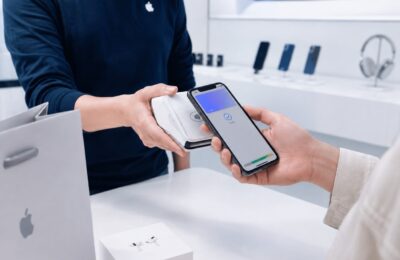
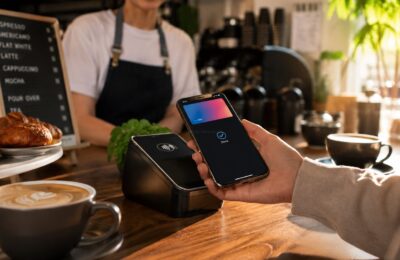
Adding a debit or credit card to Apple Wallet is the first thing you need to do before you can use Apple Pay.
Once your eligible card has been added and approved, you can use your iPhone or Apple Watch to pay at compatible contactless terminals. You can also use Apple Pay during checkout in participating apps and websites using an iPhone, iPad, or Mac.
The setup process itself is usually simple. Open the Wallet app, tap the Add Card button, provide your card details, and complete the verification required by your bank.
However, not every Philippine-issued card is currently eligible. Your bank must support Apple Pay, the card network must be included, and the exact card product must be approved by the issuer.
This guide explains how to add a new or previously used card to Apple Wallet, how to add it to an Apple Watch, iPad, or Mac, what happens during verification, and what to do when Apple Wallet refuses to accept your card.
Content
Adding a Card to Apple Wallet at a Glance
Here is the basic process on an iPhone:
- Open the Wallet app.
- Tap the Add Card or plus button.
- Select Debit or Credit Card.
- Tap Continue.
- Tap the card against your iPhone, scan it, or enter the details manually.
- Review the card information.
- Accept the applicable terms and conditions.
- Complete your bank’s verification process.
- Wait for confirmation that the card is ready for Apple Pay.
Apple says you need a compatible device with updated software, a supported card from a participating issuer, an Apple Account signed in on the device, and Face ID, Touch ID, or a passcode enabled.
What Is Apple Wallet?
Apple Wallet is an application built into compatible Apple devices.
Depending on your location and the services available, it can store items such as:
- Debit and credit cards
- Boarding passes
- Event tickets
- Loyalty cards
- Hotel keys
- Car keys
- Transit cards
- Digital identification documents
In the Philippines, Apple Wallet can now hold eligible locally issued payment cards for use with Apple Pay.
You do not need to download a separate Apple Pay application. Apple Pay works through the Wallet app and the payment features built into your Apple device.
What Is the Difference Between Apple Wallet and Apple Pay?
The two names are closely connected, but they do not mean exactly the same thing.
Apple Wallet is the app where your eligible cards and digital passes are stored.
Apple Pay is the payment service that allows you to use an eligible card stored in Wallet.
In simple terms, you add the card to Apple Wallet so you can pay with it through Apple Pay.
Which Philippine Cards Can Be Added?
As of August 6, 2026, Apple officially lists selected cards from four Philippine banks:
| Bank | Eligible card categories listed by Apple |
|---|---|
| Chinabank | Visa credit and debit cards; Mastercard credit cards |
| GoTyme Bank | Visa credit and debit cards |
| Metrobank | Visa credit cards; Mastercard credit and debit cards |
| UnionBank | Visa and Mastercard credit and debit cards |
Apple warns that some cards from participating banks may still be unsupported. The bank or card issuer makes the final decision regarding individual card eligibility.
This means having a card from one of the four banks does not automatically guarantee that it can be added.
You still need to check:
- Whether it is Visa or Mastercard
- Whether it is a credit or debit card
- Whether the specific product is eligible
- Whether the card is active
- Whether the bank has enabled it for digital wallets
- Whether your account is in good standing
Can You Add a Card from BDO or BPI?
BDO and BPI are not included in Apple’s official list of participating Philippine card issuers as of August 6, 2026.
Cards from RCBC, Security Bank, EastWest, PNB, LandBank, HSBC Philippines, GCash, and Maya are also not included in the initial list.
Even when an unsupported card has a Visa or Mastercard logo, the card issuer must still join Apple Pay and enable the specific product before it can be added.
Apple says it is working with more banks and card issuers, so the list may expand.
What You Need Before Adding a Card
Check the following requirements before opening Wallet.
A Compatible Apple Device
Apple Pay works on compatible:
- iPhone models
- Apple Watch models
- iPad models
- Mac computers
An iPhone or Apple Watch can be used for contactless payments in physical stores. An iPhone, iPad, or Mac can also be used for purchases in participating apps and websites.
Updated Software
Install the latest version of the operating system available for your device.
Depending on your device, this may include:
- iOS
- iPadOS
- watchOS
- macOS
Apple recommends updating your device when you cannot add a card.
A Supported Card
The card must come from a participating issuer and belong to an eligible product category.
Do not assume that every Visa or Mastercard works.
An Apple Account
You must be signed in to your Apple Account on the device.
If you sign out of iCloud, payment cards stored on that device may be removed.
Face ID, Touch ID, or a Passcode
Your device must have an authentication method enabled.
This protects your payment cards and helps prevent another person from using Apple Pay without authorization.
Two-Factor Authentication
Apple recommends enabling two-factor authentication for your Apple Account. It may also be required during setup or troubleshooting.
Updated Bank Contact Information
Your bank may send a verification code to your registered mobile number or email address.
Make sure the bank has your current:
- Mobile number
- Email address
- Residential address
- Personal information
An outdated mobile number can prevent you from receiving the one-time password needed to activate your card.
How to Update Your iPhone
Before adding your card:
- Open Settings.
- Tap General.
- Select Software Update.
- Download and install any available update.
- Restart the device when necessary.
Connect the iPhone to a secure Wi-Fi network and make sure it has enough battery power.
Updating the device can fix compatibility and security issues that interfere with Apple Wallet.
How to Add a New Debit or Credit Card on an iPhone
The easiest way to add a card is through the Wallet app.
Step 1: Open Apple Wallet
Find the Wallet app on your iPhone.
It normally comes preinstalled on compatible devices. Its icon resembles a wallet containing several colored cards.
Use only the official Wallet app provided by Apple. You should not need to download a third-party application claiming to be Apple Pay.
Step 2: Tap the Add Card Button
Inside Wallet, tap the plus sign or Add Card button.
You may be asked to authenticate using Face ID, Touch ID, or your passcode.
Step 3: Select Debit or Credit Card
Choose Debit or Credit Card when adding a new payment card.
You may also see options such as:
- Cards Found for You
- Previous Cards
- Cards from participating apps
Choose the option that matches what you are trying to add.
Step 4: Tap Continue
Review the information shown on the screen and tap Continue.
Apple may briefly explain how your card information is used and protected.
Step 5: Add the Card
Apple provides several possible ways to add an eligible card.
Tap the Card Against the iPhone
With supported cards and devices, you may be able to hold the physical card close to the iPhone.
The phone can read certain card details from the card’s chip.
Apple says eligible users can tap or hold the card near the iPhone during setup.
Scan the Card
Position the debit or credit card within the frame shown by the camera.
The iPhone may automatically detect:
- Cardholder name
- Card number
- Expiration date
Review the captured information carefully. You may still need to enter the card’s security code manually.
Enter the Details Manually
When tapping or scanning does not work, select Enter Card Details Manually.
You may need to provide:
- Cardholder name
- Card number
- Expiration date
- CVV or security code
- Billing address
Enter the information exactly as it appears on your card and bank account.
Step 6: Review the Card Information
Check every detail before continuing.
Common mistakes include:
- Entering one incorrect card-number digit
- Using the card’s issue date instead of expiration date
- Entering an old security code
- Using a nickname instead of the name registered with the bank
- Providing an outdated billing address
A small error may cause the bank to reject the enrollment request.
Step 7: Accept the Terms and Conditions
Your bank, card network, or Apple may display terms and conditions related to using the card through Apple Pay.
Read the terms before accepting them.
Adding the card does not create a new credit-card account or bank account. The original terms governing your physical card continue to apply.
Step 8: Verify the Card with Your Bank
Your bank may require additional authentication before approving the card.
Apple says an issuer may ask for more information or require you to download or use its official application.
Possible verification methods include:
- A one-time password sent by SMS
- A verification code sent by email
- Approval inside the bank’s app
- A telephone call to customer service
- Security questions
- Biometric verification
- Additional personal information
Follow the instructions shown inside Wallet or your bank’s official application.
Step 9: Wait for Approval
Some cards are activated immediately.
Others may show a message indicating that verification or review is still required.
Do not try to make a payment until Wallet confirms that the card is ready for Apple Pay.
How to Add a Card by Tapping It on an iPhone
Some eligible cards can be added using the tap-to-provision feature.
The usual process is:
- Open Wallet.
- Tap Add Card.
- Select Debit or Credit Card.
- Tap Continue.
- Hold the physical card near the back of the iPhone.
- Wait for the phone to detect the card.
- Enter the requested security information.
- Complete bank verification.
This method can reduce the amount of card information you need to type.
When the iPhone cannot read the card, use the camera or manual-entry option instead.
How to Add a Card Manually
Manual entry is helpful when:
- The card cannot be scanned
- The printed details are difficult for the camera to read
- The card’s chip cannot be detected
- You are adding an eligible virtual card
- The physical card is not available
To add it manually:
- Open Wallet.
- Tap Add Card.
- Select Debit or Credit Card.
- Tap Continue.
- Select Enter Card Details Manually.
- Enter the cardholder name and card number.
- Enter the expiration date and security code.
- Confirm the billing information.
- Accept the terms.
- Complete bank verification.
Virtual cards may have their card number, expiration date, and security code inside the issuing bank’s app.
Never share screenshots of those details with another person.
How to Add a Previously Used Card
Apple Wallet may display cards you used previously on another Apple device or with your Apple Account.
To add one:
- Open Wallet.
- Tap Add Card.
- Select Cards Found for You or Previous Cards.
- Choose the card.
- Tap Continue.
- Enter any requested security information.
- Complete the bank’s verification process.
A previously used card may still need to be verified again.
This is because a new iPhone or other Apple device receives separate device-specific payment credentials.
Can You Transfer Apple Pay Cards to a New iPhone?
Cards may appear as previously used cards when you set up a new iPhone, but they are not necessarily transferred as immediately active payment cards.
You may need to:
- Sign in to your Apple Account.
- Set up Face ID or Touch ID.
- Create a device passcode.
- Open Wallet.
- Select your previous cards.
- Enter the requested information.
- Complete verification with each bank.
Your bank may treat the new iPhone as a separate device and require another one-time password or in-app approval.
Remove cards from an old device when you are no longer using it.
How to Add a Card Through a Bank’s App
Some participating banks may provide an Add to Apple Wallet button inside their official mobile application.
The general process is:
- Open the bank’s official app.
- Sign in securely.
- Select the eligible card.
- Look for Add to Apple Wallet or Add to Apple Pay.
- Review the card information.
- Accept the applicable terms.
- Complete the bank’s authentication process.
- Follow the remaining Apple Wallet instructions.
The exact wording and location of the button can vary by bank and app version.
Apple says eligible customers of selected Philippine banks can also receive a virtual card through a banking app or website and add it directly to Apple Pay.
Only use an issuer’s official app. Avoid links sent through unverified text messages, emails, social-media pages, or chat accounts.
Can You Add a Virtual Card?
Yes, provided the virtual card is supported by its issuer.
A virtual card normally includes:
- A card number
- An expiration date
- A security code
- Visa or Mastercard branding
You may be able to add it through the bank’s app or enter its details manually in Wallet.
The fact that a virtual card contains complete payment details does not automatically mean it supports Apple Pay. The issuing bank must still enable that particular card product.
How to Add a Card to Apple Watch
Adding a card to your iPhone does not always make it immediately available on your Apple Watch.
The card may need to be added and verified separately for the watch.
Using the Apple Watch App on the iPhone
- Open the Apple Watch app on the paired iPhone.
- Tap the My Watch tab.
- Select Wallet & Apple Pay.
- Tap Add Card.
- Select Debit or Credit Card for a new card.
- Select Cards Found for You for a previously used card.
- Tap Continue.
- Tap, scan, or manually enter the card.
- Complete bank verification.
Apple confirms that the issuer may require additional information or the use of its app before approving the card for Apple Watch.
Adding a Card Already on the iPhone
When a card is already available on the paired iPhone, you may see an Add button beside it in the Apple Watch app.
Tap the button and complete any additional verification.
Apple Watch Passcode Requirement
A passcode must be enabled on Apple Watch to use payment cards.
The watch usually remains authenticated while it is unlocked and on your wrist. When you remove it, wrist detection can lock the device again.
How to Add a Card to an iPad
An iPad can be used for Apple Pay purchases in participating apps and websites, but it is not normally tapped against a physical store terminal.
To add a card:
- Open Settings.
- Tap Wallet & Apple Pay.
- Select Add Card.
- Choose a new or previously used card.
- Enter the requested information.
- Complete verification with the bank.
Apple’s setup guide confirms that cards are added through the Wallet & Apple Pay section in iPad settings.
How to Add a Card to a Mac
On a compatible Mac with Touch ID:
- Open System Settings.
- Click Wallet & Apple Pay.
- Select Add Card.
- Enter the card information.
- Accept the terms.
- Complete bank verification.
Apple Pay on a Mac is mainly used for purchases in participating applications and websites.
Mac Without Built-In Touch ID
On some compatible Mac models without built-in Touch ID, you can authorize an Apple Pay purchase using a nearby iPhone or Apple Watch.
On the iPhone:
- Open Settings.
- Tap Wallet & Apple Pay.
- Turn on Allow Payments on Mac.
The devices may need to be signed in to the same Apple Account and meet Apple’s security and compatibility requirements.
Do You Need to Add the Card Separately to Every Device?
Generally, yes.
Adding a card to one device does not always activate it across your entire Apple ecosystem.
You may need to add or verify the card separately on:
- iPhone
- Apple Watch
- iPad
- Mac
Each device receives its own secure digital payment credential.
A bank may also limit the number of devices that can hold the same card.
What Happens During Card Verification?
When you submit the card, Apple sends the necessary information securely to the card network and issuer.
The bank then decides whether to approve the card.
It may consider factors such as:
- Whether the card product is eligible
- Whether the card is active
- Whether the account is in good standing
- Whether the customer’s contact details are current
- Whether the device appears trustworthy
- Whether the enrollment request shows signs of fraud
- Whether the card has reached its device limit
Apple does not approve or reject individual cards. That decision is made by the bank or card issuer.
What Should You Do When the Verification Code Does Not Arrive?
Try these steps:
- Confirm that your phone has a mobile signal.
- Check whether the code was sent by email instead.
- Wait a few minutes.
- Request another code only when necessary.
- Confirm that the bank has your current mobile number.
- Restart the bank’s app.
- Check for maintenance or service interruptions.
- Contact the bank through an official support channel.
Avoid requesting too many codes within a short period. The bank may temporarily block additional requests as a security measure.
Never share the verification code with another person.
What If the Bank Asks You to Call?
Some issuers require telephone verification.
Call only the official number printed on the back of the card or published through the bank’s verified app or website.
A bank representative may ask for information needed to confirm your identity, but you should never provide:
- Your Apple Account password
- Your complete online banking password
- Your card PIN
- A one-time password requested by an unsolicited caller
- Your device passcode
- Remote access to your screen
After the bank completes the verification, return to Wallet and check whether the card has been activated.
Why Can’t You Add a Card to Apple Wallet?
There are several possible reasons.
Your Bank Is Not Supported
The issuer must officially participate in Apple Pay.
Your Exact Card Is Ineligible
A bank may support selected Visa or Mastercard products but not its full card portfolio.
The Card Has Not Been Activated
A new physical card may need to be activated before digital-wallet enrollment.
The Card Is Locked
Unlock it through the bank’s app before trying again.
The Card Is Expired
Check the expiration date. A replacement card may need to be issued.
The Account Is Restricted
Past-due, closed, suspended, blocked, or under-review accounts may be ineligible.
Your Device Needs an Update
Install the latest operating-system version available.
Face ID, Touch ID, or a Passcode Is Missing
Apple Pay cannot be properly set up on an unsecured device.
Two-Factor Authentication Is Off
Check the security settings of your Apple Account.
Your Internet Connection Is Unstable
Switch to a secure and reliable Wi-Fi or mobile-data connection.
There Is a Service Outage
Apple advises users to check for connection problems or service interruptions when card enrollment fails.
You Have Reached the Device Limit
The card may already be connected to the maximum number of devices allowed by the issuer.
Common Apple Wallet Error Messages
“Could Not Add Card”
The card may be unsupported, the issuer may have rejected the request, or there may be a temporary connection problem.
“Invalid Card”
Review the card number, expiration date, security code, and card status.
“Card Device Limit”
The card may already be enrolled on too many devices.
Remove it from an unused device or contact the issuer.
“Issuer Does Not Yet Offer Support”
The bank or particular card product has not been enabled for Apple Pay.
“Contact Your Card Issuer”
The bank needs to handle the next step.
Apple specifically recommends contacting the bank when you see errors such as Could Not Add Card, Invalid Card, or Card Device Limit.
What to Do When a Supported Card Still Fails
Work through this checklist:
- Update your iPhone.
- Restart the device.
- Confirm that the card is active.
- Unlock the card in the bank’s app.
- Check the expiration date.
- Confirm the Visa or Mastercard network.
- Make sure the exact card type is supported.
- Check that Face ID, Touch ID, or a passcode is enabled.
- Turn on two-factor authentication.
- Confirm that your Apple Account is signed in.
- Use a stable internet connection.
- Try adding the card manually.
- Try adding it through the bank’s app.
- Contact the issuer.
Do not repeatedly enter incorrect details. Too many failed attempts could trigger a temporary security restriction.
How to Know When the Card Is Ready
Once approved, the card will appear inside Wallet and may display a message confirming that it is ready for Apple Pay.
You should then be able to:
- Select it as a payment card
- Make contactless payments using an iPhone or Apple Watch
- Use it in participating apps
- Use it on compatible websites
- View certain recent transactions in Wallet
Some issuers may provide more account or transaction information inside Wallet than others.
How to Set the Default Card
The first payment card you add usually becomes the default card on that device.
To change it on an iPhone:
- Open Settings.
- Tap Wallet & Apple Pay.
- Select Default Card.
- Choose your preferred card.
You can still switch cards before completing an individual purchase.
Selecting the right default card can help you prioritize one that offers:
- Cashback
- Reward points
- Airline miles
- Dining bonuses
- Grocery rewards
- Travel benefits
Check the bank’s promotion rules to confirm whether Apple Pay transactions qualify.
How to Test the Card After Adding It
Try making a small purchase at a merchant with a compatible contactless terminal.
To pay using an iPhone with Face ID:
- Double-click the side button.
- Authenticate using Face ID or your passcode.
- Hold the top of the iPhone near the reader.
- Wait for the checkmark and confirmation.
On an Apple Watch:
- Double-click the side button.
- Select the card.
- Hold the watch display near the reader.
- Wait for the tap or payment confirmation.
Apple launched the service with support from thousands of Philippine in-store and online merchants, although availability may still vary by branch, terminal, application, and website.
Does Adding a Card Cost Anything?
Apple does not normally charge customers a separate fee for adding a card or paying through Apple Pay.
Your bank’s usual card terms still apply, including possible:
- Interest charges
- Annual fees
- Late-payment fees
- Foreign transaction fees
- Currency-conversion charges
- Account or service fees
Metrobank, for example, states that it does not charge an additional digital-wallet fee, while standard card and service fees still apply.
Is It Safe to Add a Card to Apple Wallet?
Apple Pay is designed so that the physical card number is not stored on the device or Apple’s servers.
Instead, a unique Device Account Number is created, encrypted, and stored in the device’s Secure Element. When you pay, device-specific payment information is used instead of simply giving the merchant the number printed on your card.
Apple also says it does not retain debit- or credit-card transaction information that can be connected to an individual user. Transactions remain between the customer, merchant, card network, and issuer.
Still, use common security precautions:
- Use a strong device passcode.
- Keep Face ID or Touch ID enabled.
- Turn on two-factor authentication.
- Keep Find My active.
- Never share one-time passwords.
- Do not add a card to a device you do not control.
- Avoid jailbroken or modified devices.
- Review bank transactions regularly.
- Report unauthorized activity immediately.
Metrobank’s digital-wallet terms similarly instruct users not to add cards to devices they do not control or share Wallet authentication and one-time passwords.
What Happens If the iPhone Is Lost?
Use Find My to locate, lock, or mark the iPhone as lost.
Apple says Find My can be used to suspend payment capability from a lost device.
You should also contact the issuing bank when necessary.
The bank may be able to suspend the digital payment token associated with that device without immediately cancelling the physical card, depending on the circumstances.
How to Remove a Card from Apple Wallet
On an iPhone:
- Open Wallet.
- Select the card.
- Tap the More or Card Details button.
- Scroll down.
- Tap Remove Card.
- Confirm the removal.
Removing the card from one device may not remove it from every other Apple device.
Check your:
- Apple Watch
- iPad
- Mac
- Old iPhone
separately.
For cards shown under Cards Found for You, Apple also provides an edit-and-delete option that can remove the saved card from your devices.
Will Removing the Card Cancel the Physical Card?
No.
Removing a card from Apple Wallet normally removes only its digital version from that particular device.
It does not automatically:
- Close the bank account
- Cancel the physical card
- Remove the outstanding credit-card balance
- Stop the card’s annual fee
- Cancel recurring transactions charged directly to the physical card account
Contact the issuing bank when you want to close or permanently cancel the card itself.
What Happens When the Physical Card Expires or Is Replaced?
The bank may automatically update the digital card in some situations.
In other cases, you may need to:
- Remove the old card.
- Activate the replacement card.
- Add the new card to Wallet.
- Complete verification again.
The process depends on the issuing bank and payment network.
Metrobank states that replacement cards may receive new card numbers, expiration dates, and security codes, and that a bank may suspend or delete digital-wallet tokens when a card is blocked or cancelled.

Frequently Asked Questions
Do I need to download Apple Wallet?
No. Wallet is normally preinstalled on compatible Apple devices.
Can I add any Philippine Visa card?
No. The issuing bank and exact card product must support Apple Pay.
Can I add any Philippine Mastercard?
No. Mastercard branding alone does not guarantee eligibility.
Can I add a debit card?
Yes, provided the bank and specific debit-card product are supported.
Can I add a credit card?
Yes, when it comes from a participating issuer and belongs to an eligible category.
Can I add a virtual card?
Yes, when the issuing bank has enabled the virtual card for Apple Pay.
Can I add a prepaid card?
Possibly, but exact eligibility depends on the issuer and card product.
Can I add the same card to my iPhone and Apple Watch?
Generally, yes. The bank may require separate verification for each device.
Can I add several cards?
Yes. Each card must be eligible and verified individually.
Why did Apple reject my card?
Apple does not make the final approval decision. Contact your issuing bank when the card is declined.
Can I add a BDO card?
BDO is not included in Apple’s initial Philippine issuer list as of August 6, 2026.
Can I add a BPI card?
BPI is also not included in the initial list.
Can I add a GCash or Maya Card?
GCash and Maya consumer cards are not currently listed as participating Philippine Apple Pay cards.
Does adding a card affect my credit limit?
No. Apple Wallet uses the existing card account and available credit limit.
Will I still earn points or cashback?
Apple says customers continue receiving the normal eligible rewards and benefits offered by their cards.
Do I need the physical card?
Not always. An eligible virtual card may be added through a bank’s app or by manually entering its information.
Apple Wallet Card-Adding Checklist
Before starting, confirm that:
- Your bank supports Apple Pay.
- Your exact card category is eligible.
- The card is active.
- The card is not locked.
- The card has not expired.
- Your device supports Apple Pay.
- Your software is updated.
- You are signed in to your Apple Account.
- Two-factor authentication is enabled.
- Face ID, Touch ID, or a passcode is active.
- The bank has your current mobile number.
- You have a stable internet connection.
- You are using the official Wallet and banking apps.
Taking a minute to check these items can prevent most setup problems.
Final Thoughts
Adding a card to Apple Wallet is usually easy once you have confirmed that your device, bank, and specific card are supported.
Open Wallet, tap the Add Card button, select Debit or Credit Card, and add the card by tapping it against the iPhone, scanning it, or entering the information manually. After that, complete whatever verification your bank requests.
The bank may send a one-time password, ask you to approve the request inside its application, or require additional information before activating the card.
Remember that the issuing bank—not Apple—decides whether the card is eligible. When you receive an error such as Could Not Add Card, Invalid Card, or Card Device Limit, check your device settings and then contact the issuer.
Once your card has been approved, you can select it in Apple Wallet and use Apple Pay at compatible physical stores, apps, and websites. For eligible Philippine users, the entire process can turn an ordinary iPhone or Apple Watch into a fast and convenient payment tool.