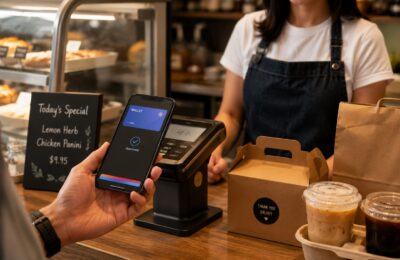
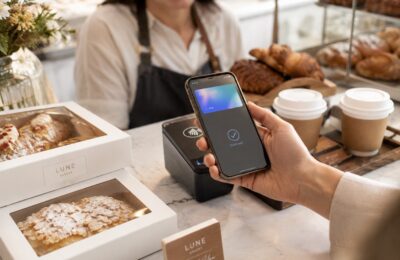
After years of waiting, Apple Pay is finally available in the Philippines.
Apple officially launched its digital payment service in the country on August 4, 2026, allowing eligible Filipino cardholders to pay using an iPhone, Apple Watch, iPad, or Mac. Customers can now use Apple Pay at participating physical stores, mobile applications, and websites without repeatedly taking out their physical debit or credit cards.
For iPhone and Apple Watch users, this is a major addition. Instead of opening a banking app, scanning a QR code, or handing a card to the cashier, you can simply authenticate the payment and tap your device on a compatible contactless terminal.
However, Apple Pay is not available for every Philippine bank or card just yet. The initial rollout covers selected cards from Chinabank, GoTyme Bank, Metrobank, and UnionBank.
Here is everything you need to know about Apple Pay in the Philippines, including the supported banks, eligible cards, devices, participating merchants, setup process, security features, fees, and current limitations.
Content
Apple Pay Philippines: Quick Overview
Here are the most important details at a glance:
- Official launch date: August 4, 2026
- Initial participating banks: Chinabank, GoTyme Bank, Metrobank, and UnionBank
- Supported card networks: Selected Visa and Mastercard cards
- Where it works: Participating physical stores, apps, and websites
- Compatible devices: Eligible iPhone, Apple Watch, iPad, and Mac models
- Customer fee: Apple does not charge an additional fee for using Apple Pay
- Authentication: Face ID, Touch ID, Apple Watch passcode, or device passcode
- Rewards: Cardholders continue receiving the usual rewards and benefits provided by their bank and card
Apple says thousands of in-store and online merchants in the Philippines will accept Apple Pay, with more banks and businesses expected to join in the future.
What Is Apple Pay?
Apple Pay is a digital payment service built into supported Apple devices.
It allows you to add an eligible debit or credit card to the Apple Wallet app. Once the card has been added and verified, you can use your device to make payments without presenting the physical card.
The easiest way to understand it is to think of Apple Pay as a secure digital version of your existing bank card.
Apple Pay is not exactly the same as traditional Philippine e-wallets such as GCash or Maya. You generally do not need to maintain a separate Apple Pay balance. When you make a purchase, the payment is charged to the eligible debit or credit card you selected in Apple Wallet.
You can use Apple Pay in three main ways:
- Tap your iPhone or Apple Watch at a contactless payment terminal.
- Select Apple Pay during checkout in a participating mobile app.
- Select Apple Pay when shopping on a participating website.
The service is already integrated into Apple Wallet, so there is no separate Apple Pay application that you need to download.
When Did Apple Pay Launch in the Philippines?
Apple Pay officially became available in the Philippines on August 4, 2026.
According to Apple, the rollout allows Filipino users to make purchases using an iPhone, Apple Watch, iPad, and Mac. Apple described the launch as a more convenient, secure, and private way to pay both in stores and online.
The Philippines joins more than 90 countries and regions where Apple Pay is available. Apple also says the service works with more than 11,000 banking partners worldwide.
The launch is significant because the Philippines has a large population of mobile-first consumers. QR payments and digital wallets are already widely used, but Apple Pay introduces another contactless option specifically designed for Apple devices.
Which Philippine Banks Support Apple Pay?
At launch, Apple Pay supports eligible cards issued by four Philippine banks:
| Participating bank | Eligible cards listed by Apple |
|---|---|
| Chinabank | Visa credit and debit cards; Mastercard credit cards |
| GoTyme Bank | Visa debit and credit cards |
| Metrobank | Visa credit cards; Mastercard credit and debit cards |
| UnionBank | Visa and Mastercard credit and debit cards |
These card types are based on Apple’s official list of participating banks and issuers for the Philippines.
It is important to pay attention to both the issuing bank and the payment network.
For example, Apple currently lists Metrobank Visa credit cards but not Metrobank Visa debit cards. Chinabank Mastercard credit cards are included, while Chinabank Mastercard debit cards are not listed.
This means having an account with one of the participating banks does not automatically guarantee that your particular card is eligible.
Apple also warns that some cards from participating issuers may not be supported. Eligibility can depend on the exact card product, network, account status, and the bank’s own requirements. Cardholders should contact their bank if they are unsure.
What About BDO, BPI, RCBC, Security Bank, and Other Banks?
As of August 5, 2026, Apple’s official participating-bank list for the Philippines only includes:
- Chinabank
- GoTyme Bank
- Metrobank
- UnionBank
Other major Philippine banks such as BDO, BPI, RCBC, Security Bank, EastWest, PNB, LandBank, and Philippine Veterans Bank were not included in the initial official list.
This does not necessarily mean those banks will never support Apple Pay. Apple regularly adds new banking partners after launching in a country.
Apple specifically says it is working with more banks and card issuers to expand Apple Pay. Customers whose banks are not supported should continue checking Apple’s official list and their bank’s announcements.
Can You Add GCash or Maya to Apple Pay?
GCash and Maya are not currently listed by Apple as participating card issuers for Apple Pay in the Philippines.
That means customers should not assume that a GCash Card or Maya Card can already be added to Apple Wallet. Even when a card uses Visa or Mastercard, it still needs to be enabled by the issuing institution.
Maya does have an important role in the rollout, but it is on the merchant-processing side.
Apple announced that Maya Business would begin enabling Apple Pay for more than 5,000 online merchants in the Philippines. This will help more websites and online businesses accept Apple Pay as a checkout method. However, merchant acceptance through Maya Business is different from support for Maya consumer cards inside Apple Wallet.
Which Devices Support Apple Pay in the Philippines?
Apple Pay can be used on compatible iPhones, Apple Watches, iPads, and Macs.
For the Philippine launch, Apple listed the following minimum requirements:
- iPhone 6 or later with iOS 12.5.2 or later
- Apple Watch Series 4 or later with watchOS 9 or later
- Apple Watch must be paired with an iPhone 8 or later
- Compatible iPads and Macs can be used for in-app and online purchases
Apple Pay features and compatibility may change, so installing the latest software version available for your device is recommended.
To set up Apple Pay, you also need:
- An eligible card from a participating bank
- An Apple Account signed in on your device
- Face ID, Touch ID, or a device passcode
- A compatible Apple device with current software
Apple Watch users must also have a passcode set on the watch.
Can You Tap an iPad or Mac at a Store?
No. An iPad or Mac is primarily used for Apple Pay purchases inside applications or on websites.
For contactless payments at physical stores, you will normally use an iPhone or Apple Watch.
How to Set Up Apple Pay on an iPhone
Adding an eligible card to Apple Wallet is relatively simple.
Step 1: Open Apple Wallet
Find and open the Wallet app on your iPhone. The app is already installed on supported devices.
Step 2: Tap the Add Card Button
Tap the plus sign or Add Card button near the upper portion of the screen.
Step 3: Choose Debit or Credit Card
Select the option to add a new debit or credit card.
You may also see cards that were previously connected to your Apple Account under “Cards Found for You.”
Step 4: Add Your Card Information
Depending on your card and device, you may be able to:
- Tap or hold the card near your iPhone
- Scan the card using the camera
- Enter the card information manually
Step 5: Complete Bank Verification
Your bank may require additional authentication before approving the card.
The verification process could involve:
- A one-time password sent by SMS
- Confirmation through the bank’s mobile app
- Additional personal information
- A phone call to the bank
- Acceptance of updated terms and conditions
Once the bank approves the card, it should appear in Apple Wallet and become available for Apple Pay transactions.
Can You Add a Card Directly from a Banking App?
Selected banks may allow customers to add cards directly through their mobile banking apps or websites.
At launch, Apple said eligible GoTyme debit cards could be accessed through the GoTyme Bank app. Eligible UnionBank customers could also apply for a virtual credit card through the UnionBank website and add it to Apple Pay.
The exact process may vary by bank and card type.
How to Add a Card to Apple Watch
Adding a card to your iPhone does not always mean it is automatically ready on your Apple Watch.
To add a card to Apple Watch:
- Open the Apple Watch app on the paired iPhone.
- Go to the My Watch tab.
- Select Wallet & Apple Pay.
- Tap Add Card.
- Choose a card previously used or enter a new card.
- Complete any verification required by the bank.
Your bank may need to approve the card separately for use on the Apple Watch.
How to Use Apple Pay in Stores
Once your card is activated, you can use Apple Pay at compatible payment terminals.
Look for the Apple Pay logo or the contactless payment symbol near the terminal. The merchant must also accept the card network connected to your Wallet, such as Visa or Mastercard.
Paying with an iPhone Using Face ID
- Double-click the side button.
- Authenticate using Face ID or your passcode.
- Hold the top of the iPhone near the contactless terminal.
- Wait until you see “Done” and a checkmark.
Paying with an iPhone Using Touch ID
- Double-click the Home button.
- Authenticate with Touch ID.
- Hold the top of the iPhone near the contactless reader.
- Wait for the payment confirmation.
Paying with an Apple Watch
- Double-click the side button on the Apple Watch.
- Your default card will appear.
- Scroll if you want to use a different card.
- Hold the Apple Watch display near the contactless terminal.
- Wait for the gentle tap or confirmation sound.
You do not need to open your bank’s mobile application before every transaction.
Where Can You Use Apple Pay in the Philippines?
Apple Pay can work wherever the merchant has an enabled contactless payment terminal and accepts your card’s payment network.
Apple announced several participating merchants for the Philippine launch, including:
- Abenson
- Anko
- Ayala Malls
- Ayala Malls Cinemas
- Beyond the Box
- Coach
- Digimap
- Foot Locker
- Globe
- HOKA
- Hollister
- Jollibee
- Lush
- Power Mac Center
- Rustan’s
- SaladStop!
- Shake Shack
- Smart
- The Loop
- The Matcha Tokyo
- The Movie Snackbar
- The Underbelly
- WalterMart Supermarket
This is not necessarily a complete list. Other stores with compatible contactless terminals may also accept Apple Pay.
However, seeing a contactless logo on a terminal does not always guarantee that contactless payments are currently enabled. When in doubt, ask the cashier whether the terminal accepts contactless Visa or Mastercard payments.
Which Apps and Websites Accept Apple Pay?
During the launch, Apple identified the following applications and websites as initial Apple Pay partners:
- Foodpanda
- Jollibee
- Rustan’s
- Shopee
More online merchants are expected to introduce Apple Pay as payment processors and e-commerce platforms complete their integrations.
Maya Business is also expected to enable Apple Pay for more than 5,000 online merchants, which could significantly expand its availability across Philippine online stores.
When Apple Pay is available online, you should see an Apple Pay button or Apple Pay listed among the payment methods during checkout.
How to Pay with Apple Pay Online or in an App
The process is similar across participating apps and websites:
- Add the items you want to purchase.
- Proceed to checkout.
- Select Apple Pay as the payment method.
- Review your selected card.
- Confirm the delivery, billing, and contact information.
- Authenticate using Face ID, Touch ID, or your passcode.
Apple Pay can save your billing, shipping, and contact details, making checkout faster because you do not have to type your card number and personal information repeatedly.
Is Apple Pay Secure?
Security is one of Apple Pay’s most important features.
When you add a card, the actual card number is not stored directly on your Apple device or Apple’s servers. Instead, a unique Device Account Number is created, encrypted, and stored in the device’s Secure Element.
The Secure Element is a specialized chip designed to protect sensitive payment information.
When you make a purchase, Apple Pay uses the device-specific number and transaction security information rather than sending the physical card number printed on your card.
Apple also states that it does not retain debit- or credit-card transaction information that can be directly tied back to an individual user. The transaction remains between the customer, merchant, card network, and bank or card issuer.
Every regular Apple Pay purchase must also be authorized using one of the following:
- Face ID
- Touch ID
- Device passcode
- Apple Watch authentication
Therefore, simply holding a locked iPhone near a payment terminal should not be enough for someone to complete an ordinary purchase.
What Happens If Your iPhone Is Lost or Stolen?
Losing a phone containing payment cards can understandably feel frightening. However, Apple Pay includes controls designed for this situation.
You can use Find My to mark the device as lost. When Lost Mode is activated, the device is locked and the payment cards being used through Apple Pay are suspended.
You can also remotely erase the device or contact your bank to have its Apple Pay access suspended.
Suspending Apple Pay on a lost device does not always require cancelling the physical card. Contact the issuing bank so it can determine the appropriate action.
Does Apple Charge a Fee for Apple Pay?
Apple does not charge customers an additional fee when paying through Apple Pay in stores, online, or inside applications.
However, the normal terms of your debit or credit card still apply.
Depending on your bank and transaction, you could still encounter:
- Credit-card interest
- Late-payment fees
- Foreign-currency conversion charges
- Overseas transaction fees
- Other charges included in your card agreement
Apple Pay only changes the way the card is presented to the merchant. It does not change the card’s interest rate, credit limit, billing cycle, or bank fees.
Will You Still Earn Credit-Card Points or Cashback?
Yes. Apple says customers will continue receiving the rewards and benefits normally offered by their eligible debit or credit cards when paying through Apple Pay.
Depending on your card, this may include:
- Credit-card points
- Airline miles
- Cashback
- Go Rewards points
- Merchant discounts
- Other cardholder privileges
However, individual bank promotions can have their own conditions. Always read the mechanics of a cashback, installment, or spending promotion to confirm whether digital-wallet transactions qualify.
Apple Pay vs. GCash and Maya
Apple Pay, GCash, and Maya can all be used for digital payments, but they work differently.
| Apple Pay | GCash and Maya |
|---|---|
| Uses an eligible card stored in Apple Wallet | Primarily uses a separate e-wallet account and balance |
| Designed for Apple devices | Available on both iOS and Android |
| Usually uses NFC for physical-store payments | Commonly uses QR codes in Philippine stores |
| Payment is charged to the selected bank card | Payment may come from the wallet balance, linked account, or card |
| Requires a participating card issuer | Does not require an Apple Pay-supported bank |
Apple Pay is not intended to replace every local e-wallet. Instead, it provides another payment option, especially for customers who already prefer paying with their debit or credit cards.
Does Apple Pay Work with QR Ph?
Apple Pay and QR Ph are different payment systems.
QR Ph transactions normally require the customer to scan a QR code using a participating banking or e-wallet application. Apple Pay physical-store payments typically use NFC and a compatible contactless card terminal.
A business accepting QR Ph does not automatically accept Apple Pay. Likewise, a merchant accepting Apple Pay does not necessarily accept QR Ph.
Some businesses may support both.
Can You Use Apple Pay Outside the Philippines?
A supported Philippine card added to Apple Wallet can generally be used overseas wherever the merchant accepts contactless payments through the relevant Visa or Mastercard network.
Your bank must permit international transactions on the card. Foreign-currency conversion rates and overseas transaction fees may also apply.
Before traveling, check your card settings or contact your bank to make sure international usage is enabled.
Is Apple Cash Available in the Philippines?
No. Apple Cash is not part of the Philippine Apple Pay launch.
Apple Cash is the feature that allows eligible users to send and receive money through Messages and Apple Wallet. Apple states that Apple Cash is only available in the United States for eligible users and devices.
Filipinos can use Apple Pay for eligible card purchases, but they cannot use Apple Cash to send money directly to another person.
Can You Use Apple Pay for Philippine Public Transportation?
Apple has not announced a Philippine transit card that can be loaded into Apple Wallet as part of the launch.
There is also no announced integration with local stored-value systems such as Beep.
Apple Pay may still work with a transportation provider that separately accepts ordinary contactless Visa or Mastercard payments. However, the presence of Apple Pay in the Philippines does not automatically mean that it can be used at every train station, bus terminal, toll booth, or transportation service.
What Should You Do If Your Card Cannot Be Added?
Here are a few things to check:
Confirm the Bank and Card Network
Make sure your issuing bank and exact card network appear on Apple’s official supported list.
A participating bank may support its Mastercard credit cards but not its Visa debit cards, or vice versa.
Update Your Device
Install the latest available version of iOS, watchOS, iPadOS, or macOS.
Check Your Apple Account
Make sure you are signed in to your Apple Account and have Face ID, Touch ID, or a passcode enabled.
Check the Card’s Status
The card must normally be active and in good standing. A locked, expired, replaced, or restricted card may not be approved.
Verify Your Mobile Number
Your bank may send a one-time password to the mobile number registered to your account.
Try the Bank’s App
Some participating banks may provide an Add to Apple Wallet option inside their banking app.
Contact the Issuing Bank
The bank, not Apple, makes the final decision about whether a card can be added. Apple recommends contacting the issuer when verification fails or when the card appears to be eligible but cannot be activated.
Can You Request a Refund for an Apple Pay Purchase?
Yes. Purchases made with Apple Pay can generally be refunded according to the merchant’s normal return and refund policies.
The merchant may ask for the receipt or the final digits of the Apple Pay card number. This number can be different from the last four digits printed on your physical card.
To find it:
- Open Apple Wallet.
- Select the card used for the transaction.
- Open the card details.
- Look for the Apple Pay card number.
Once processed, the refund is returned to the corresponding payment card, although it may take several days to appear.
Current Limitations of Apple Pay in the Philippines
Apple Pay’s arrival is exciting, but the initial launch still has several limitations.
First, only four Philippine banks are officially supported at launch. Millions of customers whose cards are issued by other banks will need to wait.
Second, not every card from the four participating banks is eligible. The bank, card type, and payment network must all be supported.
Third, many Philippine businesses still rely on cash or QR payments. A merchant needs a working NFC-enabled contactless terminal to accept Apple Pay in person.
Fourth, Apple Cash and person-to-person Apple payments are not available locally.
Finally, Philippine public transportation systems have not been officially integrated into Apple Wallet as part of the launch.
These limitations are normal for a newly introduced payment service. Support will likely become more useful as additional banks, merchants, websites, and payment processors join.
Why Apple Pay’s Philippine Launch Matters
Apple Pay gives Filipino customers another convenient way to make cashless payments.
For Apple device users, the biggest advantage is simplicity. You can pay without opening a separate app, typing a card number, or handing the physical card to another person.
It also makes the Apple Watch more useful for everyday transactions. You can potentially pay for groceries, food, coffee, cinema tickets, or retail purchases with a quick tap of your wrist.
From a security perspective, merchants do not receive the actual card number printed on your physical card. Transactions are protected through tokenization and device authentication.
For businesses, Apple Pay can also make online checkout faster. Customers may be less likely to abandon their purchase when they do not have to manually enter card and delivery information.
Frequently Asked Questions
Is Apple Pay already working in the Philippines?
Yes. Apple Pay officially launched in the Philippines on August 4, 2026.
Which banks support Apple Pay in the Philippines?
The initial participating banks are Chinabank, GoTyme Bank, Metrobank, and UnionBank.
Can I use any card from those banks?
No. Only eligible Visa and Mastercard products listed or approved by the issuing bank can be added.
Is BDO supported?
BDO was not included in Apple’s official list of participating Philippine banks as of August 5, 2026.
Is BPI supported?
BPI was also not included in the initial participating-bank list.
Can I add my GCash Card?
GCash is not currently listed as an Apple Pay card issuer in the Philippines.
Can I add my Maya Card?
Maya consumer cards are not listed as officially supported. Maya Business is participating as a merchant payment processor.
Does Apple Pay require internet access?
Internet access is needed for setup, card verification, transaction updates, and some online functions. Contactless payments use the device’s NFC capabilities, although availability can still depend on the terminal, card, device status, and bank authorization.
Can I use Apple Pay without opening an app?
Yes. On an eligible iPhone, you can usually double-click the side or Home button, authenticate, and hold the device near the terminal.
Does Apple Pay charge a fee?
Apple does not charge customers an additional fee for making Apple Pay purchases. Normal bank and card fees can still apply.
Will I continue earning rewards?
Apple says eligible cards will continue receiving their usual rewards and benefits.
Is Apple Pay the same as Apple Cash?
No. Apple Pay is used to make purchases with eligible cards. Apple Cash is a separate person-to-person payment service that remains limited to eligible users in the United States.

Final Thoughts
Apple Pay’s arrival in the Philippines is a welcome development for Filipino iPhone and Apple Watch users.
The initial rollout may be limited to Chinabank, GoTyme Bank, Metrobank, and UnionBank, but it is an important first step. Customers of these banks can now add eligible cards to Apple Wallet and make contactless payments without relying on a physical card.
Apple Pay will not immediately replace cash, QR Ph, GCash, Maya, or traditional debit and credit cards. Instead, it gives consumers another secure and convenient payment choice.
The experience should improve as more banks join, more terminals support contactless payments, and more Philippine applications and websites add the Apple Pay checkout button.
For now, check whether your exact card is eligible, update your Apple device, open the Wallet app, and try adding your card. You may already be able to leave your physical wallet in your pocket the next time you shop.