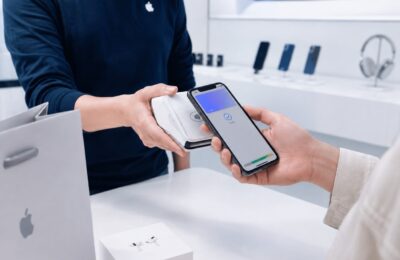
Apple Pay is now available in the Philippines, but adding a debit or credit card to Apple Wallet does not always work on the first try.
You may see an error such as Could Not Add Card, Invalid Card, or Card Device Limit. In other cases, Wallet may ask you to contact the issuing bank, or the verification code may never arrive.
This can be frustrating, especially when your card carries a Visa or Mastercard logo and comes from one of the participating Philippine banks.
The important thing to understand is that several requirements must be met before a card can be added. Your bank must participate in Apple Pay, your particular card type and network must be supported, the card must be active, and your Apple device and account must meet Apple’s security requirements.
Apple also makes it clear that it does not approve or reject individual cards. The final decision is made by the bank or card issuer.
This guide explains why you may be unable to add your card to Apple Pay and what you can do to resolve the problem.
Content
Quick Apple Pay Troubleshooting Checklist
Before going through the more detailed solutions, check these items:
- Confirm that your bank supports Apple Pay.
- Check whether your exact card network and type are eligible.
- Make sure the card is activated and not locked.
- Confirm that the card has not expired.
- Update your iPhone, iPad, Apple Watch, or Mac.
- Sign in to your Apple Account.
- Enable two-factor authentication.
- Turn on Face ID, Touch ID, or a device passcode.
- Check your internet connection.
- Make sure your bank has your correct mobile number.
- Try adding the card manually.
- Try adding it through the bank’s official app.
- Check for Apple or bank service interruptions.
- Contact the card issuer when the error continues.
Apple recommends checking card support, software, device compatibility, authentication settings, connection problems, and service outages before contacting the issuing bank.
Why Apple Pay Card Setup Can Fail
Adding a card to Apple Wallet involves more than copying the number printed on the physical card.
The request must be checked by:
- Your Apple device
- Your Apple Account
- Apple Pay
- The payment network
- The issuing bank
- The bank’s fraud and identity-verification systems
The issuer may review whether the card is eligible, active, in good standing, and being added by the legitimate cardholder.
Some banks may also require you to provide more information, approve the request through their mobile app, or complete another form of authentication before activating the card.
1. Your Bank Does Not Support Apple Pay
The most common reason is that your bank has not joined Apple Pay in the Philippines.
As of August 6, 2026, Apple officially lists four participating Philippine issuers:
| Participating bank | Card categories listed by Apple |
|---|---|
| Chinabank | Visa credit and debit cards; Mastercard credit cards |
| GoTyme Bank | Visa credit and debit cards |
| Metrobank | Visa credit cards; Mastercard credit and debit cards |
| UnionBank | Visa and Mastercard credit and debit cards |
Cards from banks that are not on Apple’s participating-issuer list cannot normally be added, even when they carry a Visa or Mastercard logo.
This means cards issued by banks such as BDO, BPI, RCBC, Security Bank, EastWest, PNB, or LandBank should not currently be assumed eligible unless Apple or the bank officially announces support.
2. Your Exact Card Type Is Not Supported
Seeing your bank on Apple’s list does not guarantee that every card issued by that bank will work.
The payment network and card type also matter.
For example:
- Chinabank Visa credit cards are listed.
- Chinabank Visa debit cards are listed.
- Chinabank Mastercard credit cards are listed.
- Chinabank Mastercard debit cards are not currently listed.
For Metrobank:
- Visa credit cards are listed.
- Mastercard credit cards are listed.
- Mastercard debit cards are listed.
- Visa debit cards are not currently listed.
UnionBank currently has the broadest published coverage because Visa and Mastercard credit and debit cards are all listed.
Apple also warns that some individual cards from participating issuers may still be unsupported. This means a corporate, payroll, prepaid, supplementary, virtual, or specialized card could be excluded even when its general category appears eligible.
3. A Visa or Mastercard Logo Does Not Guarantee Eligibility
Visa and Mastercard provide the payment network, but the issuing institution must still enable the card for Apple Pay.
For example, a Visa debit card issued by an unsupported Philippine bank cannot normally be added simply because other Visa cards work with Apple Pay.
Likewise, a GCash or Maya consumer card should not be considered eligible unless its issuer formally enables Apple Pay support.
The card must be supported by both the network and the issuing bank.
4. Your Card Has Not Been Activated
A newly issued physical card may need to be activated before it can be added to Apple Wallet.
Card activation methods vary by bank. You may be required to:
- Activate it through the bank’s app
- Use it at an ATM
- Make a chip-and-PIN purchase
- Call the bank
- Follow instructions sent with the card
After activating the card, wait a few minutes and try adding it again.
When activation is still being processed by the issuer, Wallet may display an invalid-card or card-not-added message.
5. Your Card Is Temporarily Locked
Many Philippine banking apps allow cardholders to lock or freeze their cards.
A locked card may be blocked from:
- Store purchases
- Online payments
- International transactions
- Contactless purchases
- Digital-wallet enrollment
Open the bank’s official app and check the card controls.
Unlock the card, wait briefly, and try adding it again. Keep it unlocked until the verification process is finished.
Do not unlock a card when you believe it has been lost or stolen. Contact the bank instead.
6. Your Card Has Expired
Check the expiration date printed on the card or displayed in your banking app.
An expired card cannot normally be activated in Apple Wallet.
When your bank has already issued a replacement card, make sure you are using the new:
- Card number
- Expiration date
- Security code
Even when the replacement has the same card number, the expiration date or CVV may have changed.
7. Your Card Was Replaced or Cancelled
A card that was reported lost, stolen, damaged, or compromised may have been cancelled in the bank’s system.
The old card details will no longer work, even when the physical card is still in your possession.
Activate the replacement card and try adding the new details.
In some cases, an issuer may automatically update the digital version of a replacement card. In other situations, you will need to remove the old card from Wallet and add the new one manually.
8. Your Account Has a Restriction
The bank may reject Apple Pay enrollment when the underlying account is:
- Past due
- Suspended
- Closed
- Under fraud review
- Restricted
- Blocked
- Inactive
- Subject to identity-verification requirements
A credit card with an unpaid balance is not automatically ineligible, but an account restriction or suspension may prevent digital-wallet activation.
Check your banking app for alerts or contact the issuer to confirm the account’s status.
9. The Card Details Were Entered Incorrectly
A small typing error can prevent your card from being added.
Review the following:
- Cardholder name
- Card number
- Expiration date
- Security code
- Billing address
When entering the card manually, use the information registered with your bank.
If your card was scanned using the camera, review the captured details before continuing. Camera scanning is convenient, but characters can occasionally be read incorrectly.
Apple allows eligible cards to be added by holding the card near the iPhone or by entering the details manually.
10. Your Name or Billing Information Does Not Match
The name and address entered in Wallet may need to match the information recorded by the issuing bank.
Possible problems include:
- Using a nickname instead of your legal name
- Entering an old home address
- Omitting a middle name required by the bank
- Using a different postal code
- Adding a card belonging to another person
- Entering the principal cardholder’s information for a supplementary card
Review your account details inside the bank’s app or contact the issuer if you recently changed your name or address.
11. Your Bank Cannot Verify Your Identity
Some issuers require additional authentication before approving a card.
The bank may ask you to:
- Receive a one-time password through SMS
- Confirm the request inside its app
- Answer security questions
- Provide more account information
- Call customer service
- Install or update the bank’s official application
Apple confirms that banks may require more information or ask customers to download an app before approving a card for Apple Pay.
Until this verification is completed, the card may appear as unavailable, pending, or requiring verification.
12. The One-Time Password Does Not Arrive
When the verification code is not received, check the following:
- Your phone has a mobile signal.
- The bank has your current mobile number.
- Your SMS inbox is not full.
- Messages from unknown senders are not being filtered.
- Your phone is not in airplane mode.
- The bank is not undergoing maintenance.
- You have not requested too many codes in a short period.
Wait a few minutes before requesting another code.
Repeated requests can trigger a temporary security limit. When the code still does not arrive, contact your bank and ask it to confirm the registered mobile number.
Never share your Apple Pay verification code with another person. Enter it only in Apple Wallet or the bank’s official application.
13. The Bank Requires App Verification
Some banks may ask you to complete the enrollment through their official mobile application.
Look for options such as:
- Add to Apple Wallet
- Add to Apple Pay
- Digital Wallet
- Manage Wallet
- Verify Card
Update the bank’s app before trying again.
Sign in using your normal banking credentials, select the eligible card, and follow the instructions shown on the screen.
Never install a banking app from a link sent by an unknown text message or social-media account. Download it only from the official App Store listing.
14. Your Apple Device Is Not Compatible
Apple Pay requires a compatible device.
Apple instructs users to check device compatibility when they cannot add a card.
You may encounter problems when:
- The iPhone is too old
- The Apple Watch model is unsupported
- The Mac does not meet Apple Pay requirements
- The device uses modified or unauthorized software
- Required hardware features are unavailable
- The device is managed by an organization that restricts Wallet
An iPhone or Apple Watch is generally used for physical contactless payments, while compatible iPads and Macs can be used for participating app and online purchases.
15. Your Device Software Is Outdated
Apple recommends updating to the latest available version of:
- iOS
- iPadOS
- watchOS
- macOS
- visionOS
Outdated software can cause compatibility, security, and card-verification problems.
To update an iPhone:
- Open Settings.
- Tap General.
- Select Software Update.
- Download and install the available update.
- Restart the phone when necessary.
Also update the bank’s mobile application through the App Store.
16. Face ID, Touch ID, or a Passcode Is Not Enabled
Apple Pay requires device authentication.
Depending on the Apple device, this may involve:
- Face ID
- Touch ID
- Optic ID
- Device passcode
- Apple Watch passcode
Apple specifically tells users to confirm that one of these authentication methods is configured when they cannot add a card.
On an iPhone:
- Open Settings.
- Select Face ID & Passcode or Touch ID & Passcode.
- Turn on a device passcode.
- Set up Face ID or Touch ID when supported.
On an Apple Watch, open its Settings app and make sure a watch passcode is enabled.
Removing the device passcode or signing out of iCloud can remove payment cards from that device.
17. You Are Not Signed In to Your Apple Account
Apple Pay requires an Apple Account signed in on the device.
To check:
- Open Settings.
- Look for your name at the top.
- Sign in when prompted.
- Confirm that iCloud is active.
When you use several Apple devices, make sure each device is signed in correctly.
A card added to one device does not always become automatically active on another device. You may need to verify it separately on your Apple Watch, iPad, or Mac.
18. Two-Factor Authentication Is Not Enabled
Apple recommends confirming that two-factor authentication is turned on for your Apple Account.
To check it on an iPhone:
- Open Settings.
- Tap your name.
- Select Sign-In & Security.
- Review the two-factor authentication setting.
- Follow the instructions when it needs to be enabled.
Two-factor authentication helps protect your Apple Account by requiring additional verification when it is accessed from a new device.
19. Your Device or Account Region Is Incorrect
Apple Pay must be used in a supported country or region. The Philippines has officially been added to Apple Pay’s supported markets.
Review your device’s region settings when Apple Pay options are unexpectedly missing:
- Open Settings.
- Tap General.
- Select Language & Region.
- Check the selected region.
Changing the region does not make an unsupported Philippine card eligible. Your card must still come from a participating issuer and pass the bank’s verification requirements.
Avoid entering a false country or address just to force Apple Pay options to appear.
20. Your Internet Connection Is Unstable
An internet connection is needed during card enrollment and verification.
A weak or unreliable connection may prevent Wallet from communicating with Apple or your card issuer.
Try the following:
- Switch between Wi-Fi and mobile data.
- Turn airplane mode on and off.
- Restart the router.
- Move to an area with a stronger signal.
- Disable an unstable VPN connection.
- Restart the Apple device.
Avoid adding your financial cards while connected to an unfamiliar public Wi-Fi network.
21. Apple Pay or Your Bank Is Experiencing an Outage
Apple advises users to check for service interruptions or connection problems when they cannot add a card.
A temporary problem could affect:
- Apple Pay
- Apple Wallet
- Your bank’s mobile app
- SMS verification
- Visa or Mastercard services
- The bank’s card-management system
When the setup was previously working and suddenly fails, wait and try again later rather than submitting the same request repeatedly.
You can also check your bank’s official maintenance announcements.
22. You Have Reached the Card Device Limit
Banks may restrict the number of devices that can hold a digital version of the same card.
Apple identifies Card Device Limit as one of the error messages that requires assistance from the issuing bank.
The card may already be connected to:
- An old iPhone
- Another iPhone
- Apple Watch
- iPad
- Mac
- A family member’s device
- A device that was lost or replaced
Remove the card from devices you no longer use.
When you cannot access the old device, contact the bank and ask it to remove or reset the existing Apple Pay device tokens.
23. The Card Is Already Connected to Too Many Digital Wallets
Some issuers may apply limits across multiple devices or digital-wallet services.
Even when the card is not visible on your current iPhone, the bank may still see active digital payment credentials associated with old devices.
This can happen after:
- Replacing an iPhone
- Resetting a device
- Restoring from a backup
- Repeatedly adding and removing the card
- Losing an Apple Watch
- Changing Apple Accounts
The issuer may need to clear the old registrations.
24. You Are Trying to Add Someone Else’s Card
The bank may reject a card when the person adding it cannot complete the required identity verification.
Do not add a card belonging to another person without authorization.
For supplementary cards, use the card issued in the supplementary cardholder’s name and follow the bank’s verification instructions.
The issuing bank decides whether supplementary, corporate, and business cards are eligible.
25. The Card Is a Corporate, Payroll, or Special-Purpose Product
Some cards may be excluded even when they come from a participating bank.
Possible examples include:
- Corporate cards
- Company purchasing cards
- Payroll cards
- Government payment cards
- Pension cards
- Prepaid cards
- Gift cards
- Fleet cards
- Restricted debit cards
Apple notes that some cards issued by participating banks may not yet support Apple Pay.
Contact the issuer or your company’s card administrator to confirm whether the particular product can be added.
26. The Card Is a Virtual or Prepaid Card That Has Not Been Enabled
Some virtual cards work with Apple Pay, but not all of them.
A virtual card may have:
- A card number
- Expiration date
- Security code
- Visa or Mastercard branding
However, these details alone do not make it eligible.
The issuer still needs to enable the card for Apple Wallet.
The same rule applies to prepaid cards. Check the bank’s official Apple Pay information before trying to add the card.
What Apple Pay Error Messages Mean
“Could Not Add Card”
This is a general error that can appear when:
- The card is unsupported
- The bank declined enrollment
- Verification failed
- The account is restricted
- The connection was interrupted
- The issuer’s system is unavailable
Apple advises users who see this message to contact the issuing bank.
Before calling, update the device, restart it, check the card’s status, and try again using a stable connection.
“Invalid Card”
This may mean that:
- The card details were entered incorrectly
- The card is expired
- The card has been replaced
- The card is inactive
- The product is unsupported
- The issuing bank does not participate
Review the card number, expiration date, and security code.
When the information is correct, contact the issuer. Apple lists Invalid Card among the messages that need bank assistance.
“Card Device Limit”
The card may already be connected to the maximum number of devices permitted by the bank.
Remove it from an old device or contact the issuer to reset the digital-wallet registrations.
“Contact Your Card Issuer”
The bank needs to complete the verification or explain why the card is ineligible.
Use the official telephone number printed on the back of the card or found inside the bank’s verified app.
Do not call a number sent by an unknown text message.
“Your Issuer Does Not Yet Offer Support for This Card”
This usually means one of two things:
- The bank does not currently support Apple Pay.
- The bank participates, but your particular card product is not enabled.
Check Apple’s current list and then contact the issuer for product-specific information.
“Verification Required”
The card may have been added provisionally but still needs authentication.
Tap the card in Wallet and follow the instructions. You may need to:
- Receive a one-time password
- Open the bank’s app
- Call customer service
- Confirm personal information
The card cannot normally be used until verification is completed.
Step-by-Step Fix When You Can’t Add a Card
Follow this order to avoid unnecessary repeated attempts.
Step 1: Identify the Card
Check:
- Issuing bank
- Visa or Mastercard network
- Credit, debit, prepaid, or virtual status
- Principal or supplementary status
Step 2: Check Apple’s Supported-Bank List
Confirm that the exact bank, network, and card type are listed.
Do not stop after seeing the bank’s name.
Step 3: Check the Card’s Status
Open the bank’s app and confirm that the card is:
- Active
- Unlocked
- Unexpired
- In good standing
- Not reported lost or stolen
Step 4: Update Everything
Update:
- iOS or other device software
- The banking app
- Any required authentication app
Step 5: Review Apple Account Security
Confirm that:
- You are signed in.
- Two-factor authentication is enabled.
- Face ID, Touch ID, or a passcode is configured.
Step 6: Restart the Device
Restarting can resolve temporary Wallet, network, and software issues.
Step 7: Try a Different Internet Connection
Switch between secure Wi-Fi and mobile data.
Step 8: Add the Card Manually
In Wallet:
- Tap the plus sign.
- Select Debit or Credit Card.
- Tap Continue.
- Select Enter Card Details Manually.
- Enter the correct information.
- Complete bank verification.
Apple officially supports both proximity-based and manual card enrollment for eligible cards.
Step 9: Try the Bank’s App
Look for an Add to Apple Wallet option.
This method may allow the bank to authenticate you before sending the card to Wallet.
Step 10: Contact the Bank
When the card still fails, call the issuer.
Apple does not approve or reject the card and cannot override the bank’s decision.
What Information Should You Prepare Before Calling the Bank?
Have the following ready:
- Your full name
- The final four digits of the card
- Card type and network
- Device model
- Current software version
- Exact error message
- Approximate time of the failed attempt
- Whether the card is locked
- Whether a verification code was received
- Whether the card is already on another device
Do not send the bank a screenshot showing your complete card number or security code unless you are using a verified and secure channel that specifically requests the information.
What the Bank May Need to Do
Depending on the problem, the issuer may:
- Confirm the card’s eligibility
- Update your mobile number
- Complete identity verification
- Remove an enrollment restriction
- Unlock the card
- Clear old device registrations
- Reset the card’s digital-wallet limit
- Activate the card
- Replace an expired or compromised card
- Explain that the product is unsupported
The bank may also ask you to wait briefly before attempting enrollment again.
Can Apple Support Add the Card for You?
Apple can help with Wallet, device, Apple Account, and software-related issues.
However, Apple cannot force a bank to approve an unsupported or declined card.
Apple explicitly states that it does not approve or decline cards for Apple Pay. Customers whose cards are declined must contact their bank or card issuer.
Contact Apple Support when:
- Wallet is missing
- The Add Card button does not appear
- Your Apple Account is not functioning correctly
- Face ID or Touch ID has a device-related issue
- Apple Pay settings are unavailable despite meeting the requirements
- Wallet repeatedly crashes
Contact the bank when:
- The card is declined
- Verification fails
- The code does not arrive
- The card is ineligible
- You see Card Device Limit
- You see Invalid Card
- You see Could Not Add Card
Should You Change Your iPhone Region to Add the Card?
Changing the region is not a reliable way to make an unsupported card work.
The Philippines is already an Apple Pay-supported country. Your card still needs to come from a participating issuer and belong to an eligible product category.
Using another country in the settings does not make a BDO, BPI, GCash, Maya, or other unsupported Philippine card eligible.
Keep your region and account details accurate.
Should You Keep Trying Repeatedly?
Avoid making many consecutive enrollment attempts.
Repeated failures may trigger additional fraud controls or temporary restrictions from the issuing bank.
After two or three carefully checked attempts:
- Stop.
- Review the error.
- Check the card and device settings.
- Wait for any service interruption to end.
- Contact the bank.
This is safer and usually more effective than repeatedly submitting the same information.
Apple Pay Setup Safety Tips
Card-enrollment problems can attract scammers pretending to offer technical support.
Protect yourself by following these rules:
- Use only the official Wallet app.
- Download banking apps only from the App Store.
- Never share a one-time password.
- Never share your device passcode.
- Never disclose your card PIN.
- Do not provide your Apple Account password to a caller.
- Do not allow an unknown person to control your screen remotely.
- Call the number printed on the card.
- Ignore social-media accounts claiming they can manually activate Apple Pay.
- Do not pay someone to “unlock” an unsupported card.
A bank employee should not need your device passcode or Apple Account password to verify your card.
Frequently Asked Questions
Why can’t I add my Philippine card to Apple Pay?
The bank or exact card product may not be supported, the card may be inactive or locked, or your device and Apple Account may not meet Apple Pay’s requirements.
Which Philippine banks support Apple Pay?
Apple currently lists Chinabank, GoTyme Bank, Metrobank, and UnionBank, with support limited to specific Visa and Mastercard card categories.
Why can’t I add my card even though my bank is supported?
Your exact network or card product may not be eligible. The card may also be locked, expired, restricted, or awaiting bank verification.
Why can’t I add my Metrobank Visa debit card?
Apple currently lists Metrobank Visa credit cards and Mastercard credit and debit cards. Metrobank Visa debit cards are not included in Apple’s published list as of August 6, 2026.
Why can’t I add my Chinabank Mastercard debit card?
Apple lists Chinabank Visa credit and debit cards and Mastercard credit cards. Chinabank Mastercard debit cards are not currently listed.
Can I add a BDO or BPI card?
BDO and BPI are not currently included in Apple’s Philippine participating-bank list.
Can I add a GCash or Maya Card?
GCash and Maya consumer cards are not currently listed as participating Philippine Apple Pay cards.
Why is my card marked invalid?
The details may be incorrect, the card may have expired or been replaced, or the product may not be eligible. Contact the issuer when the information is correct.
What does Card Device Limit mean?
The card may already be connected to the maximum number of devices permitted by the bank. Remove old registrations or ask the bank to reset them.
Why am I not receiving the verification code?
Your bank may have an outdated mobile number, SMS delivery may be delayed, or the bank may be experiencing maintenance. Contact the issuer when the code continues to be unavailable.
Do I need two-factor authentication?
Apple recommends confirming that two-factor authentication is enabled for your Apple Account when you cannot add a card.
Can I add the card to my iPhone and Apple Watch?
Generally, yes, but it may need to be added and verified separately on each device.
Does Apple decide whether my card is accepted?
No. The issuing bank decides whether the card is eligible and approved.
Final Troubleshooting Checklist
Before contacting your bank, make sure you have tried the following:
- Confirmed that the bank participates in Apple Pay
- Checked the exact card network and type
- Activated the physical card
- Unlocked the card
- Confirmed that it has not expired
- Updated your Apple device
- Updated the banking app
- Signed in to your Apple Account
- Enabled two-factor authentication
- Enabled Face ID, Touch ID, or a passcode
- Used a stable internet connection
- Restarted the device
- Entered the card details manually
- Checked the registered mobile number
- Looked for an Add to Apple Wallet option in the bank’s app
- Checked for service outages
- Removed the card from unused devices
When the problem remains after these checks, contact the issuer and provide the exact error message.

Final Thoughts
There are many reasons a card may not be added to Apple Pay, but the most common problem is card eligibility.
Your bank needs to participate in Apple Pay, and your exact card network and type must be supported. Even then, the card must be active, unexpired, unlocked, and approved by the issuer.
Your Apple device also needs current software, an active Apple Account, two-factor authentication, and Face ID, Touch ID, or a passcode.
Start by checking Apple’s official participating-bank list. Then review your card status, update your device, and try adding the card manually or through the bank’s app.
When you see Could Not Add Card, Invalid Card, or Card Device Limit, contact the issuing bank. Apple provides the Wallet and payment technology, but the bank controls eligibility, identity verification, device limits, and final approval.
Once the issuer resolves the problem and verifies your card, it should appear in Apple Wallet and become ready for supported Apple Pay purchases.