Did you accidentally enter the wrong birthday when creating your GCash account? Have you recently changed your surname after getting married? Perhaps you moved to a new address, changed jobs, or need to replace the email connected to your profile.
Keeping your GCash information accurate is important. Your name, birthday, address, occupation, email address, and other personal details may be used for identity verification, account recovery, security reviews, and access to GCash services.
Fortunately, several details can now be updated through the GCash app. However, not every type of change follows the same procedure.
Your address, occupation, and general profile information can usually be updated through the Update Account Information section. Changing your legal name or date of birth requires a separate support request and supporting documents. Your email address has its own in-app process, while your registered mobile number cannot simply be edited on the existing account.
This guide explains how each type of update works, what documents you may need, how long the request can take, and what to do when the information cannot be changed.
The procedures in this guide were checked against official GCash information available as of July 15, 2026. GCash may change its app menus, requirements, and processing periods, so always follow the latest instructions displayed inside the official app.
Content
Why Should You Keep Your GCash Information Updated?
Your GCash account is connected to your verified identity. The information in your profile should therefore reflect your current and correct personal details.
Updating your information can help prevent problems involving:
- Identity verification
- Account recovery
- Transaction reviews
- Name mismatches with banks or financial products
- GSave and other partner services
- Insurance applications
- Loan or credit eligibility reviews
- Support requests
- Security investigations
- Future account re-verification
GCash also states that Fully Verified users may periodically be required to update their account information. According to its Help Center, this regular updating is required to maintain full access under applicable Bangko Sentral ng Pilipinas requirements. Users who receive an update reminder should complete it before the stated deadline to avoid being downgraded from Fully Verified to Basic.
What GCash Information Can You Update?
The procedure depends on what you want to change.
| Information you want to change | How it is normally updated |
|---|---|
| Home or present address | Through Update Account Information in the app |
| Occupation or work details | Through Update Account Information in the app |
| Other general profile details | Through Update Account Information in the app |
| Email address | Through the separate Edit Your Profile process |
| Misspelled name | Request through official GCash support with proof |
| Surname after marriage or civil-status change | Request through support with an applicable document |
| Name suffix such as Jr. or III | Request through support |
| Legally changed name | Request through support |
| Incorrect date of birth | Request through support with proof |
| Registered mobile number | Cannot simply be edited; create or use another account and request a transfer when needed |
| MPIN | Changed separately under Profile and Settings |
It is important to choose the correct procedure. Updating your address inside the app will not necessarily give you an option to replace your legal name or birthday.
Can You Change Your Name in GCash?
Yes, but GCash limits name-change requests to legitimate corrections or documented legal changes.
GCash says a Fully Verified user may request a name change when:
- The surname changed because of civil status, such as getting married
- There is a minor spelling error in the registered name
- A suffix such as Jr., Sr., II, or III needs to be corrected or added
- The person has legally changed their name
GCash accounts are non-transferable. You cannot replace your name with another person’s name so that they can take ownership of your existing wallet.
Examples of Valid Name-Change Situations
A legitimate request may include situations such as:
- “Maria Santos” becoming “Maria Santos-Reyes” after marriage
- “Jonathan Espnia” being corrected to “Jonathan Espina”
- Adding “Jr.” because it was omitted from the verified profile
- Updating a legal name following a court-approved change
- Updating a surname after an annulment or declaration of nullity
A request to replace your name with the name of a friend, family member, buyer of your SIM, or new phone-number owner is not a regular profile correction.
Requirements for Changing Your Name
The supporting document depends on why the name is being changed.
Change of Surname Due to Civil Status
GCash lists documents such as:
- An accepted identification document showing the updated surname
- Marriage certificate
- Court decree of annulment
- Declaration of nullity of marriage
Prepare a clear photograph of the applicable document requested for your situation.
Minor Misspelling or Incorrect Name Details
For a spelling error or similar correction, GCash lists documents including:
- PSA, NSO, or certified true copy of a birth certificate
- National ID
- Passport
- Pag-IBIG Loyalty Plus Card
- Driver’s license
- Philippine Postal ID
- PRC ID
- UMID
- SSS ID
Use a document that clearly shows the correct legal spelling of your name.
Updating a Name Suffix
When correcting or adding a suffix such as Jr. or III, submit an official document that clearly shows the correct complete name.
The name format in your supporting document should match the correction you are requesting.
Legal Change of Name
A legal name change should be requested through official GCash support. Follow the document instructions provided for your case, since a legal change may require a court order or another official record beyond an ordinary identification card.
How to Change Your Name in GCash
GCash’s current Help Center directs eligible Fully Verified users to contact support and attach the required document.
A practical process is:
- Prepare a clear photo of the applicable supporting document.
- Open the official GCash app.
- Go to Profile.
- Tap Help.
- Search for Change my name or birthday.
- Open the official help article.
- Use the available contact-support option.
- Select the reason for the correction.
- Enter the correct legal name.
- Attach the requested document.
- Review everything before submitting.
GCash says its team will update an approved name or birthday correction within three days and send an SMS when the update is completed.
Can You Change Your Birthday in GCash?
Yes. A Fully Verified user may request a date-of-birth correction when the birthday in the GCash account does not match the person’s actual birth date.
This option is intended to correct an error. It should not be used to create a false age or convert another person’s account into your own.
For example, you may need a correction if:
- The month and day were accidentally reversed
- The wrong birth year was entered
- A typographical error occurred during registration
- The profile birthday does not match your official records
GCash requires documentary proof before changing a verified date of birth.
Documents Accepted for a Birthday Correction
GCash lists the following possible supporting documents for an incorrect date of birth:
- PSA, NSO, or certified true copy of a birth certificate
- National ID in card form
- Paper or Digital National ID
- Philippine passport
- Pag-IBIG Loyalty Plus Card
- Driver’s license
- Philippine Postal ID
- PRC ID
- UMID
- SSS ID
Use a valid document that clearly displays your correct birthday.
A birth certificate may be the clearest option when the birthday itself is the information being disputed, but the appropriate document depends on the instructions shown for your request.
How to Correct Your Birthday in GCash
The birthday-correction process is handled through support rather than through the ordinary address-editing screen.
To request the correction:
- Prepare a clear image of an accepted supporting document.
- Open the GCash app.
- Tap Profile.
- Select Help.
- Search for Change my name or birthday.
- Open the corresponding official article.
- Tap the contact-support option.
- Enter your correct date of birth.
- Attach the document showing the correct birthday.
- Submit the request.
- Monitor your SMS messages and support ticket.
GCash says an approved correction should be completed within three days, with an SMS sent afterward.
How to Update Your Address in GCash
Unlike name and birthday corrections, your address can normally be updated through the app’s account-information section.
The same area may also be used to update work and other general profile details.
Step-by-Step Instructions
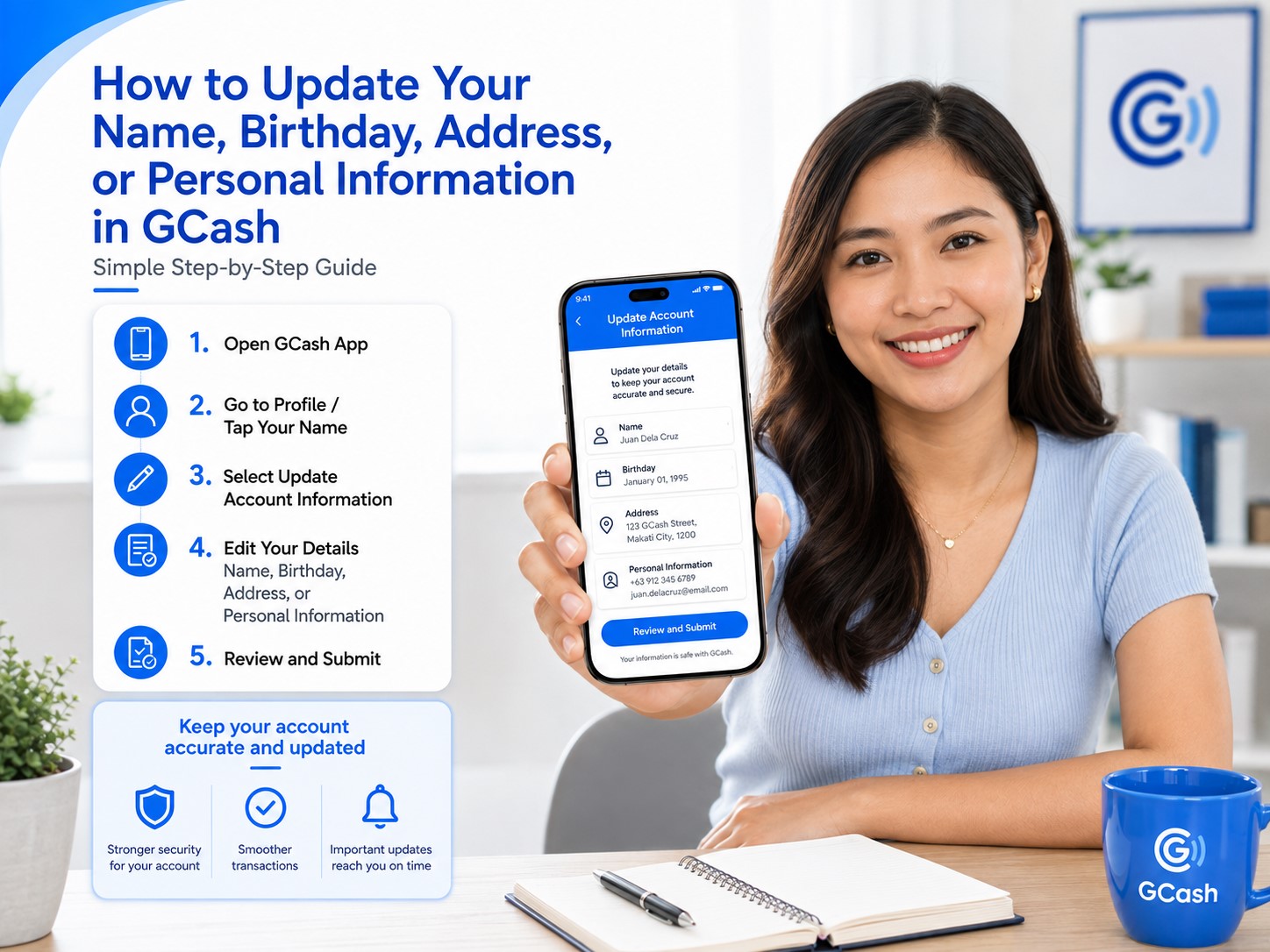
- Open the GCash app.
- Tap Profile.
- Tap your name beside or below your profile picture.
- Select Update Account Information.
- Tap Update Your Profile.
- Enter the six-digit code sent to your registered GCash number.
- Tap Next.
- Complete the required verification steps.
- Enter your updated address.
- Review the information.
- Submit the update.
GCash says the profile update can take up to three days. You should receive an SMS confirmation once it has been completed.
What Address Should You Enter?
Use your current and accurate address based on the fields requested in the app.
You may be asked to provide details such as:
- House, unit, or building number
- Street
- Subdivision or village
- Barangay
- City or municipality
- Province
- Postal code
- Country
Enter only accurate information. Avoid placing landmarks, instructions, or unnecessary notes in fields intended for official address details.
When possible, use a consistent address format across your GCash account and other financial records. This may help avoid confusion when using partner services that require additional verification.
How to Update Your Work or Occupation Information
GCash uses the same general profile-update section for work details.
To update your occupation or employment information:
- Open GCash.
- Tap Profile.
- Tap your name.
- Select Update Account Information.
- Tap Update Your Profile.
- Enter the six-digit code sent to your number.
- Complete the requested verification.
- Update your work or occupation details.
- Review the information.
- Submit the request.
The update may take up to three days, and GCash says it will send an SMS when the profile has been updated.
Depending on the form, you may be asked about:
- Employment status
- Occupation
- Industry
- Employer or business type
- Source of funds
- Estimated income range
- Purpose of using the account
Answer accurately based on your current circumstances.
What if You Are Unemployed, Self-Employed, or a Freelancer?
Select the option that most accurately describes your situation.
For example:
- Choose Unemployed when you currently do not have employment or a business.
- Choose Self-employed when you run your own business or work independently.
- Choose Freelancer or a similar category when available and appropriate.
- Choose Student when you are studying and that is your applicable profile category.
- Choose the closest legitimate industry when the exact job title is not listed.
Do not select an occupation only because you believe it will improve your eligibility for loans or other products. GCash may use the information for regulatory, security, and product-assessment purposes.
How to Change Your Email Address in GCash
GCash provides a separate in-app process for changing your registered email address.
To update it:
- Open the GCash app.
- Tap Profile.
- Tap your name beside your profile picture.
- Select Update Account Information.
- Read the reminders.
- Tap Edit Your Profile.
- Enter the six-digit OTP sent to your registered mobile number.
- Tap Next.
- Complete the required verification steps.
- Replace the old email address with the new one.
- Enter the second six-digit code sent to your number.
- Tap Submit.
The official instructions require authentication both before editing and again before submitting the new email address.
Tips When Changing Your Email Address
Use an email address that:
- Belongs to you
- You can access regularly
- Has a strong and unique password
- Has two-factor authentication enabled when available
- Is not shared with several people
- You expect to keep for a long time
Check the spelling carefully. A single incorrect letter could prevent you from receiving important support messages or account notices.
Also check your email’s spam or junk folder when waiting for communication from GCash.
Can You Change Your GCash Mobile Number?
You cannot simply edit the mobile number attached to an existing GCash account.
GCash states that changing numbers requires a fund-transfer process to a new number rather than replacing the number within the original profile.
Your mobile number functions as the primary identifier of the GCash account. A new number normally means creating or using a separate GCash account.
How to Move to a New GCash Number
When you need to use a new number, the process depends on whether you can still access the old account.
When You Can Still Access the Old Account
When you can still log in, you may transfer the remaining wallet balance yourself through Send Money or Bank Transfer.
Linked GCash services may require a separate service-transfer request.
Before changing numbers:
- Register the new SIM with your network provider.
- Create a new GCash account using the new number.
- Complete full verification on the new account.
- Transfer your available balance from the old account.
- Review linked services on the old profile.
- Request a service transfer when necessary.
- Close the old account when you no longer need it.
When You Cannot Access the Old Account
If the old SIM is expired, deactivated, lost, or otherwise inaccessible, GCash requires you to have another separate, active, and Fully Verified GCash account.
You can then submit a transfer request through the GCash app:
- Open the GCash app.
- From the login screen, tap Help Center.
- Under Quick Help, select Transfer Funds & Services.
- Tap Chat with Gigi.
- Follow the instructions to create a support ticket.
- Confirm the request by replying under Profile → Help → My Support Tickets.
GCash says fund transfers may take up to 48 hours, while transfers of linked services may take up to seven calendar days. The Gigi process must be completed through the GCash app rather than a standard browser.
What Services May Need Separate Updating?
Changing your main GCash profile does not necessarily update every partner account or product automatically.
Services that may have separate records include:
- GSave partner-bank accounts
- GFunds or investment accounts
- GStocks PH
- GCrypto
- GInsure policies
- GLoan
- GCredit
- GGives
- GCash Card
- PayPal or Payoneer links
- Partner subscriptions
- Business or merchant services
A partner bank, insurer, lender, or investment provider may require its own update request and supporting documents.
After changing important information such as your legal name or mobile number, review each linked product and contact the actual provider when its records still show the old details.
Why Is GCash Asking You to Update Your Information Again?
You may receive a request to update your profile even when your account is already Fully Verified.
GCash says Fully Verified users must periodically update their details. When prompted, the information needs to be reverified to maintain full access to account features.
This does not automatically mean that your account has been hacked or that the original verification failed.
It may simply mean that:
- Your information is due for periodic re-verification
- Some details may be outdated
- GCash needs additional information
- Regulatory requirements require a new review
- Your submitted ID or profile information needs refreshing
Always check the notification inside the official GCash app instead of following an unexpected link in a text message.
How to Complete a Required Profile Update
When GCash asks you to update your information:
- Open the official GCash app.
- Tap Profile.
- Tap your name.
- Select Update Account Information.
- Tap Update Your Profile or Get Started, depending on the screen.
- Enter the six-digit code sent to your registered number.
- Complete the required fields.
- Review the updated information.
- Tap Submit.
GCash says the process may take up to three days and that an SMS will be sent when the profile update is complete.
What Happens if You Ignore the Update Request?
Ignoring an official GCash update request may cause your account to be downgraded.
GCash says users receive reminders through SMS and the app inbox before the deadline. If the update is not completed on time, a Fully Verified account may be downgraded to Basic.
When downgraded:
- Fully Verified features become unavailable
- Send Money and Bank Transfer access may be restricted
- The account returns to Basic-level features and limits
- You may need to restart the verification process
- Existing funds remain safe
GCash specifically says that missing the deadline requires the user to restart verification.
Complete an official update request as early as possible instead of waiting until the final day.
How Long Does a GCash Information Update Take?
GCash currently provides these general timelines:
| Type of update | Published processing period |
|---|---|
| Address, work, or general profile update | Within 3 days |
| Name or birthday correction through support | Within 3 days |
| Required periodic account update | Up to 3 days |
| Transfer of funds from an inaccessible old account | Up to 48 hours |
| Transfer of linked services from an old account | Up to 7 calendar days |
GCash sends an SMS after applicable profile updates are completed.
These are general processing periods, not guarantees that every request will be completed immediately. A request may take longer when documents are unclear, information does not match, or additional review is needed.
How to Check Whether Your Information Was Updated
After receiving an SMS confirmation:
- Open GCash.
- Tap Profile.
- Tap your name.
- Review the displayed information.
- Check the relevant field.
- Close and reopen the app when the old information still appears.
For a support request, you can also review:
Profile → Help → My Support Tickets
Read any response carefully in case GCash asks for another document or clarification.
What if Your Request Is Rejected?
A profile update may fail when:
- The supporting document is expired
- The image is blurry
- Part of the document is cropped
- The requested information does not match the document
- You selected the wrong reason
- The change appears to transfer ownership
- The name change is not supported by a legal record
- GCash cannot verify your identity
- Required information is missing
- The request was submitted through an unofficial channel
Review the rejection message and correct the underlying issue before submitting another request.
Tips for a Successful Name or Birthday Update
Use a Clear Supporting Document
Take the photo in a bright area and make sure the complete document is visible.
Avoid Camera Flash
Flash can create glare over your name, birthday, document number, or official seal.
Match the Requested Information Exactly
Enter the same legal spelling and date shown in the supporting document.
Do Not Edit the Document
Do not crop, retouch, change, or cover information on an official record.
Use the Correct Reason
A surname change after marriage is different from a spelling correction or legal name change.
Monitor Your Support Ticket
Check the GCash app and the email address connected to your request.
Respond Promptly
When GCash requests more information, submit it through the official ticket as soon as possible.
Tips for Updating Your Address or Work Details
Enter Complete Information
Do not omit the barangay, city, municipality, province, or postal code when requested.
Use Current Details
Do not keep an old address or employer simply because it was used during the original verification.
Answer Source-of-Funds Questions Honestly
Choose the option that accurately describes how you receive money.
Review Before Submitting
Incorrect profile updates may require another review or support request.
Keep Your SIM Active
You need access to your registered number to receive authentication codes.
What if You No Longer Have Access to Your Registered Number?
If you want to keep the same number, contact your mobile network provider and ask whether a replacement SIM can be issued.
If the number is permanently unavailable, you may need to create a new GCash account and request a transfer of the remaining funds and eligible services. GCash requires the receiving account to be active, separate, and Fully Verified for this transfer process.
Do not give the old SIM or number to another person while leaving your GCash account attached to it.
GCash accounts are non-transferable. If the mobile number will be transferred to a new owner, GCash advises closing the existing account first.
Can You Give Your GCash Account to Someone Else?
No.
Even when another person will use your old SIM, you cannot simply change the name, birthday, and other profile details to transfer the wallet to them.
The appropriate action is to:
- Remove or transfer your remaining funds.
- Review and transfer eligible linked services.
- Close your GCash account.
- Allow the new number owner to create their own account using their own identity.
This protects both you and the new owner from ownership, verification, and account-recovery problems.
GCash Information-Update Security Reminders
Profile updates involve sensitive personal information. Scammers may pretend that your account needs an urgent update to make you click a phishing link.
Remember:
- Open the GCash app yourself.
- Do not follow an unexpected verification link.
- Never share your MPIN.
- Never share an OTP or six-digit authentication code.
- Do not send your ID through an unofficial Facebook page.
- Do not install a remote-access application.
- Do not pay someone to correct your information.
- Do not let another person complete identity verification for you.
- Do not transfer money to a “safe account.”
- Check support requests under My Support Tickets.
A legitimate profile update should be initiated through the official GCash app or an official support ticket.
Frequently Asked Questions
Can I change my name in the GCash app?
A legal name, surname, suffix, or spelling correction is handled through official GCash support rather than the ordinary address-update field. You must be Fully Verified and provide an applicable supporting document.
Can I change my GCash name to another person’s name?
No. GCash accounts are non-transferable. A profile correction cannot be used to give the account to another person.
Can I change my surname after getting married?
Yes. GCash allows Fully Verified users to request a surname change due to civil status. An accepted ID showing the updated surname, marriage certificate, or another applicable civil-status document may be required.
Can I remove my married surname after an annulment?
GCash lists a court decree of annulment or declaration of nullity among the applicable documents for a surname change related to civil status. Submit the request through official support.
Can I correct a misspelled name?
Yes. A Fully Verified user may request correction of a minor spelling error by submitting an applicable official document showing the correct name.
Can I add “Jr.” or another suffix?
Yes. GCash allows requests to update a name suffix. Provide a document showing the complete correct legal name.
Can I change my birthday?
Yes, when the registered date does not match your actual birthday. You must provide an accepted document showing the correct date.
Can I change my age just to qualify for an adult account?
No. Your birthday must reflect your real legal date of birth. Minors should use the proper GCash Jr. process.
Can I change my address directly in the app?
Yes. Go to Profile → your name → Update Account Information → Update Your Profile, enter the authentication code, complete verification, and submit the new details.
Can I change my occupation?
Yes. Work and occupation information can generally be updated through the same Update Account Information section.
Can I change my registered email?
Yes. Use Profile → your name → Update Account Information → Edit Your Profile and complete both authentication-code checks.
Can I change my GCash number without creating a new account?
No. GCash does not simply replace the mobile number attached to an existing wallet. Moving to a new number involves using another account and transferring funds and services when applicable.
How long does a profile update take?
GCash says address, work, name, birthday, and required profile updates may take up to three days. An SMS is sent when the applicable update is completed.
Do I need to be Fully Verified to change my name or birthday?
Yes. GCash states that name and birthday correction requests are available to Fully Verified users.
Why is GCash asking me to update my information again?
GCash says Fully Verified users must update their information regularly to keep full access. A new request means the information needs to be reverified.
What happens if I miss the update deadline?
Your account may be downgraded from Fully Verified to Basic, and you may need to restart verification. GCash says your funds will remain safe.
Can I update my profile through Facebook Messenger?
Do not send personal documents through an unofficial Facebook account. Begin the request through the GCash app or the official Help Center.
Should I share my OTP with GCash support?
No. Never provide another person with your OTP, MPIN, Card PIN, or other authentication credentials.
Final Thoughts
Updating your personal information in GCash is possible, but the correct procedure depends on the detail you need to change.
Your address, occupation, and other general profile information can usually be updated through Profile → your name → Update Account Information. Your email address has a similar process with additional authentication.
Changing your name or birthday requires more documentation. GCash allows legitimate corrections for misspellings, surname changes, suffix updates, legal name changes, and incorrect birth dates—but you must be Fully Verified and provide proof through official support.
Your mobile number is different. It cannot simply be replaced inside the existing account. When changing numbers, you may need to create a Fully Verified account under the new number and request a transfer of your funds and eligible services.
Most importantly, do not ignore an official request to update your profile. GCash says missing the deadline may cause a Fully Verified account to be downgraded to Basic.
Keep your details accurate, submit clear supporting documents, monitor your SMS and support tickets, and make all changes only through the official GCash app.