GCash has become one of the most widely used mobile wallets in the Philippines. You can use it to send and receive money, pay bills, buy mobile load, transfer funds to banks, shop online, scan QR codes at stores, and access other financial services.
Before you can do any of those things, however, you need to create an account.
The good news is that GCash registration is free and can be completed through your phone. You do not need to visit a physical branch, and you do not need to be a Globe subscriber. A registered SIM from any Philippine mobile network may be used for a regular GCash account.
This beginner-friendly guide explains exactly how to create a GCash account, what you need before registering, what happens after registration, and how to fix common sign-up problems.
Content
What Is a GCash Account?
A GCash account is a mobile wallet connected to your registered phone number.
Instead of carrying physical cash for every transaction, you can put electronic money into your GCash wallet and use it for supported payments and transfers.
Depending on your account type and verification status, GCash can be used to:
- Cash in or add money to your wallet
- Buy prepaid mobile load
- Pay participating billers
- Pay merchants by scanning a QR code
- Send money to other GCash users
- Transfer money to banks and other e-wallets
- Pay for online purchases
- Order and use a GCash Card
- Access selected savings, insurance, investment, and borrowing services
Your phone number acts as your GCash account number for many transactions. This is why you should register using a mobile number that belongs to you and that you expect to keep for a long time.
Who Can Create a GCash Account?
GCash offers different account types depending on the user’s age, location, citizenship, and mobile number.
Regular GCash Account
A standard GCash account is intended for Filipinos who:
- Are at least 18 years old
- Are in the Philippines
- Have a Philippine mobile number
- Have a SIM registered with their telecommunications provider
You may use a SIM from any Philippine network. GCash is not limited to Globe or TM subscribers.
GCash Jr.
GCash Jr. is intended for Filipino or foreign users aged 7 to 17 who have a Philippine SIM.
The account is created through the parent’s Fully Verified GCash account. The child must have a valid mobile number, a qualifying ID, and a birth certificate showing the parent’s relationship to the child.
GCash Overseas
GCash Overseas allows eligible Filipinos living abroad to register using a non-Philippine mobile number.
The user must generally:
- Be a Filipino citizen
- Be at least 18 years old
- Have a valid Philippine government-issued ID
- Live in a country where GCash Overseas is available
- Have a valid international mobile number
GCash Overseas availability and supported services depend on the country.
GTourist
GCash also provides a GTourist account type for eligible foreign nationals visiting the Philippines and using a non-Philippine mobile number. The requirements and validity of this account differ from those of a regular GCash account.
This guide will focus mainly on creating a regular adult GCash account using a Philippine SIM.
What Do You Need to Create a GCash Account?
You do not need many documents just to complete the initial registration. However, you should prepare a few things before starting.
1. A Smartphone
You need an Android phone or iPhone that can install and run the official GCash app.
Avoid using a rooted, jailbroken, heavily modified, or malware-infected device. GCash may restrict access when its security system detects unsafe device modifications.
2. A Registered Philippine SIM
The SIM linked to your GCash account must be registered with your mobile network provider.
You may use a number from any Philippine network. The SIM must be active and capable of receiving text messages because GCash will send a six-digit authentication code during registration.
For minors using GCash Jr., the SIM must be registered under the parent or legal guardian’s name.
3. A Stable Internet Connection
You need mobile data or Wi-Fi to download the app and complete the registration process.
A weak connection may interrupt the authentication or prevent the app from submitting your information properly.
4. Your Correct Personal Information
Prepare your:
- Full legal name
- Birthday
- Home address
- Email address, when requested
- Other personal details shown during registration
Enter your real information. You will need to match these details with a valid ID later when applying for full verification.
5. A Four-Digit MPIN You Can Remember
Your MPIN is the four-digit password used to open your GCash account.
Choose something you can remember but that another person cannot easily guess. Do not use simple combinations such as 1234, 1111, or your birthday. GCash recommends changing your MPIN periodically and specifically advises users to update it every three months.
How to Download the Official GCash App
Before registering, make sure you are downloading the real GCash application.
For Android phones, open the Google Play Store. For iPhones, open the Apple App Store. Search for “GCash” and check the app information before installing it.
Do not download GCash from:
- Random websites
- Links sent through text messages
- Social media comments
- Unofficial app stores
- File-sharing websites
- Messages from supposed GCash agents
GCash states that it does not send links through SMS or email and will never ask for your MPIN or OTP.
Downloading an unofficial or modified application could expose your mobile number, MPIN, authentication codes, and wallet balance.
How to Create a GCash Account: Step-by-Step Instructions
Once your SIM, phone, and internet connection are ready, you can start registering.
Step 1: Download and Open GCash
Install GCash from the Google Play Store or Apple App Store.
After installation, open the app.
You may be asked to allow certain permissions, such as notifications or camera access. Read each request and enable the permissions necessary for registration and future verification.
Step 2: Enter Your Mobile Number
On the welcome or login screen, enter the Philippine mobile number you want to connect to your account.
Check the number carefully before tapping Next.
Your mobile number is important because it will be used to:
- Receive authentication codes
- Log in to your account
- Receive money from other users
- Recover your account
- Receive security alerts
Do not use a temporary SIM or a number that belongs to another person.
Step 3: Enter the Six-Digit Authentication Code
GCash will send a six-digit code to the mobile number you entered.
Type the code into the app and tap Submit.
This code confirms that you have access to the SIM. Never give the code to another person, including someone claiming to be a GCash representative.
GCash authentication codes for login and account-related activities are generally sent to the registered mobile number. They are not sent through email for login purposes.
Step 4: Choose “New Account”
After your number is authenticated, select New Account.
Be careful here. If the app immediately asks for an existing MPIN instead of giving you the option to create a new account, your mobile number may already be connected to a previous GCash account.
This can happen when a telecommunications provider recycles an inactive mobile number and assigns it to a new subscriber. GCash advises users in this situation to contact official support so the number can be reviewed.
Step 5: Enter Your Personal Details
Fill in the registration form with the information requested by GCash.
Your details may include your:
- First name
- Middle name
- Last name
- Birthday
- Nationality
- Address
- Email address
Use your complete legal information.
Avoid entering:
- Nicknames
- Fake birthdays
- Incorrect addresses
- Another person’s identity
- A name that does not match your government-issued ID
You may be able to create a Basic account with the information you submit, but mismatched details can create problems when you later try to become Fully Verified.
Step 6: Review Your Information
Before continuing, read everything again.
Check the spelling of your name and make sure your birthday is correct. Personal information can be more difficult to change once the account has been created and verified.
After checking your details, tap Next and then Confirm.
Step 7: Create Your Four-Digit MPIN
GCash will ask you to create a four-digit MPIN.
Enter your chosen MPIN and type it again to confirm.
Your MPIN serves as the password you use to open the GCash app. It is different from:
- A six-digit OTP or authentication code
- Your phone’s screen-lock PIN
- Your SIM PIN
- The six-digit PIN used for a physical GCash Card
GCash warns users against easy-to-guess combinations such as 1234 and 1111.
Step 8: Go to the Login Screen
After successfully creating your MPIN, tap Go to Login.
Enter your mobile number and MPIN to open your new GCash account.
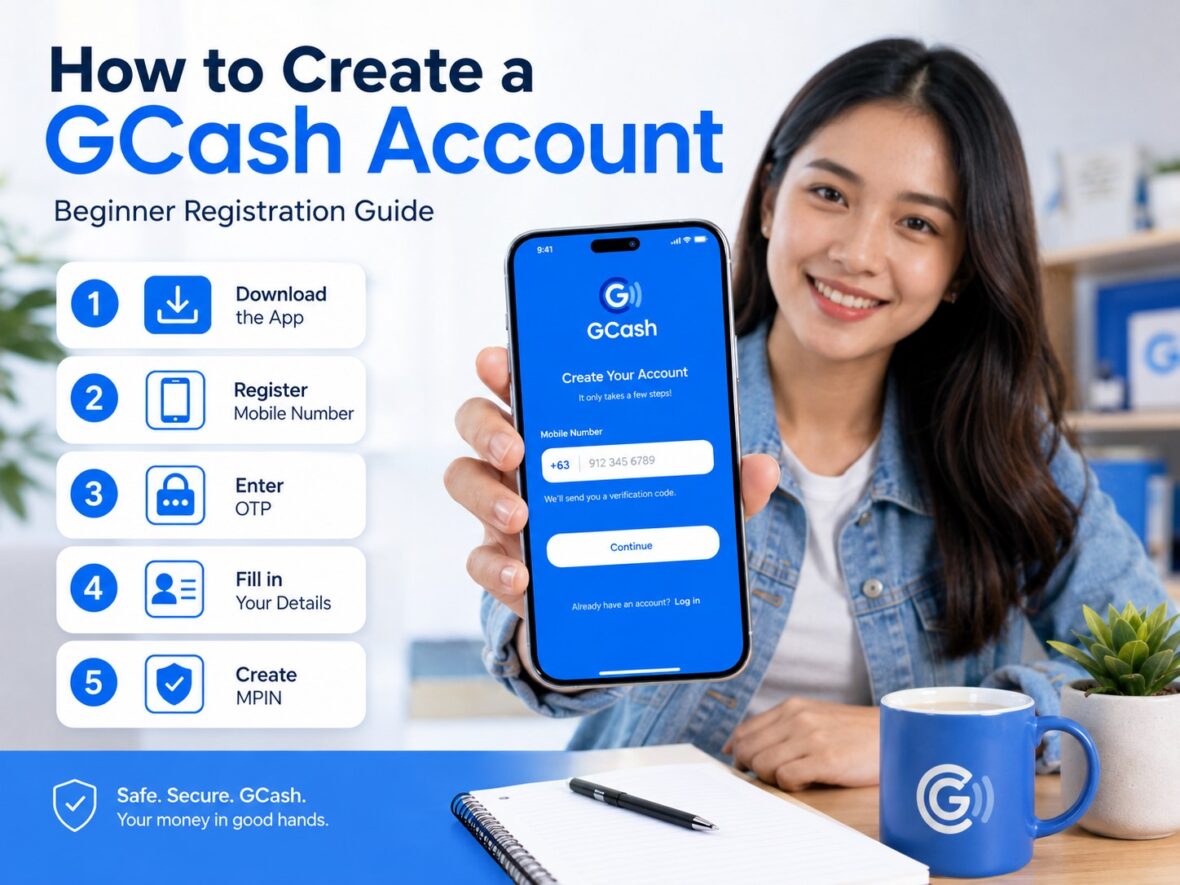
The official GCash registration process consists of downloading the app, entering your number, confirming the six-digit code, selecting New Account, entering your information, creating a four-digit MPIN, and returning to the login screen.
What Happens After You Create Your Account?
After registration, you normally begin with a Basic GCash profile.
A Basic account currently gives access to selected features such as:
- Cash In
- Pay Bills
- Buy Load
- Scan to Pay
However, important functions remain unavailable until you complete full verification. These include:
- Send Money
- Bank Transfer
- Online payments
- GCash Card
- Borrowing features
- GSave
- GInvest
- GInsure
- GLife
- Selected commuting services
A Basic user may receive money from a Fully Verified account, but the Basic user cannot use Express Send to send that money to someone else.
GCash’s current starter information lists a ₱10,000 wallet limit and ₱5,000 incoming and outgoing limits for a Basic profile. A standard Fully Verified account has higher limits, although actual limits may depend on the user and account type. You can check yours through Profile → Profile Limits.
Should You Verify Your Account Immediately?
Yes, particularly if you plan to use GCash regularly.
Creating an account and verifying it are two separate processes:
- Registration creates your Basic GCash account.
- Verification confirms your identity and upgrades your account.
To apply for full verification:
- Open GCash.
- Tap Profile.
- Select Verify Now.
- Enter the authentication code sent to your number.
- Scan an accepted ID.
- Complete the selfie scan.
- Review your information.
- Submit the application.
GCash says users generally receive an SMS update after three days.
For Filipino adults with a Philippine SIM, currently accepted IDs include the National ID, Philippine passport, Pag-IBIG Loyalty Plus Card, driver’s license, Postal ID, PRC ID, UMID, and SSS ID.
It is better to verify before you urgently need to send or withdraw money. Otherwise, you may discover that your Basic account cannot complete the transaction you need.
Choosing a Secure GCash MPIN
Your MPIN protects access to your wallet, so do not treat it casually.
Avoid using:
- 1234
- 0000
- 1111
- 4321
- Your birth year
- Your house number
- The last four digits of your mobile number
- The same PIN used for your phone or ATM card
Do not write your MPIN on the back of your phone or save it in an obvious note labeled “GCash PIN.”
GCash recommends changing your MPIN every three months. You can do this by going to:
Profile → Settings → Change MPIN
You will need to enter your current MPIN before creating a new one.
Enable Security Features After Registration
Once your account is working, take a few minutes to improve its security.
Enable Biometric Login
When supported by your phone, biometric login lets you use your fingerprint or facial recognition instead of manually entering your MPIN every time.
This can help protect your MPIN from people looking over your shoulder.
Check Account Secure
Account Secure allows your GCash account to be registered on only one mobile phone at a time.
You can view this feature by going to:
Profile → Settings → Account Secure
If you later transfer to a new phone, you may need to unregister the old device and register the new one using an OTP or selfie scan.
Turn On App Notifications
GCash is gradually using in-app push notifications for some OTPs and transaction alerts.
Keep notifications enabled so you can receive important security messages. Some partner-generated OTPs may still arrive through SMS.
Protect Your SIM
Your registered mobile number is one of the keys to your GCash account.
Consider using your phone’s SIM PIN feature when available. Report a lost phone or SIM immediately to both your telecommunications provider and GCash.
What Should You Do First With a New GCash Account?
After creating and securing your account, here are a few sensible first steps.
1. Complete Full Verification
This unlocks the features most users expect from GCash.
2. Review Your Profile Information
Check your name, email, mobile number, and account status.
3. Check Your Limits
Go to Profile → Profile Limits so you understand how much money your account can hold, receive, and send.
4. Add a Small Amount First
For your first cash-in, start with an amount you are comfortable testing.
You do not need to transfer a large sum immediately. Familiarize yourself with the app before keeping more money in the wallet.
5. Explore the Transaction History
Learn where receipts and reference numbers appear. These become important if you need to report a delayed or failed payment.
6. Learn Where the Help Center Is
You can access support through the official GCash app. Do not rely on random social media pages claiming to provide customer service.
Common GCash Registration Problems and Solutions
Registration is usually straightforward, but occasional problems can happen.
The Authentication Code Did Not Arrive
Check whether your phone has a strong mobile signal.
Then try the following:
- Turn Airplane Mode on for around five seconds and turn it off.
- Force-close and reopen GCash.
- Restart your phone.
- Update the GCash app.
- Check whether your SMS inbox is full.
- Delete unnecessary messages when needed.
- Make sure the correct SIM is active if your phone uses two SIM cards.
A Philippine SIM being used abroad must have roaming enabled to receive authentication messages and access the account.
Avoid repeatedly requesting new codes within a few seconds. Wait for the latest code and enter only the most recently issued one.
The App Is Already Asking for an MPIN
If you have never registered but the app immediately asks you to enter an MPIN, your number may already be linked to an existing GCash account.
The previous owner of the mobile number may have registered it before the number was recycled and issued to you.
Do not try to guess the MPIN. Contact GCash through its official support process and request a review of the number. GCash says its support team will contact users about this concern through email after the request is filed.
The App Says “Account on Hold”
An “Account on hold” message during initial registration can also indicate that an existing account is connected to the number.
Use the official Help Center rather than creating repeated registration attempts.
The App Freezes or Shows an Error
Try these basic troubleshooting steps:
- Update GCash to the latest version.
- Confirm that your internet connection is stable.
- Force-close the app.
- Turn Airplane Mode on and off.
- Switch between mobile data and Wi-Fi.
- Restart your device.
- Open the app and try again.
If the error continues, take a screenshot or screen recording and submit it through official GCash support. GCash advises users with unresolved registration errors to provide evidence so the problem can be investigated.
GCash Will Not Run on Your Phone
The app may refuse to work if the device is:
- Rooted
- Jailbroken
- Infected with malware
- Running insecure system modifications
- Using an unsupported operating system
Use an unmodified device and update its operating system when possible.
You Entered the Wrong Personal Information
Do not create multiple accounts simply because you made a typo.
Check the profile and account-support options to determine whether the information can be corrected. Repeatedly creating new accounts could make verification and account ownership more confusing.
How Many GCash Accounts Can You Create?
GCash currently allows one person to create up to five accounts using different mobile numbers under the same name.
Each account needs its own mobile number. You cannot create two separate GCash accounts using the same SIM.
Having several accounts does not necessarily mean that every account receives completely separate wallet and transaction limits. Limits may be shared or applied according to GCash’s account ownership rules.
For most users, one properly verified and secured account is easier to manage than several wallets.
Can You Create GCash Without a Globe SIM?
Yes.
You may register using a SIM from any Philippine mobile network, provided that the SIM is active and properly registered with its telecommunications provider.
This means eligible users can register using numbers from networks other than Globe or TM.
Can You Create GCash Without a Valid ID?
You can initially register and receive a Basic profile without scanning a government-issued ID during the standard account-creation steps.
However, an accepted ID is required to become Fully Verified. Without verification, you will have lower limits and will not be able to access functions such as Express Send, bank transfers, online payments, and the GCash Card.
For this reason, it is best to prepare a valid ID before you begin using the account for important transactions.
How to Create a GCash Jr. Account
A child aged 7 to 17 should not create a regular adult account using a false birthday.
The parent or legal guardian should instead use the GCash Jr. process.
The parent must have a Fully Verified GCash account. Requirements include:
- The child’s Philippine mobile number
- The child’s birth certificate
- An accepted ID for the child
- The parent’s consent
- Personal information matching the child’s documents
The parent begins inside the GCash app, selects the GCash Jr. option, adds the child, enters the child’s number, gives consent, provides the required details, sets a temporary MPIN, and uploads the supporting documents.
Accepted identification for GCash Jr. may include a National ID, ePhilID or Digital National ID, passport, student ID, or Alien Certificate of Registration for an eligible foreign minor.
How to Create a GCash Overseas Account
Eligible Filipinos abroad may register using an international number when GCash Overseas is available in their country.
The general process is:
- Download the official GCash app.
- Open it and select the country connected to your SIM.
- Enter your international mobile number.
- Complete the authentication process.
- Enter your personal details.
- Create an MPIN.
- Complete the separate verification requirements.
A valid Philippine government-issued ID is required to verify the account. GCash Overseas users may access services such as sending money to Philippine GCash accounts, transferring funds to Philippine banks, buying load for Philippine numbers, paying Philippine bills, and using supported international cash-in methods.
Important Security Reminders for New Users
Scammers often target beginners because they may not yet understand how GCash authentication works.
Remember these rules from your first day of using the app.
Never Share Your MPIN
No legitimate GCash representative needs your MPIN to investigate a transaction.
Never Share Your OTP
The OTP is for your use inside the official app. Anyone asking you to read it aloud is likely attempting to access or authorize something on your account.
GCash Does Not Send Login Links by SMS or Email
Do not click a link claiming that you need to verify, upgrade, reactivate, or prevent the suspension of your account.
Open the official app manually instead.
Do Not Let Someone Register the Account for You
Complete the process yourself. Do not hand your phone, SIM, OTP, or identification documents to an unofficial “agent.”
Ignore Unexpected Device-Registration Codes
If you receive an OTP or message saying someone is registering a phone to your account and you did not request it, do not share the code. Change your MPIN and report the attempt through official support.
Keep Your Registered Number Active
Load the SIM or use it regularly based on your network’s rules so it does not become inactive.
Losing permanent access to your registered number can make account recovery more complicated.

Frequently Asked Questions
Is it free to create a GCash account?
Yes. GCash states that creating an account is free.
You may still encounter fees later when using certain cash-in, cash-out, transfer, bill-payment, card, or financial services.
Do I need a bank account to register for GCash?
No. You do not need an existing bank account to create a regular GCash wallet.
A bank account may be linked later for supported cash-in and transfer services.
Do I need to be a Globe subscriber?
No. You can use a registered SIM from any Philippine mobile network.
Can I create GCash using Wi-Fi?
Yes, but the registered SIM must still be installed or accessible because you need to receive the authentication code sent to your mobile number.
Can I use the same number for two accounts?
No. A mobile number can be linked to only one GCash account at a time.
Why is my new number already registered?
Mobile networks sometimes recycle numbers that previously belonged to other subscribers. The old owner may have connected the number to GCash.
Contact official GCash support instead of attempting to access the previous owner’s account.
Can I use someone else’s SIM?
You should use a SIM that belongs to you and is registered correctly with your telecommunications provider.
Using another person’s number can create problems with OTPs, account recovery, ownership verification, and access if that person takes back the SIM.
Can a minor create a regular GCash account?
Users aged 7 to 17 should use GCash Jr. under the applicable parent-managed process. A standard Philippine GCash account is intended for users aged 18 and above.
Can I start using GCash immediately?
After successful registration, you can use the features available to a Basic account.
You must complete full verification to unlock money transfers, bank transfers, online payments, the GCash Card, and other services.
What happens if I forget my MPIN?
From the login page, tap Forgot MPIN?, request a code, complete the security check, and create a new MPIN.
When an OTP does not arrive, GCash advises waiting before trying again and checking your signal, SMS inbox, and app version.
Can I log in on another phone?
GCash’s Account Secure feature allows an account to be registered on only one phone at a time.
When switching phones, you may be asked to register the new device through an OTP or selfie scan.
Final Thoughts
Creating a GCash account is simple when you have an active, registered SIM and the correct personal information.
The basic process is straightforward: download the official app, enter your mobile number, confirm the six-digit authentication code, select New Account, provide your details, and create a secure four-digit MPIN.
The most important thing to remember is that registration gives you only a Basic profile. To use important services such as Send Money, Bank Transfer, online payments, and the GCash Card, you should complete full verification using an accepted ID.
Take your time during registration. Double-check your mobile number and personal information, use a strong MPIN, and never share your authentication codes with anyone.
GCash can make everyday payments much more convenient—but that convenience should always begin with a properly registered and securely protected account.