Remember the days when almost every transaction with the Land Transportation Office meant waking up early, traveling to an LTO branch, filling out paperwork, and spending several hours waiting for your turn?
For many Filipino drivers and vehicle owners, dealing with the LTO used to be one of those government errands that required an entire day.
Fortunately, things have changed.
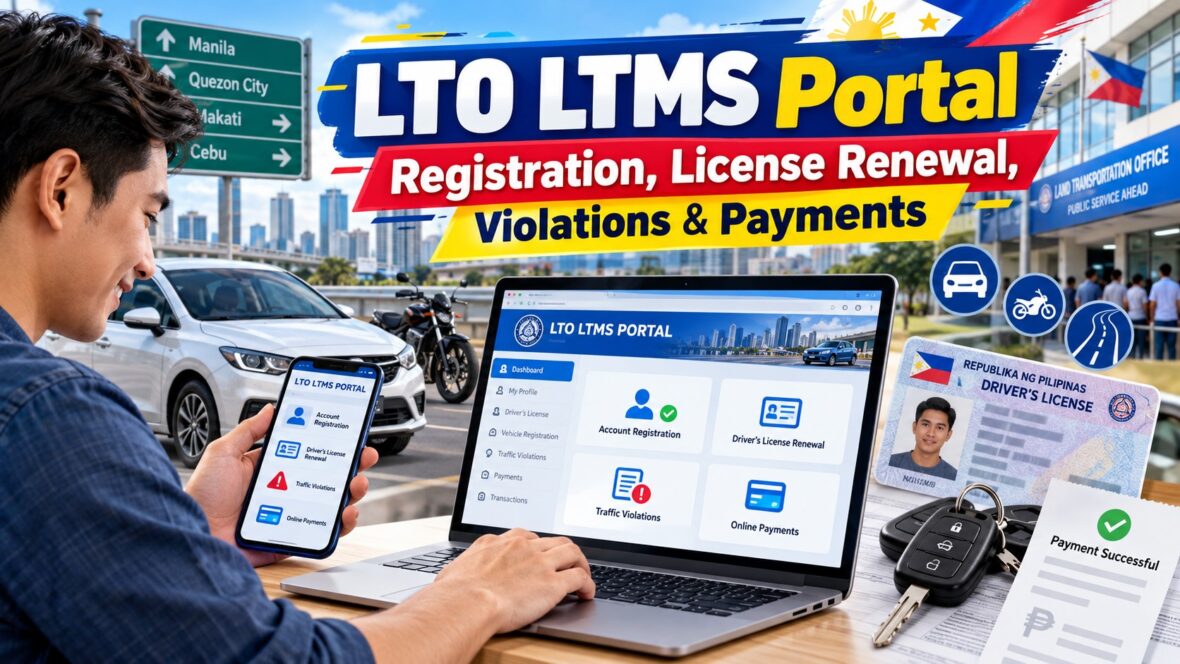
The Land Transportation Office now offers an online platform called the LTMS Portal, where motorists can access several important services without having to start every transaction at an LTO office.
Whether you’re applying for your first driver’s license, renewing an existing one, checking traffic violations, paying certain LTO fees, or managing vehicle registration records, the LTMS Portal can make the process more convenient.
And if you’ve never used the system before, don’t worry.
At first glance, the website might look a little confusing, especially if you’re unfamiliar with terms like LTO Client ID, demerit points, Comprehensive Driver’s Education, and online transaction references.
But once you understand how the portal works, many of its features are actually straightforward.
In this comprehensive guide, I’ll walk you through everything you need to know about the LTO LTMS Portal, including how to create an account, log in, renew your driver’s license, check traffic violations, make online payments, and resolve common account problems.
Let’s get started!
Content
What Is the LTO LTMS Portal?
The LTMS Portal, or Land Transportation Management System Portal, is the official online service platform of the Land Transportation Office in the Philippines.
It was developed to digitalize important LTO services and make transactions more accessible to motorists.
Instead of relying entirely on manual paperwork and in-person processing, the LTMS Portal allows registered users to access their LTO records and initiate eligible transactions online.
The platform is useful for both new applicants and existing driver’s license holders.
It also supports certain vehicle registration services and the management of traffic violation records.
In simple terms, think of the LTMS Portal as your online account for dealing with the LTO.
Once registered, you can use it to manage several driving-related government transactions from your phone, tablet, laptop, or desktop computer.
However, not every transaction can be completed entirely online. Some still require medical examinations, vehicle inspections, document verification, or an actual visit to an LTO office.
What Is the Official LTO LTMS Portal Website?
The official LTMS Portal website is:
portal.lto.gov.ph
This is the government website where you can register, log in, and access available LTO services.
Make sure you’re using the correct website before entering your personal information.
There are several independent websites online offering LTMS registration tutorials, driving exam reviewers, and other LTO-related information.
Some of them may be useful, but they are not necessarily operated by the Philippine government.
For official transactions, always use the LTMS website under the lto.gov.ph domain.
You should never share your portal password, verification codes, or other confidential information with people offering to process your account for a fee.
What Can You Do Through the LTMS Portal?
The LTMS Portal offers a variety of services for Filipino drivers and vehicle owners.
Here’s an overview of its major features.
| LTMS Service | What You Can Do |
|---|---|
| Account registration | Create and manage your LTMS account |
| Driver’s license application | Begin eligible license application transactions |
| License renewal | Complete online requirements and arrange renewal processing |
| CDE examination | Take the online validation exam for license renewal |
| Vehicle registration | Access eligible vehicle registration renewal services |
| Traffic violations | Check recorded violations and demerit points |
| Online payments | Pay eligible LTO transactions through available payment channels |
| Transaction records | Monitor applications and previous transactions |
| Digital driver’s license | Access your electronic driver’s license when available |
| LTO e-learning | Review traffic rules, driving lessons, and road safety information |
The services visible in your account may depend on your client profile, available records, and the transactions currently supported by the system.
How to Register for an LTO LTMS Portal Account
Before you can use the LTMS Portal’s account-based services, you’ll need to register.
The good news is that creating an account is free.
You don’t need to visit an LTO office simply to begin registration, provided the system can verify the required information.
Here’s the step-by-step process.
Step 1: Visit the Official LTMS Portal
Open your preferred web browser and go to portal.lto.gov.ph.
On the homepage, look for the Register Now button.
Click it to begin creating your account.
Step 2: Accept the Terms of Agreement
The system will display the LTMS Terms of Agreement.
Read the conditions and select the checkbox indicating that you accept them.
You may also need to enter a security code or CAPTCHA before proceeding.
Step 3: Choose Your Registration Type
You’ll be asked whether you’re enrolling as an individual or an organization.
If you’re registering for your personal driver’s license or vehicle transactions, choose Enroll as an Individual.
Organization accounts are intended for eligible companies and institutions.
Step 4: Indicate Whether You Already Have a Driver’s License
The portal will ask whether you already possess a Philippine driver’s or conductor’s license.
If you have an existing license, select Yes.
You may need to provide information such as:
- Driver’s license number
- License expiration date
- License serial number or other requested verification details
If you don’t have a driver’s license yet, choose No and continue with the first-time registration process.
One important reminder: if you already have an LTO-issued license but the portal cannot find your record, don’t create an inaccurate account just to bypass the problem.
It’s better to contact the LTO and ask how to link your existing record correctly.
Step 5: Provide Your Personal Information
Next, enter the requested personal information.
This may include your complete name, date of birth, gender, mother’s maiden name, nationality, and other identifying details.
Make sure the information is accurate.
Your full name and personal details should match your official identification documents.
Step 6: Enter Your Email Address and Mobile Number
Provide a valid email address and an active mobile number.
Your email address is particularly important because the system uses it for account verification, transaction notifications, and password recovery.
I recommend using a personal email address you can access regularly rather than a temporary or disposable address.
Step 7: Verify Your Email Address
After submitting the registration details, the LTMS Portal will send an email containing account verification instructions.
Open the email and follow the verification link.
If you don’t see the message, check your Spam, Junk, or Promotions folders.
Complete verification within the validity period indicated in the email.
Step 8: Create Your Password and Complete Your Profile
Follow the instructions to establish your login credentials.
You may also need to complete other profile sections, including your address, emergency contact information, and additional personal details.
Choose a strong password that you don’t use for other accounts.
Step 9: Save Your LTO Client Number
Once your account is successfully created, the system will assign you an LTO Client Number.
This number serves as an important identifier for your LTMS account.
Save it somewhere secure.
You may need it when logging in, accessing your records, or coordinating with LTO personnel.
And that’s it! You can now begin exploring the services available in your LTMS account.
What Is an LTO Client ID or Client Number?
The LTO Client Number is the unique account identifier assigned to a registered LTMS user.
It is commonly a 15-digit number.
You’ll encounter this number when registering for an account and when accessing certain LTO services.
It’s important not to confuse your LTO Client Number with your driver’s license number.
Your driver’s license number identifies your driving credential, while your LTMS Client Number identifies your account in the Land Transportation Management System.
For convenience, the portal also allows account login using your registered email address.
How to Log In to Your LTMS Portal Account
Already registered? Here’s how to access your account.
- Open portal.lto.gov.ph.
- Click Log In.
- Enter your registered email address or LTO Client Number.
- Type your password.
- Enter the security code if prompted.
- Click Sign In.
- Wait for your account dashboard to appear.
From your dashboard, you can explore the available options for licensing, transactions, violations, documents, and your personal profile.
If you’re using a public or shared computer, remember to log out after completing your transaction.
How to Renew Your Driver’s License Through the LTMS Portal
One of the most useful LTMS Portal features is driver’s license renewal.
If your driver’s license is approaching its expiration date, the portal allows you to prepare the required online components, submit application information, and arrange processing through an LTO office.
For the ordinary LTMS renewal workflow, an in-person visit is generally still necessary to complete verification and license issuance.
However, the LTO also introduced a separate Online Driver’s License Renewal System through the eGovPH app in July 2025, allowing qualified applicants to complete eligible renewals digitally.
Let’s focus first on the LTMS Portal procedure.
Step 1: Check Your License Expiration Date
Before beginning your application, check when your driver’s license expires.
It’s best to prepare your renewal early rather than waiting until the last minute.
Renewing after expiration may involve additional penalties or requirements.
Step 2: Complete the Comprehensive Driver’s Education Requirement
The Comprehensive Driver’s Education program, commonly called CDE, is an important part of driver’s license renewal.
The purpose is to refresh motorists’ knowledge of traffic laws, road signs, driving responsibilities, and road safety practices.
You can review the learning materials through the LTMS Portal’s e-learning section.
The portal also provides access to the CDE Online Validation Exam.
Step 3: Take and Pass the CDE Online Exam
Log in to your LTMS account and look for the CDE Online Validation Exam.
The official LTMS examination page currently describes a 25-question test.
As displayed on the portal in October 2026, the passing requirement is 80%, equivalent to at least 20 correct answers out of 25 questions.
There is no time limit stated on the official online examination page.
Be aware that some older LTO announcements and third-party reviewers mention a lower passing score. Follow the instructions currently displayed in your actual LTMS examination session.
Once you pass, obtain your CDE certificate.
Save a digital copy or print it for your renewal application.
Step 4: Get a Medical Certificate
You’ll also need a valid medical certificate issued by an LTO-accredited medical clinic.
The examination generally involves checking whether you meet the medical fitness requirements for driving.
Depending on your circumstances, this may include assessment of your vision and other relevant conditions.
The accredited clinic electronically transmits the medical certificate information to the LTO system.
Make sure the clinic is officially accredited.
A certificate issued by an ordinary, non-accredited clinic may not be accepted for your renewal transaction.
Step 5: Log In and Select Licensing
Return to your LTMS Portal account.
From the dashboard, select Licensing.
Read and accept the applicable terms and conditions.
The system will display the online application form.
Step 6: Select Driver’s License Renewal
Choose Driver’s License as the license classification.
Then select Renewal as the application type.
Verify your personal information and existing driver’s license details.
Step 7: Enter Your Medical Certificate Information
Find the medical certificate section and enter the certificate number requested by the system.
The portal will attempt to verify the information against the electronically transmitted records.
You may also be asked to upload or provide your CDE certificate.
If the medical record cannot be verified, coordinate with the accredited clinic before proceeding.
Step 8: Choose Your LTO Office and Appointment Schedule
Depending on the transaction and available scheduling options, select your preferred LTO office, date, and appointment time.
Choose a branch that is convenient for you.
If you’re living in Cavite, Laguna, Bulacan, or other provinces near Metro Manila, you may find it more practical to visit an authorized LTO branch closer to home rather than traveling to Quezon City.
Confirm that the selected office processes the particular transaction you need.
Step 9: Pay the Applicable Renewal Fees
After completing the required information, review the assessment shown in the portal.
Select an available payment option and follow the instructions.
Save your transaction confirmation and official receipt.
Step 10: Visit the LTO Office, If Required
For ordinary renewals processed through the LTMS appointment workflow, proceed to your selected LTO office.
Bring the required documents, including your existing driver’s license, medical certificate details, CDE certificate, and transaction confirmation.
The LTO will complete the necessary verification and issuance procedures.
Congratulations! Once processing is completed and your renewed license is issued, make sure all the details are correct.
Can You Renew Your Driver’s License Completely Online?
Yes, certain applicants can.
In July 2025, the LTO launched its Online Driver’s License Renewal System, or ODLRS, through the eGovPH mobile application.
This is a separate digital renewal channel from the traditional LTMS appointment workflow.
The ODLRS was introduced to allow qualified motorists to renew their driver’s licenses online without necessarily visiting an LTO office.
However, eligibility and requirements depend on the transaction and applicable rules.
You’ll still need to satisfy any required identity verification, medical, examination, and eligibility conditions.
If you want to avoid an LTO visit, check whether the eGovPH application currently offers online renewal for your particular license and circumstances.
Don’t assume that every renewal can be completed remotely simply because the online system exists.
How Much Is the LTO Driver’s License Renewal Fee?
The LTO’s published basic driver’s license renewal fee is ₱585.
Some published LTO fee schedules also include a computer fee of ₱67.63, producing a regular renewal total of ₱652.63 under that schedule.
For reference, here are the commonly published renewal charges.
| Fee | Amount |
|---|---|
| Basic license renewal | ₱585 |
| Computer fee under older published schedules | ₱67.63 |
| Illustrative regular renewal total | ₱652.63 |
| Penalty: 1 day to 1 year expired | ₱75 |
| Penalty: More than 1 to 2 years expired | ₱150 |
| Penalty: More than 2 years expired | ₱225 |
Other charges may apply, including medical examination costs, re-examination fees when required, and payment processing charges.
The LTO’s more recent citizen’s charter lists the standard renewal fee as ₱585, so the final assessment displayed by LTMS or the issuing LTO office should take precedence over older quoted totals.
How Long Is a Renewed Driver’s License Valid?
In the Philippines, eligible driver’s license holders may receive a license valid for up to 10 years.
Under Republic Act No. 10930, the longer validity period is intended for qualified drivers who have maintained a clean traffic violation record during the relevant preceding period.
Drivers who do not qualify for the 10-year validity may receive the standard five-year validity, subject to applicable regulations.
Having traffic violations or demerit points can affect your eligibility.
This is another reason why checking your LTO driving record is important before renewal.
How to Check LTO Traffic Violations Online
Another useful feature of the LTMS Portal is the ability to check recorded traffic violations.
Instead of waiting until license renewal to discover that a violation has been recorded against you, you can inspect the relevant section of your account.
Here’s how.
Step 1: Log In to the LTMS Portal
Open the official website and sign in using your registered credentials.
Step 2: Open the Violations Section
From the dashboard, look for the Violations option.
Click it to access your driving violation records.
Step 3: Check Your Demerit Points
The portal provides a section showing demerit points associated with recorded violations.
Demerit points are used by the LTO to evaluate driving violations and determine their effect on licensing privileges.
Step 4: Review Unsettled Violations
Open the Unsettled Violations tab.
This section may display outstanding violations or penalties that require attention.
Review the details carefully.
Step 5: Check Your Violation History
You can also review the history of violations recorded in the system.
Depending on the available records, this may show previous infractions and their corresponding status.
If a violation appears that you believe is incorrect, contact the issuing or adjudicating authority for clarification.
What Are LTO Demerit Points?
The LTO uses a point system to classify certain traffic violations according to severity.
Under the established classification system, violations may be categorized as light, less grave, or grave.
| Violation Classification | Standard Demerit Points |
|---|---|
| Light violation | 1 point |
| Less grave violation | 3 points |
| Grave violation | 5 points |
Certain offenses may receive a higher number of points under specific rules.
Demerit points are separate from the monetary fines imposed for violations.
Accumulating points can have consequences for license validity, mandatory driver education, suspension, or revocation.
For example, reaching prescribed demerit thresholds may trigger additional intervention requirements or more serious licensing penalties.
If you want to know how an offense affects your record, check its actual classification and the current applicable LTO rules rather than assuming every violation carries the same penalty.
How to Pay LTO Violations Online Through LTMS
If you have an unsettled violation, you may be able to pay it online when the particular violation has been assessed and the system provides an eligible payment channel.
However, not every traffic ticket can be paid directly through LTMS.
The availability of online settlement depends on which authority issued the ticket, the status of the violation, and whether its records are integrated with the LTO system.
Here’s the general procedure.
Step 1: Log In to Your LTMS Account
Go to the official portal and sign in.
Step 2: Open the Violations Section
Find the section showing your traffic violation records.
Step 3: Select the Unsettled Violation
Review the violation details, including the issuing authority, offense, and corresponding assessment where available.
Step 4: Check the Settlement Instructions
If an online payment option is available, follow the instructions displayed.
Some violations may require processing with the issuing office or adjudication unit before payment is permitted.
Step 5: Choose an Available Payment Channel
Select one of the payment methods offered for that specific transaction.
Review the total amount and any convenience or service fees.
Step 6: Complete Payment and Save Your Receipt
After payment, keep a copy of the transaction confirmation or official receipt.
Check whether the violation status has been updated.
If the violation continues to appear as unsettled after the expected posting period, contact the appropriate office and provide your payment details.
What If There’s No Online Payment Option?
If the system doesn’t offer an online settlement option, don’t attempt to pay through an unrelated website or personal e-wallet account.
Follow the payment instructions issued by the appropriate agency.
Some traffic violations require adjudication, verification, or another procedure before they can be settled.
Can You Check NCAP Violations Through LTMS?
The Non-Contact Apprehension Policy, commonly called NCAP, uses technology such as cameras to detect certain traffic violations without an officer stopping the vehicle.
However, NCAP verification and settlement are not necessarily handled through the same online system in every jurisdiction.
Some NCAP notices are administered through the relevant agency’s own official verification and payment procedures.
The LTMS Portal should not be treated as a universal database where every camera-detected violation from every local government unit automatically appears.
If you receive an NCAP notice, verify its authenticity through the issuing authority and follow the appropriate procedure.
Also, if you believe that a notice was issued incorrectly, check the available contest or appeal process before paying.
How to Pay LTO Fees Through the LTMS Portal
Besides eligible traffic penalties, the LTMS Portal supports online payments for certain licensing and vehicle registration transactions.
The exact payment options may depend on the transaction and the payment services integrated into the portal at the time.
Here’s how the process generally works.
- Log in to your LTMS account.
- Open or begin the transaction you need.
- Complete the required application information.
- Review the assessment and fees.
- Proceed to the payment section.
- Select an available payment provider or method.
- Follow the payment instructions.
- Save your reference number and receipt.
- Return to your account and verify the transaction status.
Make sure the transaction is official and that the payment details match the assessment in your account.
Never send money directly to an individual claiming to be an LTO employee or fixer.
Can You Pay LTO Fees Through GCash or Maya?
GCash and Maya are among the digital payment services that motorists may encounter in LTO-related payment arrangements.
Other supported payment methods may include online banking, participating banks, and payment gateway services.
However, the available methods can change depending on the specific LTO transaction.
For this reason, the safest procedure is to begin the payment process through your actual LTMS application and choose only from the methods displayed there.
For example, if GCash appears as an available payment method, follow the official instructions provided by the system.
If it doesn’t appear, don’t assume that sending money to a manually entered recipient will count as payment.
Always verify the amount, transaction reference, and receiving service before confirming payment.
How to Renew Your Vehicle Registration Through LTMS
Did you know that the LTMS Portal also supports online motor vehicle registration renewal?
This can be useful for owners of eligible private cars, motorcycles, and other vehicles.
However, vehicle registration renewal has additional requirements because the LTO must verify that your vehicle satisfies the applicable insurance and roadworthiness regulations.
You generally cannot renew registration simply by logging in and paying a fee.
Step 1: Check Whether Your Vehicle Is Linked to LTMS
First, log in to your account and check the vehicle registration section.
Your vehicle must be properly linked to the LTMS database and eligible for the online renewal process.
If your previous records have not yet been linked, you may need to complete an initial linking or verification transaction with the LTO.
The original online renewal program required the vehicle’s previous renewal transaction to have been processed through LTMS.
Step 2: Obtain the Required Insurance
Motor vehicle registration generally requires valid Compulsory Third Party Liability insurance, commonly called CTPL.
Purchase coverage from an authorized insurance provider and make sure the Certificate of Cover is properly recorded or transmitted for verification.
Step 3: Complete the Required Vehicle Inspection
Depending on the applicable requirements, your vehicle may need an inspection or roadworthiness evaluation through an authorized testing facility.
Some transactions involve a Private Motor Vehicle Inspection Center, or PMVIC.
Other applicable inspection or emission testing arrangements should be verified with the LTO.
Remember that online renewal does not eliminate the need for required physical testing or inspection.
Step 4: Open the Vehicle Registration Section
Once the required records are available, return to your LTMS account.
Open the vehicle registration module and select the eligible renewal transaction.
Review your vehicle information carefully.
Step 5: Verify the Requirements
The system may retrieve electronically transmitted insurance and inspection records.
If there are missing or mismatched records, you’ll need to resolve them before proceeding.
Step 6: Review the Registration Fees
Check the amount due, including the Motor Vehicle User’s Charge and other applicable fees.
The amount depends on the vehicle’s classification and other relevant details.
Step 7: Pay and Complete the Transaction
If your vehicle qualifies for online renewal, proceed using the available payment options.
Save the official receipt and renewal confirmation.
Verify that your vehicle registration information has been updated correctly.
If the portal indicates that additional in-person processing is required, follow those instructions.
How Much Is Vehicle Registration Through LTMS?
The exact cost depends on the type and classification of your vehicle.
For example, a motorcycle may have a different Motor Vehicle User’s Charge from a private passenger car.
Vehicle owners also need to consider other costs, such as CTPL insurance, inspection or testing, applicable penalties, and payment processing fees.
Rather than relying on one fixed amount, check the registration assessment generated for your particular vehicle.
This is especially important if you’re renewing late or if your vehicle has special registration requirements.
How to Check Your LTO Transaction Status
The LTMS Portal can also help you review transactions you’ve initiated.
This is useful when you want to confirm whether your application has been submitted, assessed, paid, or completed.
Here’s the general process.
- Log in to your LTMS account.
- Open the Transactions section.
- Review the available transaction records.
- Select the relevant transaction.
- Check its current status and payment details.
The portal may display active transactions and previous records, depending on your account and the available system information.
If you’re following up on an application, keep your transaction or reference number ready.
This can help LTO personnel locate your record more easily.
How to Access Your Digital Driver’s License
The LTMS Portal also supports access to an electronic driver’s license, commonly called an eDL.
This is the digital version of your LTO-issued driver’s license.
It may display information such as your name, license number, license validity, and other driving credentials.
To access it, log in to your LTMS account and locate the available digital license feature.
The LTO has also recognized digital driver’s licenses accessed through the eGovPH application.
Is a Digital Driver’s License Valid in the Philippines?
Yes. The LTO recognizes an official electronic driver’s license as a valid form of driving authorization when accessed and presented through an approved system and properly verified.
However, there’s one important rule.
You generally cannot simply present a screenshot, saved photograph, or printed image of your digital license as a substitute for the authenticated electronic credential.
The official digital version must be displayed through the approved live system for verification.
And while digital licenses are convenient, carrying your physical driver’s license remains a practical precaution, particularly when traveling through areas with poor mobile internet connectivity.
How to Recover Your LTMS Password
Forgot your password?
This is a common issue, especially if you registered a long time ago and haven’t used the portal recently.
Fortunately, the login page includes a password recovery option.
Step 1: Open the LTMS Login Page
Visit portal.lto.gov.ph and click Log In.
Step 2: Select Forgot Password
Look for the Forgot Password option.
Step 3: Enter the Requested Information
Provide the information requested by the recovery system.
This may involve your registered email address or other identifying information.
Step 4: Follow the Recovery Instructions
Check your email for the recovery instructions.
Complete any required verification steps.
Step 5: Create a New Password
Choose a new, secure password and save it.
After resetting, try signing in again.
If you no longer have access to your registered email address, contact the LTO for the appropriate account recovery procedure.
Common LTMS Portal Problems and How to Fix Them
Although the platform makes many transactions more convenient, technical issues can still happen.
Here are some of the most common problems encountered by users.
1. I Can’t Log In to My LTMS Account
First, check whether you’re entering the correct email address or LTO Client Number.
Make sure your password is correct and that there are no accidental spaces.
If the website asks for a security code, enter it carefully.
You can also try refreshing the page or using another browser.
If you’ve forgotten your password, use the official recovery option.
2. I Didn’t Receive the Verification Email
Check your Spam, Junk, and Promotions folders.
Confirm that the email address you entered during registration was correct.
If the verification message has expired, follow the portal’s instructions for requesting a new one or restarting registration.
3. My Driver’s License Record Cannot Be Found
This can happen if the information you entered doesn’t match the LTO database or if your records have not been linked properly.
Double-check your license number, expiration date, and other details.
If the information is correct but the system still cannot find your record, contact the LTO.
Avoid creating multiple accounts with inconsistent information.
4. My Medical Certificate Isn’t Showing
If the system cannot verify your medical certificate, ask the accredited clinic whether the information was correctly transmitted.
Check that your personal information matches your LTMS profile.
You may need to allow time for the record to be processed or corrected.
5. My Payment Hasn’t Reflected
If you’ve already paid but the transaction is still marked as pending, don’t immediately make another payment.
First, check whether the payment provider confirmed the transaction.
Save your receipt, transaction reference, and payment confirmation.
Then check your LTMS account again.
If the amount was deducted but no official payment confirmation appears, coordinate with the payment provider and LTO support.
6. My LTMS Account Shows Incorrect Personal Information
If your account contains an incorrect name, birthday, or other important detail, follow the LTO’s official correction procedure.
Some information may require documentary verification at an LTO office.
Don’t submit inaccurate replacement details just to make the system accept the application.
7. The LTMS Website Is Not Loading
Sometimes, the issue may not be with your account.
Government websites can experience heavy traffic, scheduled maintenance, or unexpected technical interruptions.
For example, the LTO reported an LTMS system interruption on June 3, 2026, affecting licensing and vehicle registration transactions.
If the website isn’t loading, try checking official LTO advisories before repeatedly submitting the same transaction.
You may also try accessing the portal through another browser or internet connection.
Is LTMS Portal Registration Free?
Yes. Creating an LTMS account is free.
You should not have to pay anyone simply to register for an individual account.
However, actual LTO transactions may involve government fees.
Examples include driver’s license application and renewal fees, vehicle registration charges, penalties, and other applicable payments.
You may also encounter costs outside the portal, such as medical examinations and vehicle inspections.
If someone offers to create a basic LTMS account for you in exchange for a substantial processing fee, remember that you can register directly through the official website.
Can You Use LTMS on Your Mobile Phone?
Yes.
The LTMS Portal is accessible through a compatible web browser on smartphones, tablets, laptops, and desktop computers.
You don’t necessarily need a computer to create an account or check your records.
However, some application forms and transaction pages may be easier to navigate using a laptop or desktop screen.
For transactions involving electronic driver’s licenses or online renewal through the eGovPH app, make sure you’re using the appropriate official platform.
Avoid downloading unofficial applications that request your LTMS credentials.
Tips for Using the LTMS Portal Safely
Before making your next LTO transaction, here are a few practical reminders.
Use Only the Official Portal
Always verify that you’re accessing the official government domain.
Be careful with sponsored search results or websites using similar names.
Keep Your Login Credentials Private
Never share your password with fixers, strangers, or social media accounts offering unsolicited assistance.
If you need help with an application, use official LTO support channels.
Save Your Transaction References
Whenever you submit an application or complete a payment, keep the reference number and official receipt.
These records are useful if you need to follow up.
Double-Check Your Information
Even a small spelling mistake or incorrect number can delay processing.
Review everything before submitting.
Prepare Your Documents Before Starting
If you’re applying for a renewal, have your existing license, medical certificate information, and required examination certificate ready.
Avoid Paying Twice
If the system freezes or doesn’t immediately display a successful payment, check your payment account and transaction status first.
Check Your Account Regularly
Even if your driver’s license isn’t due for renewal, it’s useful to monitor your records occasionally.
This can help you identify possible issues before your next transaction.
Frequently Asked Questions About the LTO LTMS Portal
What is the official LTMS Portal website?
The official website is portal.lto.gov.ph, operated by the Land Transportation Office.
How do I register for LTMS?
Visit the official portal, select Register Now, accept the terms, choose individual enrollment, provide the required personal information, verify your email, and complete your account setup.
Is LTMS registration free?
Yes. Creating an LTMS Portal account is free.
Can I register for LTMS without a driver’s license?
Yes. First-time applicants without an existing driver’s license can create an individual account by following the registration procedure for users who do not yet hold a license.
What is my LTO Client Number?
It is the unique number assigned to your LTMS account. It is different from your driver’s license number.
Can I log in using my email address?
Yes. The LTMS login page accepts your registered email address or LTO Client Number, together with your password.
What should I do if I forgot my LTMS password?
Use the Forgot Password option on the official login page and follow the recovery instructions.
Can I renew my driver’s license online?
You can complete several renewal steps through LTMS, including the CDE exam and application preparation. The ordinary LTMS process generally involves completing the transaction at an LTO office.
Separately, qualified applicants may use the LTO’s ODLRS renewal service through the eGovPH app.
Is the CDE exam available online?
Yes. The LTMS Portal offers the CDE Online Validation Exam for driver’s license renewal applicants.
What is the passing score for the CDE exam?
As displayed on the official LTMS examination page in October 2026, the requirement is at least 20 correct answers out of 25 questions, or 80%.
Check the instructions shown when you actually take the examination because the rules may be updated.
How much is the regular driver’s license renewal fee?
The published basic renewal fee is ₱585. Additional charges may apply depending on the transaction, payment arrangements, and applicable requirements.
Can I check my LTO violations online?
Yes. Log in to your account and access the Violations section to review available violation records, unsettled cases, and demerit points.
Can I pay traffic violations through LTMS?
Certain violations may be payable online once they are properly recorded and assessed.
However, not all violations from every issuing authority can be settled through the portal.
Can I pay LTO fees using GCash?
GCash may be available for supported LTO payment transactions. The options depend on the payment provider and the particular service.
Choose only the payment methods displayed through the official transaction.
Can I renew my car registration online?
Yes, eligible motor vehicle owners can use LTMS for online registration renewal, provided their records and required insurance and inspection results satisfy the system’s requirements.
Why is my vehicle not appearing in LTMS?
Your vehicle may not yet be properly linked to your account or the centralized database.
Contact the LTO to verify ownership records and the necessary linking procedure.
Is the LTMS digital driver’s license valid?
Yes. The official electronic driver’s license is recognized when accessed and presented through an approved platform and authenticated according to LTO requirements.
A simple screenshot or saved photo is not an acceptable substitute.
Can I have more than one LTMS account?
Your LTMS records should be associated with your correct personal identity.
If you believe you’ve created duplicate accounts, contact the LTO for assistance rather than continuing to register additional accounts.
What if I paid but my transaction is still pending?
Keep your payment confirmation and reference number, then verify whether the transaction has been posted.
If the issue persists, contact the payment provider or the appropriate LTO support office before attempting another payment.
Is the LTMS Portal available 24 hours a day?
The online portal is generally accessible outside government office hours, but availability can be affected by maintenance, technical problems, or temporary service interruptions.
Some transactions also depend on office processing schedules.

Final Thoughts
The LTO LTMS Portal is one of the more useful improvements in how Filipino motorists can access government services.
Instead of always starting from scratch at an LTO office, you can now create an account, review your driving records, take the CDE examination, begin eligible license renewal applications, check violations, and pay supported transactions online.
Of course, the system isn’t perfect.
There are still situations where you’ll need to visit an LTO branch, especially when verification, medical requirements, vehicle inspections, or other procedures cannot be completed remotely.
You might also encounter occasional website errors, unavailable records, or payment delays.
But despite these limitations, having an online platform for these services is certainly more convenient than relying entirely on manual transactions.
My recommendation is to create your LTMS account even if you don’t have an upcoming LTO transaction.
That way, you’ll already have access to your records and know how to navigate the system when it’s time to renew your license or vehicle registration.
Just remember to use the official website, protect your login credentials, and keep copies of your transaction confirmations.
With a little preparation, your next LTO transaction could become much easier.
Safe driving!
Last updated: October 19, 2026. This guide is based on available LTO procedures and government announcements. Portal features, eligibility requirements, fee assessments, and online payment methods may change. Always follow the instructions displayed in the official LTMS Portal and applicable LTO advisories.